



How to Make Your WordPress Site WCAG Accessible: Plugins, Code Fixes, and Testing
How to Make Your WordPress Site WCAG Accessible: Plugins, Code Fixes, and Testing
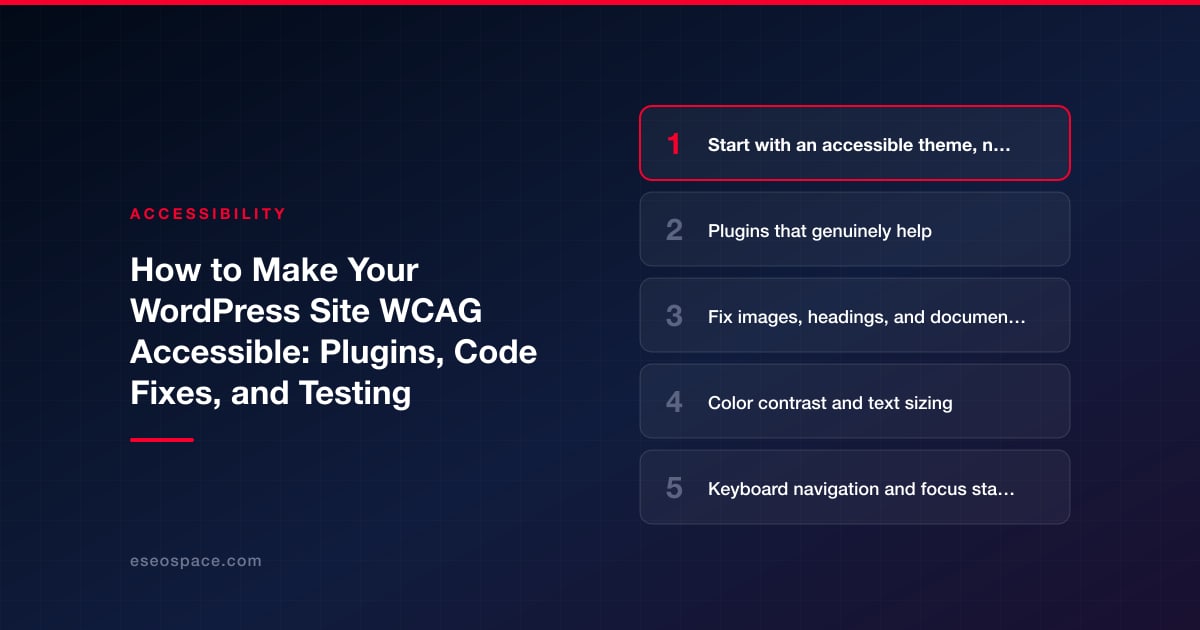
Key Takeaways
- Accessibility starts in the theme — choose a WordPress 'accessibility-ready' theme and never rely on a one-line overlay widget, which fixes nothing and invites lawsuits.
- Target WCAG 2.1 Level AA, the version named in the DOJ's ADA Title II rule and a superset of the WCAG 2.0 AA that Section 508 references.
- The highest-volume fixes are content-level: descriptive alt text, one logical heading hierarchy, meaningful link text, and a color palette that meets 4.5:1 contrast.
- Every interactive element must be keyboard-operable with a visible focus indicator, and every form field needs a real associated label plus clear, linked error messaging.
- Automated scanners catch only part of the issues, so combine axe/WAVE with manual keyboard and screen-reader (NVDA/VoiceOver) testing before every launch.
Making a WordPress site WCAG accessible is not a checkbox you tick with a single plugin. It is a combination of choosing an accessible theme, correcting the markup your content editors produce every day, and testing with both automated tools and real assistive technology. The good news is that WordPress gives you more control than most platforms, so the work is very achievable once you know where accessibility actually breaks.
This guide walks through the practical path we use on real projects: the plugins that genuinely help (and the one category you should avoid), the specific code fixes that resolve the most common WCAG 2.1 AA failures, and a testing routine you can repeat before every launch. The goal is a site that works for keyboard users, screen reader users, and people with low vision, not one that merely looks compliant.
Before you touch anything, decide on a target. Most US businesses aim for WCAG 2.1 Level AA, the version named in the DOJ's ADA Title II rule and common in ADA settlements; Section 508 still references WCAG 2.0 Level AA, which 2.1 AA fully covers. WCAG 2.2, published by the W3C in October 2023, is the newest version: it keeps the 2.1 criteria (except the obsolete 4.1.1 Parsing) and adds AA requirements such as Target Size (Minimum) and Focus Not Obscured, so it is worth meeting where you can. Everything below is written against the 2.1 AA bar.
Start with an accessible theme, not an overlay
Accessibility begins in the theme, because the theme controls heading structure, color contrast defaults, focus styles, and how navigation is coded. If your foundation is broken, no plugin will fully rescue it. WordPress maintains an "accessibility-ready" tag for themes in its directory, and those themes have passed a manual review covering keyboard navigation, contrast, link identification, and form labeling. Blocks-based default themes like Twenty Twenty-Five, the current bundled default, are a reasonable, well-tested starting point.
The single most important thing to avoid is an accessibility overlay widget that promises instant compliance with one line of JavaScript. These tools do not fix the underlying HTML, they frequently conflict with the user's own screen reader, and they have been named in a growing number of ADA lawsuits rather than preventing them. Real remediation happens in your code and content, which is exactly what our WCAG accessibility services focus on. If you are evaluating a new build, bake accessibility into the theme from day one through proper website development rather than bolting it on later.
Plugins that genuinely help
Plugins cannot make an inaccessible site compliant, but a few reduce ongoing effort and catch regressions. Use them as assistants, not solutions.
- WP Accessibility (by Joe Dolson) adds skip links, enforces alt attributes in the Classic editor, identifies images without alt text in the Media Library, adds missing language and text-direction attributes, and can add labels to standard search and comment form fields. It is lightweight and does not inject an overlay.
- Editoria11y and Sa11y are content checkers that surface issues (missing alt text, low contrast, empty headings) for authors: Editoria11y gives live feedback as authors type in the block editor, and Sa11y highlights problems in preview mode, so problems get caught before publishing.
- Gutenberg Accessibility helpers and block plugins that expose ARIA and heading-level controls help you keep the document outline correct.
- A form plugin with real label support such as Gravity Forms or WPForms, configured so every field has a visible, programmatically associated label and clear error messaging.
Whatever you install, verify its own output. Some page builders and slider plugins generate deeply inaccessible markup (icon-only buttons, div-based controls, auto-advancing carousels), and those often become your largest remediation items.
Fix images, headings, and document structure
The highest-volume WCAG failures on WordPress sites are content-level and repeat across every page. Address these first because they affect the most users.
Images (WCAG 1.1.1): Every meaningful image needs descriptive alt text set in the Media Library or block settings. Decorative images should have an empty alt="" so screen readers skip them, not a filename. Train editors that alt text describes purpose, not appearance.
Headings (WCAG 1.3.1): Use one H1 per page (usually the post or page title), then nest H2s and H3s in logical order without skipping levels. Do not choose a heading because of its size. In the block editor, use the heading-level dropdown and adjust visual size with CSS or block styles instead.
Links and buttons (WCAG 2.4.4): Replace "click here" and "read more" with descriptive text, or add screen-reader-only context. Ensure anything that navigates is a real link and anything that triggers an action is a real <button>, so keyboard and assistive tech behave correctly.
Color contrast and text sizing
Low contrast is one of the most cited AA failures and one of the easiest to measure. WCAG 2.1 AA requires a contrast ratio of at least 4.5:1 for normal text and 3:1 for large text (at least 14pt bold, about 18.7px, or 18pt regular, about 24px). Non-text elements like form borders, icons, and focus indicators need at least 3:1 against their background.
- Audit brand colors with a contrast checker before applying them to text. A brand blue that looks fine on white may fail badly on a gray section background.
- Never rely on color alone to convey meaning (WCAG 1.4.1) — pair red error text with an icon or the word "Error," and underline links within body copy.
- Support text resizing to 200% without breaking layout (WCAG 1.4.4). Use relative units like
remand test by zooming the browser. - Check contrast in real states: hover, focus, disabled, and placeholder text all need to pass.
Fixing contrast usually means adjusting theme CSS or block color palettes rather than installing anything. Lock down an accessible palette in your theme settings so editors cannot reintroduce failing combinations.
Keyboard navigation and focus states
A large share of accessibility depends on the site being fully operable without a mouse. Unplug your mouse and tab through the page. Every interactive element — links, buttons, form fields, menu toggles, and modals — must be reachable and usable with the keyboard, in a logical order (WCAG 2.1.1 and 2.4.3).
Common WordPress code fixes here include:
- Visible focus indicators (WCAG 2.4.7): Many themes strip the browser outline with
outline: none. Restore a clear, high-contrast focus style with:focus-visibleso keyboard users can see where they are. - Skip links: Add a "Skip to main content" link as the first focusable element so keyboard and screen reader users can bypass the navigation.
- Accessible menus: Dropdown submenus should open on focus, not only on hover, and mobile menu toggles need an
aria-expandedstate and a real button element. - Focus management in modals: When a popup or dialog opens, move focus into it, trap focus while open, and return focus to the trigger on close.
Auto-advancing sliders and carousels deserve special scrutiny: they must have visible pause controls and must not move faster than users can follow (WCAG 2.2.2). When a carousel cannot be made accessible, replacing it with static content is often the better fix.
Forms, ARIA, and dynamic content
Forms are where accessibility problems become conversion problems. Every field needs a <label> associated by for/id, not just placeholder text, which disappears on input and often fails contrast. Group related fields with <fieldset> and <legend>, mark required fields in text as well as with the required attribute, and present errors as specific, programmatically linked messages using aria-describedby (WCAG 3.3.1 and 3.3.2).
Use ARIA sparingly and correctly. The first rule of ARIA is not to use it when a native HTML element already does the job. Where you do need it — for custom widgets, live regions announcing dynamic updates, or accordion states — make sure roles, states, and properties match the actual behavior. Broken ARIA is worse than none, because it lies to assistive technology.
Test with automation, then with real assistive tech
No single tool finds every issue; automated scanners catch only part of WCAG problems, because many criteria need human judgment. Combine layers:
- Automated scans: Run axe DevTools, WAVE, or Lighthouse on your key templates (home, a post, a landing page, the contact form, checkout if applicable). These quickly surface contrast, missing labels, and alt-text gaps.
- Keyboard testing: Tab through every template with no mouse. Confirm visible focus, logical order, working skip links, and escapable modals.
- Screen reader testing: Use VoiceOver on macOS/iOS or the free NVDA on Windows. Listen to whether headings, links, images, and forms are announced in a way that makes sense.
- Zoom and reflow: Test at 200% zoom and 400% for reflow, and check the site at 320px width for mobile users.
Document what you find and fix, then re-test. Accessibility is not a one-time launch task — every new plugin, theme update, and content edit can introduce regressions. Build a short pre-publish checklist for editors and schedule a fuller audit a few times a year so your WordPress site stays genuinely usable for everyone.
Get a FREE Audit
We'll perform a comprehensive SEO, AEO, GEO & CRO audit of your website — completely free — and show you exactly how to outrank your competitors.
Don't have a site yet? Get in touch →
Put this into action with eSEOspace
We help businesses grow with website development that actually performs. Explore the services behind this guide:
Frequently Asked Questions
Can a plugin make my WordPress site WCAG compliant automatically?
What WCAG level should my WordPress site meet?
How do I test my WordPress site for accessibility?
What are the most common WordPress accessibility failures?
Do accessibility overlays protect me from ADA lawsuits?
Get a FREE GEO/AEO/SEO Audit
We'll analyze your site's SEO, GEO, AEO & CRO — completely free — and show you exactly how to get found across Google and AI answers.
Don't have a site yet? Get in touch →
Great — your audit is on the way!
We'll send your free SEO/GEO/AEO/CRO audit within the next few hours. Where should we send it?
You're all set! ✓
Your free audit is being prepared — check your inbox in the next few hours. Talk soon!








