This guide is part of our WordPress resource hub: costs and hosting, the block editor, plugins, SEO and speed, security, maintenance, WooCommerce, development, comparisons and migrations.
Key Takeaways
- Migrating from Webflow to WordPress removes plan-based CMS item caps, cuts per-seat and hosting costs, and unlocks 70,000+ plugins, but the design, forms, and content do not transfer automatically.
- Webflow's proprietary CSS and interactions cannot be exported to WordPress; the layout must be rebuilt with a theme, a page builder like Elementor or Gutenberg, or custom development.
- Crawl the live Webflow site first with Screaming Frog to capture every URL, title, and meta tag, then use WP All Import to map exported CSV fields into WordPress posts and custom fields.
- A complete 301 redirect map from every old Webflow URL to its new WordPress URL is the single most important step for preserving rankings and avoiding 404 errors.
- A simple site migrates in one to two weeks while a content-heavy custom build takes four to eight weeks; cancel Webflow only after redirects, assets, and analytics are verified live.
Webflow is a superb visual design tool, but many growing businesses eventually hit its ceiling: escalating hosting tiers, plan-based CMS item caps, no true plugin ecosystem, per-seat editor pricing, and design changes that require a Webflow specialist rather than an in-house marketer. When a company wants to run a real blog at scale, sell products with WooCommerce, add membership gates, or simply own its stack outright, the question becomes not if but how to move to WordPress.
The good news: a Webflow-to-WordPress migration is entirely achievable without losing your content, your design, or your hard-won Google rankings. The bad news: doing it carelessly is one of the fastest ways to tank organic traffic. Webflow generates its own URL structures, exports content in ways WordPress does not natively read, and hosts assets on its CDN. Every one of those details has to be handled deliberately.
This guide walks through exactly what changes, what breaks, and the precise step-by-step process to migrate safely, including the 301 redirect strategy that preserves SEO.
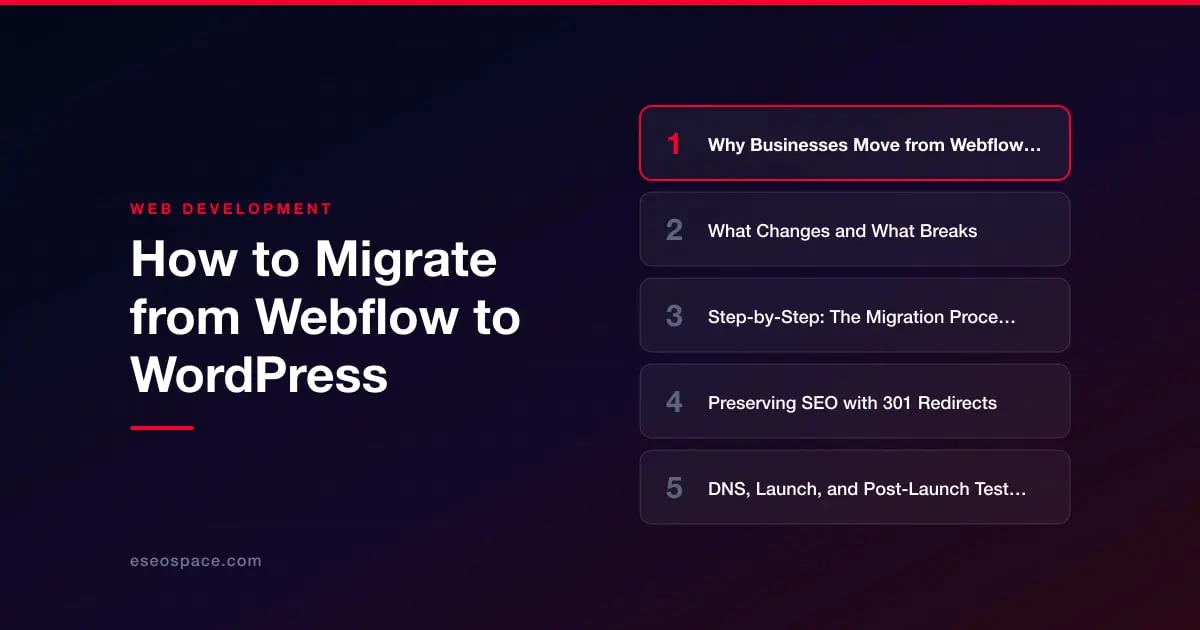
Why Businesses Move from Webflow to WordPress
The motivations are usually a mix of cost, flexibility, and control. Understanding your own reason matters because it shapes how you rebuild.
- Cost at scale. Webflow's higher site plans, plus per-editor seats and workspace fees, add up quickly. WordPress core is free; you pay only for hosting, a theme, and any premium plugins.
- Content and CMS limits. Webflow caps CMS items by site plan (20,000 on its largest self-serve plan as of October 2026, with more for a separate fee) and limits fields per collection. High-volume publishers and large catalogs outgrow this.
- The plugin ecosystem. WordPress has 70,000+ plugins for SEO (Yoast, Rank Math), forms, memberships, LMS, and e-commerce. Webflow's app marketplace is comparatively thin.
- Ownership and portability. WordPress is open source and self-hosted, so you own the database and files and can move hosts freely, avoiding platform lock-in.
- Team editing. WordPress roles let unlimited authors and editors work without paying per seat.
If your primary driver is heavier content operations or custom functionality, budget extra time for a proper information-architecture plan rather than a like-for-like copy.
What Changes and What Breaks
Webflow and WordPress are architecturally different, so several things do not transfer automatically. Knowing these up front prevents nasty surprises on launch day.
- Design does not port over. Webflow's visual styling lives in its own proprietary CSS and interactions engine. There is no button that recreates your layout in WordPress. You either pick a theme, build with a page builder (Elementor, Bricks, or the native Gutenberg block editor), or have it developed to match.
- CMS content needs restructuring. Webflow's CSV export gives you rows of collection data, but WordPress expects posts, pages, and custom post types. Fields must be mapped to WordPress equivalents, often using Advanced Custom Fields (ACF).
- URLs change. Webflow blog posts typically live at
/blog/post-slugor/post/slug; WordPress defaults differ. Any mismatch without a redirect becomes a 404. - Forms and interactions break. Webflow's native forms, animations, and Lottie interactions do not carry over and must be rebuilt with WordPress form plugins (WPForms, Gravity Forms) and CSS/JS or builder animations.
- Assets move hosts. Images served from Webflow's CDN must be downloaded and re-uploaded to the WordPress media library, or they will 404 when you cancel Webflow.
- Integrations and embeds. Third-party embeds (booking, chat, analytics) need to be re-added; your GA4/GTM tags must be reinstalled.
Step-by-Step: The Migration Process
Work in a staging environment, never directly on production. Here is the sequence we follow on our website migration services engagements.
- 1. Crawl and inventory the current site. Use Screaming Frog to export every live URL, title tag, meta description, H1, and status code. This becomes your master checklist and the foundation of your redirect map.
- 2. Export Webflow content. In each CMS collection, use Export to download CSV files. Export static pages by copying content or crawling the rendered HTML. Bulk-download images from the Webflow Assets panel or by scraping the CDN URLs.
- 3. Stand up WordPress. Provision hosting, install WordPress, and choose your build approach: a theme, a page builder, or a custom-developed theme that mirrors your Webflow design pixel for pixel.
- 4. Import content. Use the WP All Import plugin to map each Webflow CSV column to WordPress fields (title, body, slug, featured image, ACF custom fields). Import blog collections as posts and other collections as custom post types.
- 5. Recreate design and templates. Rebuild page layouts, single-post templates, and archive pages. Re-add navigation, footer, forms, and any interactive elements.
- 6. Reinstall SEO and integrations. Install Yoast or Rank Math, re-enter title tags and meta descriptions from your crawl, add schema, reconnect GA4/GTM, and generate an XML sitemap.
- 7. Build the redirect map (below).
- 8. QA on staging. Check every template, form submission, mobile layout, and internal link before going live.
For content-heavy sites or those needing membership, e-commerce, or bespoke CMS relationships, our WordPress development team handles the import mapping and template build so nothing is lost in translation.
Preserving SEO with 301 Redirects
This is the single most important part of any platform migration. If Webflow URLs and WordPress URLs do not match exactly, you must redirect the old URL to its new counterpart with a permanent 301, which passes roughly all link equity to the new page and keeps rankings intact.
- Map every old URL to a new one. Using the Screaming Frog crawl from step 1, build a two-column spreadsheet: old Webflow URL to new WordPress URL. Our 301 redirect map guide shows the exact format.
- Match slugs where possible. The cleanest migration keeps identical paths (for example,
/blog/how-to-migrateto/blog/how-to-migrate), which minimizes the number of redirects needed. - Implement redirects in WordPress. Use the free Redirection plugin or add rules to the server config. Avoid redirect chains (A to B to C); always point old URLs directly to their final destination.
- Preserve on-page SEO. Carry over every title tag, meta description, canonical, image alt text, and heading structure exactly, unless you are deliberately improving them.
- Never break internal links. Update in-content links to point to the new URLs rather than relying on redirects.
Before you flip DNS, run through a full website migration SEO checklist so no redirect, tag, or sitemap entry is missed. After launch, submit the new XML sitemap in Google Search Console and monitor the Coverage and Performance reports daily for the first few weeks.
DNS, Launch, and Post-Launch Testing
Once staging is signed off, the cutover itself is quick, but the hours around it demand attention.
- Lower your DNS TTL a day ahead so the switch propagates fast.
- Point DNS to the new host (A record or nameservers) and install the SSL certificate immediately so there is no insecure-site warning.
- Verify redirects live by spot-checking your top 20 traffic URLs and running a fresh crawl to confirm old paths return 301, not 404.
- Test forms and conversions by submitting real entries and confirming they arrive.
- Confirm analytics fire in GA4 real-time, and re-verify your Search Console property.
- Cancel Webflow last, only after you have confirmed all assets, content, and redirects are working on WordPress for at least a week.
If your move also involves connecting the site to a sales pipeline, integrating custom CRM development at this stage is more efficient than bolting it on later.
Realistic Timeline and Cost
Timelines depend almost entirely on content volume and design complexity. A small brochure site with a modest blog can migrate in one to two weeks. A content-rich site with hundreds of posts, custom collections, and a bespoke design match typically runs four to eight weeks including QA.
- DIY: mostly your time plus roughly $100 to $300 in plugins and hosting for the first year.
- Agency, small site: often a few thousand dollars for content migration, redirect mapping, and a theme-based build.
- Agency, complex site: larger investment for custom template development, ACF mapping, and thousands of redirects. Scope is driven by page count and how closely the new design must match the old.
Whatever route you choose, the redirect map and SEO preservation work are non-negotiable. A rebuilt site that looks great but drops 40% of its organic traffic on launch is not a successful migration. Plan the development and rebuild around protecting what already ranks, and you get the best of both platforms: Webflow's polish carried into WordPress's flexibility.