



How to Migrate from WordPress to HubSpot CMS
How to Migrate from WordPress to HubSpot CMS
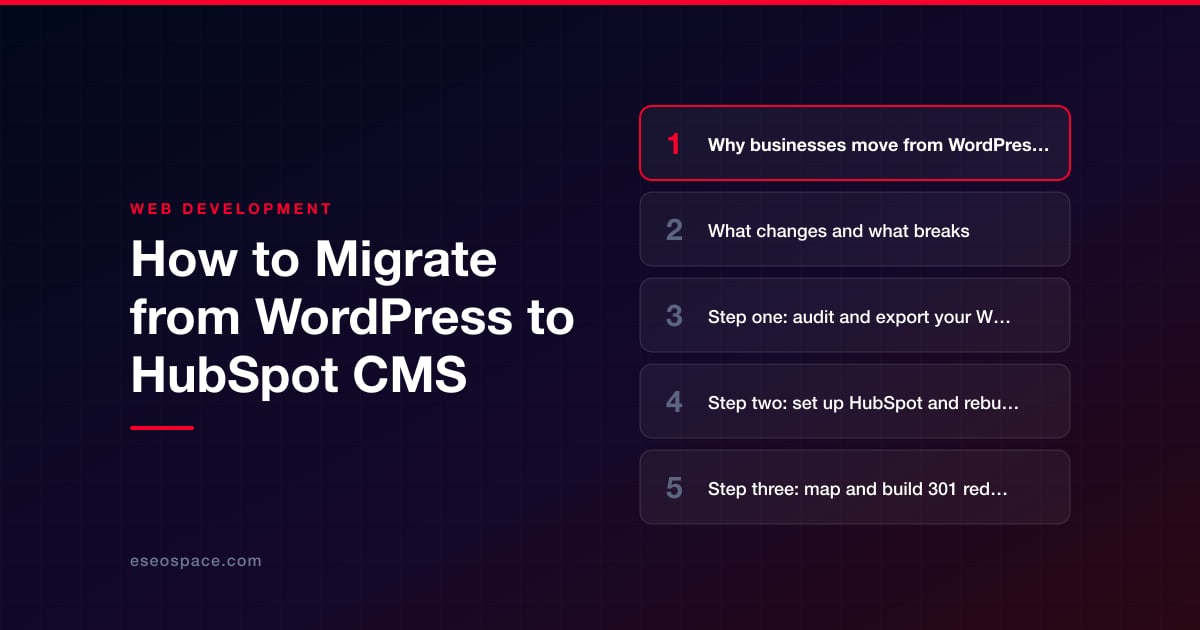
Key Takeaways
- HubSpot consolidates website, blog, forms, and CRM into one system, but WordPress plugins, PHP themes, and custom post types do not transfer and must be rebuilt.
- Content can be imported, yet themes are recreated in HubSpot's HubL templating language and dynamic content moves to HubDB tables or CRM objects.
- Start with a full URL and content audit from your sitemap and Search Console to protect high-traffic, high-backlink pages first.
- Every changed URL needs a permanent 301 redirect to its closest equivalent, configured in HubSpot's native URL Redirects with one-to-one and flexible rules.
- Plan four to eight weeks for a standard site and three months or more for content-heavy builds, budgeting separately for the rebuild and HubSpot's subscription.
Moving from WordPress to HubSpot Content Hub (the product formerly called CMS Hub) is one of the more consequential migrations a marketing-driven business can make. You are not just swapping hosting or a theme; you are leaving an open-source platform where content, forms, analytics, and CRM live in separate plugins, and consolidating everything into a single account where the website, blog, landing pages, email, and contact records share one database.
That consolidation is exactly why companies make the move, but it also means WordPress-specific things will not survive the trip. PHP plugins do not run in HubSpot, your theme's template files have to be rebuilt in HubSpot's HubL templating language, and any custom post types or Advanced Custom Fields structures need to be re-modeled as HubDB tables or CRM objects. Done carelessly, a migration like this bleeds organic traffic for months. Done deliberately, it can happen with near-zero ranking loss.
This guide walks through what actually changes between the two platforms, a concrete step-by-step process, and how to protect the SEO equity you have spent years building.
Why businesses move from WordPress to HubSpot
The migration usually is not about the website being broken. It is about consolidation and reducing operational overhead. Common drivers include:
- One system of record. Website visitors, form submissions, email nurture, and sales pipeline all live against the same contact record instead of being stitched together with Zapier, Contact Form 7, and a separate CRM.
- Less maintenance and security surface. HubSpot is fully managed and hosted on a global CDN, so there are no plugin updates, no PHP version bumps, and dramatically fewer of the vulnerability patches that plague WordPress.
- Marketer-friendly editing. Drag-and-drop modules, smart content that personalizes by lifecycle stage or list membership, and built-in A/B testing without a page-builder plugin stack.
- Native reporting. Attribution that ties a blog post to a closed deal, rather than piecing together GA4 and CRM exports by hand.
The trade-off is flexibility and cost. HubSpot is more opinionated and more expensive at scale than a self-hosted WordPress install, so the move makes the most sense for teams already committed to the HubSpot ecosystem for sales and marketing.
What changes and what breaks
Set expectations before you start. The biggest mistake teams make is assuming a WordPress export will "import" into HubSpot cleanly. It will not, because the two platforms model content differently.
- Content mostly transfers, but structure does not. Blog posts, pages, images, and copy can be brought over (HubSpot even offers a WordPress-to-blog import), but custom fields, ACF blocks, and shortcodes will not render and must be rebuilt.
- Themes and templates are rebuilt from scratch. Your WordPress theme's PHP and template hierarchy are replaced by a HubSpot theme built with HubL, modules, and fields. This is design and development work, not a copy-paste.
- Plugins become native features or apps. Yoast SEO maps to HubSpot's built-in SEO recommendations, WooCommerce needs a dedicated e-commerce integration (HubSpot is not a native store platform), and Gravity Forms are recreated as HubSpot forms so submissions land directly in the CRM.
- Dynamic and database-driven content moves to HubDB or CRM objects. A WordPress custom post type powering a resource library or location directory is rebuilt as a HubDB table with dynamic page templates.
- URLs frequently change. WordPress permalink structures (for example
/blog/post-name/versus HubSpot's default blog slug) rarely match one-to-one, which is where SEO risk concentrates.
Because so much is rebuilt rather than transferred, treat this as a redesign-plus-migration. If you want a partner to handle the template rebuild and CRM modeling, our website migration services and custom website and CRM development teams do exactly this kind of platform-to-platform work.
Step one: audit and export your WordPress content
Start with a full inventory so nothing gets lost. Pull a complete list of published URLs from your XML sitemap and from Google Search Console's Pages report, then cross-reference against your top organic landing pages in analytics.
- Export posts and pages via Tools > Export in WordPress (the WXR/XML file) as a backup and content reference.
- Export your full URL list to a spreadsheet; this becomes the backbone of your redirect map.
- Note every form, its fields, and where submissions currently route.
- Catalog media assets, especially any images hotlinked in content that will need re-uploading to HubSpot's file manager.
- Flag high-value pages by organic traffic and backlinks so you protect them first.
This audit stage is where most ranking loss is either prevented or guaranteed. Our website migration SEO checklist covers the full pre-launch inventory in depth.
Step two: set up HubSpot and rebuild the site
Provision your HubSpot account (Content Hub, plus Marketing or Sales Hub as needed) and configure the essentials before building pages:
- Connect your domain in Settings > Content > Domains & URLs, but do not point production DNS yet. Build and preview on HubSpot's staging domain first.
- Build the theme. Recreate your brand's layout, global header/footer, and reusable modules in HubL. This is the heaviest lift and where design fidelity is won or lost; it mirrors a standard website development engagement.
- Model your data. Set up HubDB tables for any directory or listing content and define CRM properties that forms will map to.
- Recreate forms natively so submissions create or update contacts automatically, then wire up any workflows or notifications.
- Import the blog using HubSpot's blog import tool or by recreating posts, preserving titles, meta descriptions, publish dates, authors, and heading structure.
Keep URL slugs as close to the WordPress originals as HubSpot allows. Every slug you preserve is one redirect you do not have to write.
Step three: map and build 301 redirects
This is the single most important SEO step. Any URL that changes must issue a permanent 301 redirect from the old path to the new one so accumulated link equity and rankings transfer. HubSpot handles this natively on the URL Redirects tab of Settings > Content > Domains & URLs, and it supports both standard one-to-one redirects and flexible pattern redirects for bulk paths like an entire blog directory.
- Build a redirect map spreadsheet with two columns: old URL and new URL. Our guide to building a 301 redirect map shows the exact format.
- Redirect to the closest equivalent page, never a blanket redirect of everything to the homepage; that signals a soft-404 to Google and wastes equity.
- Use flexible redirects for predictable pattern changes, and one-to-one redirects for high-value or irregular URLs.
- Preserve internal links by updating them to the new URLs directly rather than relying on redirect chains.
- Do not forget trailing-slash consistency, HTTPS, and the www/non-www canonical.
Step four: DNS cutover, launch, and testing
When staging looks right and redirects are loaded, you are ready to go live. Point your domain's DNS to HubSpot per their domain-connection instructions (typically a CNAME), and be aware of propagation time.
- Publish during a low-traffic window and keep the WordPress site available until DNS fully propagates.
- Verify SSL provisions correctly on the HubSpot-hosted domain.
- Crawl the new site with a tool like Screaming Frog to catch broken links, redirect chains, and missing meta tags.
- Spot-check your redirect map by requesting old URLs and confirming a single 301 to the correct destination.
- Submit the new sitemap in Google Search Console and request indexing of priority pages.
- Confirm analytics and HubSpot tracking fire, and that forms create contacts as expected.
Expect some ranking fluctuation in the first few weeks as Google recrawls; this is normal and recovers if redirects are clean. Keep the WordPress export archived for at least a few months in case you need to reference original content.
Realistic timeline and cost
A straightforward brochure site with a modest blog typically takes four to eight weeks, dominated by the theme rebuild and content re-entry. A content-heavy site with hundreds of posts, HubDB-driven directories, and complex forms or CRM workflows can run three months or more. The redirect mapping and QA phases are not the place to cut corners.
Cost depends far more on the rebuild scope than the migration mechanics. A typical WordPress-to-HubSpot project spans template development, content migration, redirect mapping, and post-launch QA. That is separate from HubSpot's own subscription, which is billed by HubSpot based on the Hubs and contact tiers you choose. Budgeting for both the one-time build and the recurring platform license keeps the decision realistic.
Get a FREE Audit
We'll perform a comprehensive SEO, AEO, GEO & CRO audit of your website — completely free — and show you exactly how to outrank your competitors.
Don't have a site yet? Get in touch →
Put this into action with eSEOspace
We help businesses grow with website development that actually performs. Explore the services behind this guide:
Frequently Asked Questions
Can I import my WordPress blog directly into HubSpot?
Will migrating to HubSpot hurt my Google rankings?
Do my WordPress plugins work in HubSpot?
How long does a WordPress to HubSpot migration take?
How much does it cost to move from WordPress to HubSpot?
Get a FREE GEO/AEO/SEO Audit
We'll analyze your site's SEO, GEO, AEO & CRO — completely free — and show you exactly how to get found across Google and AI answers.
Don't have a site yet? Get in touch →
Great — your audit is on the way!
We'll send your free SEO/GEO/AEO/CRO audit within the next few hours. Where should we send it?
You're all set! ✓
Your free audit is being prepared — check your inbox in the next few hours. Talk soon!


On this page






