



How to Migrate from WooCommerce to Shopify
How to Migrate from WooCommerce to Shopify
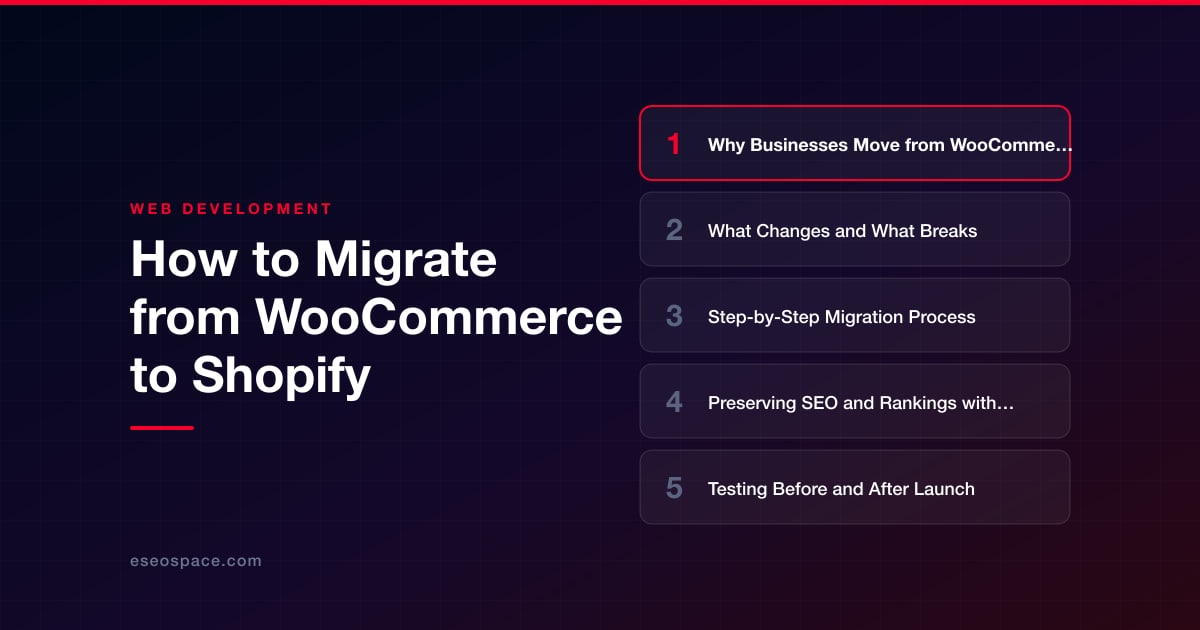
Key Takeaways
- WooCommerce-to-Shopify migrations are driven by maintenance fatigue, hosting and security overhead, and Shopify's better-converting hosted checkout.
- Every URL changes because Shopify forces fixed /products/ and /collections/ paths, so a complete 301 redirect map is mandatory to protect rankings.
- Themes, plugins, and custom PHP code do not transfer; the storefront must be rebuilt in Liquid and plugins re-selected as vetted Shopify apps.
- Use WooCommerce's CSV and WordPress exporters, then bulk-import with tools like Matrixify while carrying over titles, meta descriptions, and image alt text.
- Always test checkout, taxes, and redirects on the staging URL before pointing DNS, and monitor Search Console for a month after launch.
WooCommerce gives you total control, but that control comes with a cost: you own the hosting, the security patches, the plugin conflicts, and every PHP update that breaks checkout at 2 a.m. For a growing store, the maintenance overhead can start to outweigh the flexibility. Shopify flips that equation by handling hosting, PCI compliance, uptime, and core commerce infrastructure so you can focus on selling. That trade-off is why so many merchants make the move.
But migrating a store is not a copy-paste job. WooCommerce is a WordPress plugin with a MySQL database, custom post types, and dozens of extensions; Shopify is a hosted platform with its own data model, Liquid templating, and app ecosystem. Products, URLs, customer records, reviews, and SEO signals all have to be carried across carefully, or you risk tanking the organic traffic you spent years building.
This guide walks through exactly what changes, what tends to break, and the step-by-step process to move from WooCommerce to Shopify while protecting your rankings, your data, and your revenue.
Why Businesses Move from WooCommerce to Shopify
The motivations are usually operational rather than cosmetic. Merchants who make the switch are typically tired of the hidden costs of self-hosting and want a platform that just works. Common drivers include:
- Maintenance fatigue. WooCommerce requires you to manage WordPress core, PHP versions, security plugins, backups, and extension compatibility. One bad update can break checkout.
- Hosting and performance. As traffic grows, cheap shared hosting buckles. Shopify's global CDN and hosted infrastructure remove server tuning from your plate.
- Security and PCI compliance. Shopify is PCI-DSS Level 1 compliant out of the box; on WooCommerce, compliance is your responsibility.
- Built-in checkout and payments. Shopify Payments, Shop Pay, and one-click accelerated checkout typically convert better than a stock WooCommerce cart.
- App ecosystem over plugin sprawl. Shopify's App Store apps are sandboxed and vetted, reducing the plugin-conflict headaches common on WordPress.
The trade-off is less raw flexibility and monthly platform fees, but for many stores that predictability is exactly the point.
What Changes and What Breaks
Understanding the gaps before you start prevents ugly surprises after launch. Here is what does not transfer cleanly between the two platforms:
- URLs change structure. WooCommerce product URLs are typically /product/item-name/ and categories live at /product-category/name/. Shopify forces a fixed structure: products at /products/handle, collections at /collections/handle, blog posts under /blogs/. Every URL will change, which makes redirects non-negotiable.
- Design and theme. Your WordPress theme, page builder (Elementor, Divi), and custom PHP templates do not carry over. Shopify uses Liquid themes, so the storefront must be rebuilt.
- Plugins become apps. WooCommerce extensions for reviews, subscriptions, bundles, or wishlists have Shopify equivalents but must be re-selected, reinstalled, and reconfigured. Data inside those plugins (like product reviews) often needs a separate export.
- Custom code and hooks. WordPress actions, filters, and functions.php snippets have no direct analog and must be re-implemented as Shopify apps, metafields, or theme edits.
- Content and blog. WordPress pages and posts do not automatically appear in Shopify; they need to be exported and recreated, and the blog URL structure shifts.
- SEO metadata. Yoast or Rank Math titles and meta descriptions are not read by Shopify and must be migrated into Shopify's SEO fields.
Step-by-Step Migration Process
A disciplined sequence keeps the project from spiraling. Here is the practical order of operations, most of which mirrors our website migration services workflow:
- 1. Audit and inventory. Crawl your live WooCommerce site (Screaming Frog works well) to capture every product, category, page, blog post, and its current URL. This becomes your master checklist and your redirect source list.
- 2. Export your data. Use WooCommerce's built-in Product CSV Exporter (Products → Export) for products, and the WordPress Tools → Export for pages and posts. Export customers and orders via a plugin or the REST API. Reviews usually require a dedicated export.
- 3. Set up Shopify. Create the store, choose a plan, install and customize a Liquid theme to match your brand, and configure taxes, shipping zones, and payment gateways (Shopify Payments or a third party).
- 4. Import and recreate. Import products via Shopify's CSV importer or a migration app like Matrixify (Excelify) or LitExtension, which handle products, customers, and orders in bulk. Recreate pages, blog posts, and navigation manually or via Matrixify.
- 5. Rebuild functionality. Install Shopify apps to replace critical plugins, wire up product reviews, and re-add any custom logic through apps or metafields. Complex custom builds may warrant custom development work.
- 6. Map redirects. Build a complete old-URL → new-URL 301 map (covered in detail below).
- 7. Test on the staging URL. Place a test order end to end, verify payment capture, tax and shipping math, confirmation emails, and inventory sync before you touch DNS.
- 8. Point DNS and launch. Update your A record and CNAME to Shopify's servers, remove the storefront password, and go live.
Preserving SEO and Rankings with 301 Redirects
This is where migrations succeed or fail. Because every URL changes, you must tell Google where each old page moved, or you will lose the link equity and rankings tied to those URLs. Shopify has a native redirect tool under Content → Menus → View URL redirects, and you can bulk-upload hundreds of redirects at once via a Matrixify CSV.
Map each old WooCommerce URL to its closest new Shopify equivalent: /product/blue-widget/ should 301 to /products/blue-widget, and /product-category/widgets/ to /collections/widgets. Avoid redirecting everything to the homepage; a bulk homepage redirect is treated as a soft 404 by Google and wipes out the page's ranking value. Our 301 redirect map guide walks through building this file cleanly.
Beyond redirects, protect these signals during the move:
- Carry over titles and meta descriptions into Shopify's SEO fields for every product, collection, and page.
- Preserve heading structure and body copy so pages keep the keyword relevance they earned.
- Recreate your XML sitemap (Shopify generates one at /sitemap.xml automatically) and resubmit it in Google Search Console.
- Keep image alt text intact, since product images often drive image-search traffic.
- Update internal links to point at the new URLs rather than relying only on redirects.
Work through a full website migration SEO checklist before and after launch, and keep monitoring Search Console for crawl errors and ranking dips for at least a month.
Testing Before and After Launch
Never flip DNS on faith. While the store is still on its temporary myshopify.com domain, run a full pre-launch pass:
- Place a live test order through checkout and confirm the payment provider captures funds, then refund it.
- Verify tax rates, shipping rates, and free-shipping thresholds against real customer scenarios.
- Check that order confirmation, shipping, and abandoned-cart emails send correctly.
- Test the site on mobile, since the majority of ecommerce traffic is now mobile.
- Spot-check a sample of imported products for correct variants, pricing, inventory, and images.
After DNS propagates, immediately re-test checkout on the live domain, confirm redirects fire with proper 301 status codes (not 302), and resubmit your sitemap. A staged launch with this level of development and QA discipline is what separates a smooth cutover from a revenue-losing one.
Realistic Timeline and Cost
A straightforward store with a few hundred products, a standard theme, and a handful of apps typically takes 3 to 6 weeks end to end. Larger catalogs, heavy customization, subscriptions, or B2B pricing can push that to 8 to 12 weeks or more. The bulk of the time goes into theme design, data cleanup, redirect mapping, and QA rather than the raw import itself.
Costs vary with scope. Expect ongoing Shopify platform fees (the Basic and mid tiers cover most small-to-mid stores) plus monthly app subscriptions for anything replacing your plugins. A professionally managed migration and Shopify store design is priced on the work involved, and a typical mid-sized migration lands in a predictable project range once we scope the catalog size, redirect count, and custom functionality. The investment usually pays for itself by preventing the traffic loss and downtime that come from a rushed, do-it-yourself move.
Done properly, migrating from WooCommerce to Shopify trades maintenance headaches for a faster, more secure, better-converting store, without sacrificing the SEO equity you have already built.
Get a FREE Audit
We'll perform a comprehensive SEO, AEO, GEO & CRO audit of your website — completely free — and show you exactly how to outrank your competitors.
Don't have a site yet? Get in touch →
Put this into action with eSEOspace
We help businesses grow with website development that actually performs. Explore the services behind this guide:
Frequently Asked Questions
Will I lose my SEO rankings when moving from WooCommerce to Shopify?
Can I transfer my WooCommerce products and orders to Shopify automatically?
How long does a WooCommerce to Shopify migration take?
Do my WordPress plugins work on Shopify?
How much does it cost to migrate from WooCommerce to Shopify?
Get a FREE GEO/AEO/SEO Audit
We'll analyze your site's SEO, GEO, AEO & CRO — completely free — and show you exactly how to get found across Google and AI answers.
Don't have a site yet? Get in touch →
Great — your audit is on the way!
We'll send your free SEO/GEO/AEO/CRO audit within the next few hours. Where should we send it?
You're all set! ✓
Your free audit is being prepared — check your inbox in the next few hours. Talk soon!








