



WordPress to Shopify Migration: What Changes, What Breaks, and How to Protect Your Rankings
WordPress to Shopify Migration: What Changes, What Breaks, and How to Protect Your Rankings
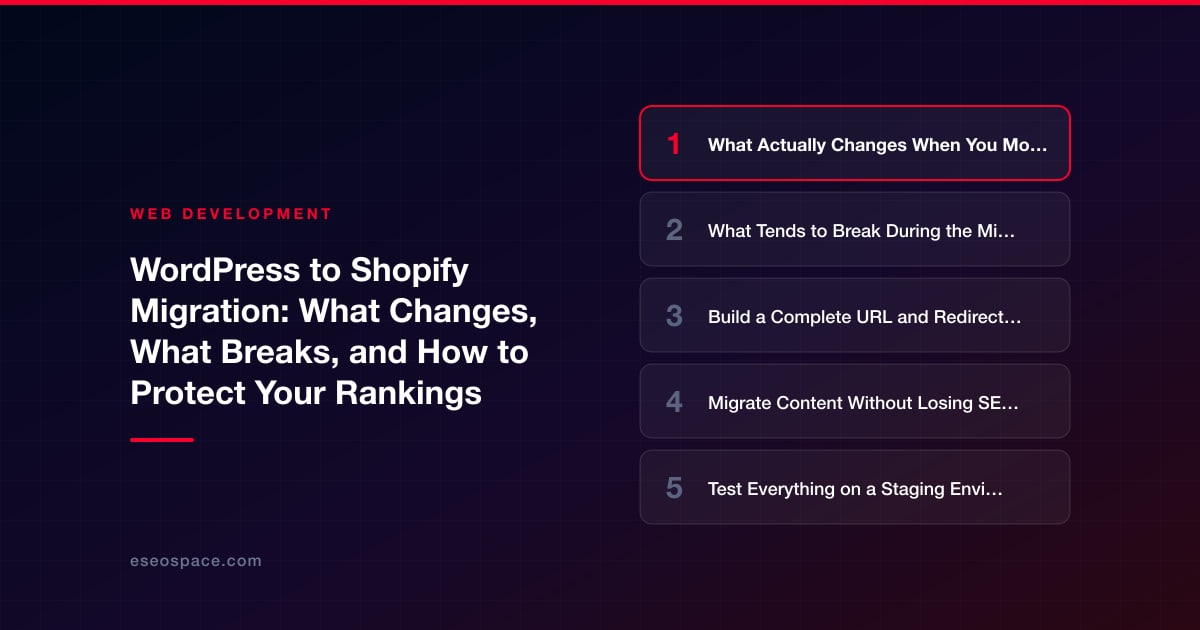
Key Takeaways
- Shopify forces fixed URL prefixes (/products/, /collections/, /blogs/, /pages/), so nearly every WordPress URL changes and needs a 301 redirect.
- The number one cause of post-migration traffic loss is missing or broken redirects, not the platform switch itself.
- Build a complete old-to-new URL map from your sitemap, a full crawl, and Search Console before touching Shopify.
- WordPress plugins, page-builder layouts, and Yoast metadata do not transfer automatically and must be rebuilt or re-entered by hand.
- Test the whole store on a noindexed staging environment first, then monitor rankings and 404s daily for the first two weeks after cutover.
Moving from WordPress to Shopify is usually a good business decision. Shopify handles PCI-compliant checkout, hosting, security patching, and inventory in one managed platform, which frees a growing store from the plugin-stacking and maintenance burden that WooCommerce eventually creates. But a WordPress to Shopify migration is not a simple export-import. The two platforms structure URLs differently, store content in incompatible formats, and expose completely different templating systems. Handled carelessly, the switch can wipe out years of organic rankings in a single weekend.
The good news is that traffic loss is almost always self-inflicted, not inevitable. Search engines are forgiving of platform changes when your URLs, content, and internal links are mapped correctly and redirected with clean 301s. This guide walks through what actually changes between the two systems, where migrations tend to break, and the specific safeguards that keep your rankings intact through the cutover.
Whether you run the project in-house or bring in a partner for website migration services, the sequence below is what separates a smooth transition from a traffic cliff.
What Actually Changes When You Move to Shopify
The biggest surprise for most WordPress owners is that Shopify enforces a rigid URL structure you cannot fully customize. WordPress lets you set any permalink pattern you want. Shopify prepends mandatory prefixes to every content type, and these are non-negotiable:
- Products live under
/products/ - Collections (categories) live under
/collections/ - Blog posts live under
/blogs/[blog-name]/ - Static pages live under
/pages/
So a WordPress product at yoursite.com/blue-widget/ becomes yoursite.com/products/blue-widget. A blog post at yoursite.com/2024/03/guide/ becomes yoursite.com/blogs/news/guide. Every single one of those URL changes needs a redirect, and there can easily be thousands of them.
Beyond URLs, the content model changes too. WordPress content is HTML stored in the database and rendered through PHP themes. Shopify themes use the Liquid templating language, so any custom theme functionality has to be rebuilt, not copied. Plugins do not transfer at all. WooCommerce, Yoast SEO, contact-form builders, membership tools, and page builders like Elementor or Divi have no Shopify equivalent that imports your existing configuration. You replace each one with a Shopify app or native feature and reconfigure from scratch.
What Tends to Break During the Migration
Most migration disasters trace back to the same handful of failure points. Knowing them in advance lets you plan around each one rather than discovering them after launch.
- Lost redirects. The single most common cause of traffic loss. If old WordPress URLs return 404s instead of 301-redirecting to their Shopify equivalents, you lose both the ranking and the link equity pointing at those pages.
- Page-builder content collapses. Content built in Elementor, Divi, or Gutenberg blocks exports as messy or empty HTML because the layout lives in shortcodes the builder interprets. Product descriptions and landing-page copy frequently arrive at Shopify blank or garbled.
- Broken images. WordPress serves images from
/wp-content/uploads/. After migration those paths no longer exist, so any image referenced by an absolute WordPress URL breaks unless it is re-uploaded to Shopify's CDN and re-linked. - Metadata loss. Yoast and Rank Math store title tags and meta descriptions in custom fields that standard importers ignore, so pages can launch with auto-generated, unoptimized metadata.
- URL handle mismatches. Shopify auto-generates a URL "handle" from the product title. If your WordPress slug differs from that handle, the redirect map breaks silently.
- Blog structure flattening. WordPress categories and tags do not map cleanly to Shopify's single-level blog structure, so archive and category pages that ranked often have no destination.
Build a Complete URL and Redirect Map First
Before you touch Shopify, export a full inventory of every indexed URL on your WordPress site. Do not rely on your sitemap alone, which frequently omits older content. Pull URLs from three sources and reconcile them: your XML sitemap, a full crawl with a tool like Screaming Frog, and your Google Search Console Pages report showing every URL that has received impressions or clicks.
With that master list, build a spreadsheet mapping each old WordPress URL to its exact new Shopify URL. This mapping document is the backbone of the entire project. For each row, confirm the destination page actually exists on Shopify and returns a 200 status. Pay special attention to your highest-traffic pages first, then category/collection pages, then the long tail. A disciplined redirect map is the difference between a clean cutover and months of recovery, and it is where experienced migration specialists spend most of their effort.
Shopify supports 301 redirects natively under Content > Menus > View URL redirects, and you can bulk-import them via CSV. Every legacy URL should point directly to its final destination in a single hop. Avoid redirect chains, where an old URL bounces through two or three intermediate URLs before landing, because each hop dilutes link equity and slows crawlers.
Migrate Content Without Losing SEO Value
Products, collections, blog posts, and pages each move differently. Products and customers can migrate through Shopify's CSV import or a dedicated migration app, but always spot-check the output. Verify that product descriptions rendered as clean HTML, that variants and pricing carried over, and that images attached to the correct products.
For content that ranks, carry over the on-page SEO signals deliberately:
- Title tags and meta descriptions from Yoast or Rank Math must be re-entered in Shopify's search-listing fields for each page.
- Heading structure (a single H1, logical H2s) should match the original page so topical relevance is preserved.
- Internal links inside body content need updating to the new Shopify URLs, otherwise you generate a wave of internal 404s that redirects only partly mask.
- Image alt text should transfer with each image rather than being left blank.
- Structured data (product, breadcrumb, and article schema) needs to be re-implemented, since Shopify themes handle schema differently than Yoast did.
If your WordPress site used a page builder, budget time to rebuild those layouts as Shopify sections rather than pasting exported HTML. This is effectively a small front-end development task, and doing it properly is what keeps the migrated pages fast and crawlable instead of bloated with orphaned builder markup.
Test Everything on a Staging Environment
Never migrate directly onto your live domain. Build the new store on Shopify's default myshopify.com URL or a password-protected development store, and validate it thoroughly before pointing DNS. On staging, work through a full pre-launch checklist:
- Confirm every high-value page exists and displays correctly, with intact copy, images, and metadata.
- Run a crawl of the staging store to catch broken links, missing images, and duplicate title tags.
- Test the full checkout flow with a real transaction to verify payments, taxes, and shipping rates.
- Validate that your redirect CSV is loaded and that a sample of old URLs resolves to the correct new pages.
- Check mobile rendering and Core Web Vitals, since page speed is both a ranking factor and a conversion factor.
- Ensure the staging store is set to noindex so Google never indexes the temporary domain and creates duplicate-content confusion.
Only when staging passes cleanly should you schedule the cutover. Launch during a low-traffic window, then immediately deploy the redirects and remove any noindex or password protection so the live store is crawlable.
Protect Rankings During and After Cutover
The work does not end at launch. The first two weeks after cutover are when problems surface, and fast detection limits the damage. Immediately after going live, take these steps:
- Submit a new XML sitemap in Google Search Console so Google discovers the Shopify URLs quickly. Shopify generates
/sitemap.xmlautomatically. - Keep the old Search Console property active if the domain is unchanged, and monitor the Coverage and Pages reports for a spike in 404s or crawl errors.
- Spot-check redirects by testing a batch of your top old URLs to confirm each returns a single 301 to a live 200 page.
- Watch rankings and organic traffic daily for the first two weeks, then weekly. A brief dip of a week or two as Google recrawls is normal; a sustained decline signals a redirect or content problem to fix immediately.
- Reclaim backlinks where possible by asking high-value referring sites to update links to the new URLs, since direct links pass more equity than redirected ones.
A properly executed WordPress to Shopify migration should recover to baseline organic traffic within four to eight weeks, and many stores end up stronger because Shopify's faster hosting and cleaner mobile experience improve Core Web Vitals. The determining factor is almost never the platform itself. It is the discipline of the redirect mapping, content preservation, and post-launch monitoring. Treat those three as non-negotiable and the migration protects your rankings instead of gambling with them.
Get a FREE Audit
We'll perform a comprehensive SEO, AEO, GEO & CRO audit of your website — completely free — and show you exactly how to outrank your competitors.
Don't have a site yet? Get in touch →
Put this into action with eSEOspace
We help businesses grow with website development that actually performs. Explore the services behind this guide:
Frequently Asked Questions
Will I lose my Google rankings when migrating from WordPress to Shopify?
Can I keep my existing WordPress URLs on Shopify?
Do WordPress plugins work on Shopify after migration?
How long does a WordPress to Shopify migration take?
Should I migrate to Shopify during a busy season?
Get a FREE GEO/AEO/SEO Audit
We'll analyze your site's SEO, GEO, AEO & CRO — completely free — and show you exactly how to get found across Google and AI answers.
Don't have a site yet? Get in touch →
Great — your audit is on the way!
We'll send your free SEO/GEO/AEO/CRO audit within the next few hours. Where should we send it?
You're all set! ✓
Your free audit is being prepared — check your inbox in the next few hours. Talk soon!








