



How to write and apply image alt text with Claude Code
How to write and apply image alt text with Claude Code
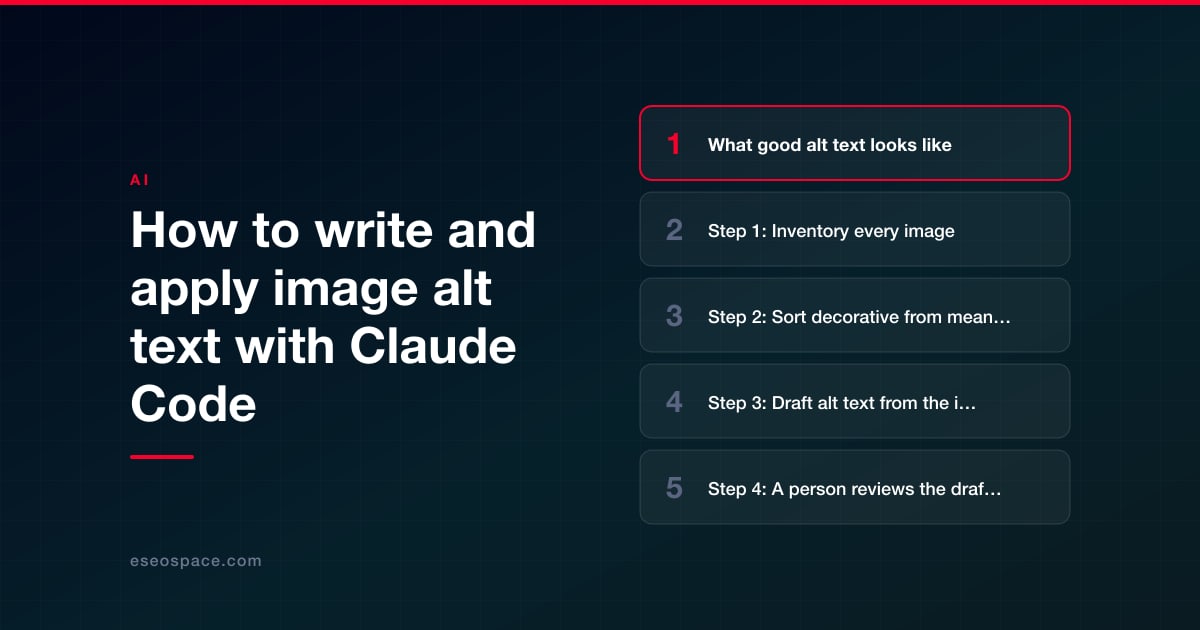
Claude Code can write alt text for every image on a site in a structured way: it lists each image with its page, its current alt text and the text around it, sorts out decorative images that should have empty alt text, looks at the rest and drafts a short description that fits the page. A person reviews the drafts, especially anything showing people, products or specific places. Then a script applies the approved text in your source files, and a crawl confirms no image is left without the right alt attribute.
Alt text is the text alternative for an image, read aloud by screen readers and used by search engines. It's an accessibility requirement first and an SEO signal second. Google treats it as metadata that needs human review when AI writes it: its guidance on AI-generated content says fact-checking "also applies to metadata like ... alternate texts for images". This guide gives the steps, example prompts, the checks and what a person reviews.
Key Takeaways
- WCAG success criterion 1.1.1 (Level A) requires that non-text content has "a text alternative that serves the equivalent purpose."
- Decorative images and images repeated by nearby text get an empty alt attribute (alt=""). W3C warns that leaving the attribute out makes some screen readers read the file name.
- Google: alt text is "the most important attribute" for image metadata, and keyword-stuffed alt text "may cause your site to be seen as spam."
- Claude Code can view images and read page context, but it can't know who a person is, which exact product model is shown, or where a photo was taken unless the page says so.
- Draft into a spreadsheet, review, then apply in the source: the CMS media library, content files or templates, not built HTML.
What good alt text looks like
The W3C's alt decision tree sorts images by what they do on the page:
| Image type | W3C guidance | Example |
|---|---|---|
| Decorative, or not intended for users | "Use an empty alt attribute" | A background flourish, a divider |
| Text already present nearby | "Use an empty alt attribute" | A photo next to a caption that describes it fully |
| In a link or button | Communicate "the destination of the link or action taken" | A logo linking home: the company name plus "home" |
| Informative | "a brief description of the image in a way that conveys that meaning" | A product photo: what it is and the detail that matters |
| Image of text | "include the text of the image" | A banner with an offer written on it |
| Complex (chart, diagram) | "Include the information contained in the image elsewhere on the page" | A short alt plus the data in a table or paragraph |
Google's image SEO guidance gives the same idea as a ladder: no alt is bad, a string of keywords is bad, "puppy" is better, and "Dalmatian puppy playing fetch" is best. It also notes that alt text "is useful as anchor text" when an image is a link.
Step 1: Inventory every image
Work on a local or staging copy, on a branch in git. Ask Claude Code to crawl it and build one row per image use, since the same file can need different alt text on different pages.
Example prompt: Crawl the local build and write images.csv with one row per img element: page URL, image src, current alt (or "missing" if the attribute is absent), whether the image is inside a link or button, the nearest heading, any caption, and the 200 characters of text before and after it. Flag alt text that looks like a file name, repeats on many different images, or is longer than 150 characters.
Also ask it to list inline SVG icons and CSS background images separately. Google notes that for inline SVG "you can use the <title> element." CSS backgrounds aren't content images and usually need no alt.
The check: the image count looks right for a few pages you know, and the summary counts missing, empty, file-name and duplicate alt values. Those counts are your baseline.
Step 2: Sort decorative from meaningful
Ask Claude to classify each image with the W3C categories, using the context it collected. Decorative images and images fully described by nearby text should get alt="", which tells screen readers to skip them.
Example prompt: For each row in images.csv, classify the image as decorative, redundant with nearby text, functional (in a link or button), informative, image of text or complex, using the W3C alt decision tree. Explain each classification in a few words. Mark any you're unsure about.
The check: read twenty classifications across different templates. Logos, icons in buttons and hero images are where mistakes cluster.
Step 3: Draft alt text from the image and the page
For images that need alt text, Claude looks at the image and reads the page around it. Context is what makes alt text useful: the same photo of a kitchen means different things on a remodeling page and a real estate listing.
Example prompt: For rows classified as informative, functional or image of text, look at each image and draft alt text in a new column. Keep it under about 125 characters, describe what matters for this page, and don't start with "image of." For functional images, describe the action or destination. Don't name people, product models, places or dates unless the page text states them; write [CHECK] instead.
That last rule is the important one. Claude can describe what it sees, but it can't verify who is in a staff photo, which model a product is, or whether a "before and after" photo is your own work. Guessing those is how wrong facts get published. On ecommerce pages, take product names and attributes from the product data, not from the photo.
For thousands of images, the drafting can run as a batch with claude -p (non-interactive mode); see headless mode and batch jobs.
Step 4: A person reviews the drafts
Review in the spreadsheet, image beside text. Prioritize product images, images on service and landing pages, and every row marked [CHECK].
- Is it accurate? Does it describe what's actually in the image?
- Does it serve the page? Would a screen reader user get what a sighted visitor gets?
- Are names, products and places confirmed by someone who knows?
- Is it free of keyword stuffing and sales claims?
- In health, legal or financial content, does it avoid implying a result or claim the page doesn't make?
Mark rows approved, edited or rejected. For a view on where human editing adds the most, see AI-generated vs human-edited content.
Step 5: Apply the approved text in the right place
Where alt text lives depends on your platform. Static sites keep it in content files or templates. In some CMSs, alt text can live both in a media library and in the page content where the image was inserted, so changing one doesn't always change the other. Ask Claude to find out before writing a script.
Example prompt: For three sample images, show me every place their alt text is stored: media library, page content, template or data file. Then write a script that applies approved rows from images.csv to the right place for each one, writing alt="" for decorative and redundant images. Report counts of changed, unchanged and not found.
On WordPress, do this on a staging copy through WP-CLI or the CMS's own tools; our Claude Code for WordPress guide covers the safe setup. Edit source content, not built pages, since a rebuild or cache refresh can overwrite the output.
The check: the changed count matches the approved rows minus logged misses. Run the script again; it should change nothing.
Step 6: Re-crawl and listen
Re-run the step 1 inventory on the updated build.
| Check | Pass condition |
|---|---|
| Missing alt attributes | Zero |
| Decorative images | alt="" present, not missing |
| File-name alt text | Zero |
| [CHECK] placeholders | Zero; none left in live text |
| Approved text | Matches the spreadsheet exactly |
| Screen reader spot-check | A person listens to a few key pages and they make sense |
The last check is manual for a reason. A crawler can confirm that alt text exists, not that it's right. Automated tools can't judge whether a description serves the page; that's part of the wider accessibility picture in finding and fixing accessibility issues.
Step 7: Keep new images covered
Add a rule to your project instructions and your publishing checklist: every new image gets alt text, or alt="" if decorative, before it ships. You can make Claude run the missing-alt check automatically with a hook when it finishes a reply. If you're also renaming files, Google suggests short descriptive names ("my-new-black-kitten.jpg is better than IMG00023.JPG"), but treat renaming as a redirect and broken-link job, not a quick edit. Image compression and sizing are speed work, covered in improving Core Web Vitals and page speed.
What a person must review
- Every row naming a person, product, place, date or result.
- All images on service, product and landing pages.
- The decorative classifications for logos, icons and hero images.
- A screen reader pass on key pages after deploy.
Alt text is also part of the site-wide SEO work covered in Claude Code for technical SEO.
Conclusion
Claude Code turns an alt text backlog into a manageable review: inventory every image with its context, sort decorative from meaningful using the W3C decision tree, draft descriptions from the image and the page, have a person confirm the facts, and apply the approved text in the right source. Keep [CHECK] markers for anything Claude can't know, and finish with a crawl and a listen. If alt text is part of a wider accessibility effort, see our ADA-compliant website design and development service. More guides are in our Claude Code Guide.
Frequently asked questions
Can Claude Code see my images?
Yes. Claude Code can open image files in your project and describe what's in them. Anthropic's terminal guide even uses renaming screenshots "based on what's in each image" as an example task. It can't confirm identities, models or locations, so keep a person on those.
Should every image have alt text?
Every img element should have an alt attribute. Meaningful images get a description; decorative images get an empty one (alt=""). W3C notes that if the attribute is missing, some screen readers announce the file name instead.
Does alt text help SEO?
Google says it "uses alt text along with computer vision algorithms and the contents of the page to understand the subject matter of the image." Write it for people first. Google warns that keyword-stuffed alt text can make a site look spammy.
How long should alt text be?
Short enough to describe what matters on that page, usually a phrase or one sentence. Complex images such as charts need a short alt plus the full information elsewhere on the page.
Is AI-written alt text acceptable?
Yes, if a person reviews it. Google's guidance on AI content says fact-checking applies to "alternate texts for images" as well as page text, so treat drafts as drafts.
Put this into action with eSEOspace
We help businesses grow with seo, geo & aeo that actually performs. Explore the services behind this guide:
Get a FREE Audit
We'll perform a comprehensive SEO, AEO, GEO & CRO audit of your website — completely free — and show you exactly how to outrank your competitors.
Don't have a site yet? Get in touch →
Get a FREE GEO/AEO/SEO Audit
We'll analyze your site's SEO, GEO, AEO & CRO — completely free — and show you exactly how to get found across Google and AI answers.
Don't have a site yet? Get in touch →
Great — your audit is on the way!
We'll send your free SEO/GEO/AEO/CRO audit within the next few hours. Where should we send it?
You're all set! ✓
Your free audit is being prepared — check your inbox in the next few hours. Talk soon!


On this page
- Key Takeaways
- What good alt text looks like
- Step 1: Inventory every image
- Step 2: Sort decorative from meaningful
- Step 3: Draft alt text from the image and the page
- Step 4: A person reviews the drafts
- Step 5: Apply the approved text in the right place
- Step 6: Re-crawl and listen
- Step 7: Keep new images covered
- What a person must review
- Conclusion
- Frequently asked questions






