



Claude Code plan mode: how and when to use it on website work
Claude Code plan mode: how and when to use it on website work
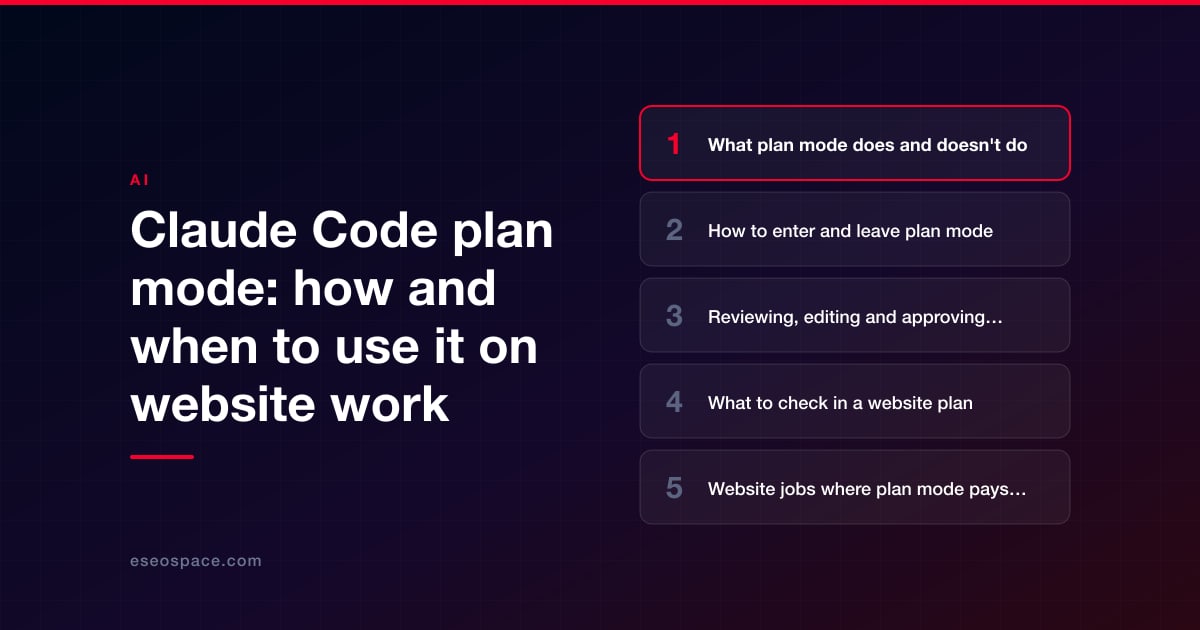
Plan mode is the Claude Code setting where Claude researches your site and writes a proposal, but does not edit your files until you approve it. Use it before any website change that touches more than one file, before work on code you don't know well, and any time you are not sure what the right fix is. Skip it for a one-line change you could describe in a sentence.
On a website, plan mode is the cheapest review you will ever do. Reading a plan that says "this will change the header template used by all 400 blog posts" takes a minute. Finding that out from a broken live site takes much longer. This guide covers how plan mode works as of October 2026, how to enter and leave it, how to read and edit a plan, and the website jobs where it pays off. If you are new to the tool, start with what Claude Code is and how it works.
Key Takeaways
- In plan mode, Claude reads files, runs shell commands to explore, and writes a plan, but "does not edit your source." Edits stay blocked until you approve the plan.
- Enter it with Shift+Tab, by starting a prompt with /plan, or by launching with claude --permission-mode plan. Press Shift+Tab again to leave without approving.
- When the plan is ready you can approve it and continue in auto mode, approve it and review each edit yourself, or keep planning. Ctrl+G opens the plan in your text editor so you can change it first.
- Anthropic's advice: planning is most useful when the approach is uncertain, the change spans multiple files, or the code is unfamiliar. "If you could describe the diff in one sentence, skip the plan."
- The opusplan model setting uses Opus while planning and switches to Sonnet to carry out the plan.
- A plan is a proposal, not a guarantee. You still review the diff, run your checks and approve the deploy.
What plan mode does and doesn't do
Plan mode is one of Claude Code's six permission modes. A permission mode decides which actions Claude can take without asking you first. Anthropic's permission modes page describes plan mode this way: "Claude reads files, runs shell commands to explore, and writes a plan, but does not edit your source." The glossary adds that Claude "presents a plan for approval before touching anything."
That gives you three useful properties on a website project:
- Claude can look at everything. It can read templates, stylesheets, content files, redirect rules and build scripts, and search across the whole repository.
- Your source files stay as they are. No template, page or config file changes while you are planning.
- You get the approach in writing. The plan names the files to change, the order of work and how Claude intends to check it.
Shell commands during planning are handled one of two ways. If auto mode is available to your session and the useAutoModeDuringPlan setting is on, which it is by default, a separate classifier model reviews each exploration command instead of asking you. If auto mode isn't available, or you turned that setting off, any command outside Claude Code's built-in read-only set (commands such as ls, cat, grep and read-only git) asks for your approval.
One exception matters. In an interactive terminal session started with bypass permissions available, Claude Code does not enforce plan mode's blocks: Claude is told to plan, but an edit it attempts would run. That is one more reason never to use bypass mode on a machine that can reach your real site. The guide to every permission mode explains bypass and the other five modes in detail.
How to enter and leave plan mode
There are three ways in, and they all lead to the same place:
- Mid-session: press Shift+Tab until the status bar shows plan mode. From auto mode, the cycle runs Manual, then Accept edits, then Plan.
- For one task: start your prompt with /plan, optionally followed by the task, for example /plan update the footer phone number on every page.
- From launch: start the session with claude --permission-mode plan.
To leave plan mode without approving anything, press Shift+Tab again. To plan again later in the same session, cycle back with Shift+Tab or start your next prompt with /plan.
Other surfaces have it too. In the desktop app's Code tab, Plan sits in the mode selector next to the send button; unlike other modes, picking Plan there applies to the current session only. Cloud sessions at claude.ai/code offer Accept edits, Plan and Auto in their mode dropdown. Plan mode also keeps its blocks in non-interactive runs with -p and in the VS Code extension's chat panel.
Reviewing, editing and approving a plan
When Claude finishes, it shows the plan and asks how to proceed. As of October 2026 the choices are:
| Choice | What happens next | When to pick it on a website |
|---|---|---|
| Yes, and use auto mode | Plan mode ends and Claude works in auto mode, with the classifier reviewing actions. If auto mode isn't available, this option auto-accepts edits instead. | The plan is clear, you're on a branch of a local copy, and your settings ask before any push. |
| Yes, manually approve edits | Plan mode ends and Claude asks before each edit. | Templates, forms, checkout, redirects, anything sitewide, and your first weeks with the tool. |
| No, keep planning | You stay in plan mode and tell Claude what to change. | The plan misses a page type, guesses at a fact or includes a step you don't want. |
You can also press Ctrl+G to open the plan in your default text editor and change it directly before Claude proceeds. That is often faster than describing a change: delete the step that touches the sitemap, add "do not change any URLs," save, and continue.
Planning can use a lot of context, which is Claude's working memory for the session. If you turn on the showClearContextOnPlanAccept setting, the approval menu gains a first option that approves the plan, clears the planning conversation and starts work from the plan alone. Long sessions and when to clear them are covered in context, compaction and memory files.
Claude Code saves the plan as a file, by default under ~/.claude/plans/. The plansDirectory setting moves that location, resolved relative to your project root, if you want plans kept with the project.
What to check in a website plan
A plan is only useful if someone reads it critically. Use this table as a checklist before you approve:
| Check | Why it matters on a website |
|---|---|
| Which files and templates change | A shared template or include can change hundreds of pages at once. |
| Which pages or URLs are affected | Any URL, slug or redirect change needs an SEO decision from a person. |
| Whether it edits source or generated output | Edits to built files can be overwritten by the next build. |
| What gets removed | Scripts, styles and widgets that look unused are often still in use. |
| Facts, prices, claims and legal text | Claude should take these from you or a source you name, never guess them. |
| How Claude will verify the work | A build, a link check, a screenshot or a page count should be in the plan. |
| Commits, pushes and deploys | A plan for a site should end at a reviewed branch, not at "deploy." |
The "what gets removed" row is the one we learned the hard way. When we rebuilt eseospace.com, the first attempt was a clean rebuild that stripped the theme's JavaScript, and it was abandoned on day one because it broke animations, accordions, widgets and menus. A person then decided to keep the theme's own JavaScript. A plan that lists what will be removed puts that kind of tradeoff in front of a person before any work happens. The full story is in our eseospace.com rebuild case study.
Website jobs where plan mode pays off
Anthropic's best-practices guide recommends four phases for non-trivial work: explore, plan, implement, commit. It warns that "letting Claude jump straight to coding can produce code that solves the wrong problem." On websites, these jobs deserve a plan:
- Sitewide fact changes: a new phone number, address or price that appears in templates, page copy and structured data.
- Template and theme edits: headers, footers, navigation and blog post layouts.
- Redirects and URL changes: the plan should list every old and new URL before anything changes.
- Plugin, app or dependency updates: ask for what could break and how it will be tested.
- Performance work: deferring or removing scripts can break features in ways a quick look won't show.
- Anything touching forms, tracking or checkout: these fail quietly, so the verification step matters most.
Two example prompts, written for plan mode. They are illustrations, not magic words:
/plan Find every place the old phone number 555-0100 appears, including templates, page content and structured data. List each file and line. Do not change anything yet.
/plan We want to defer the slider script on the homepage. Explain what depends on it, what could break, and how you will check the page still works in a browser.
Ask for counts as well as lists. "Which 37 files will change" is easier to check than "update the templates." For more on wording, see how to write prompts for website changes.
When to skip plan mode
Plan mode adds a step, and Anthropic says so plainly: "Plan mode is useful, but also adds overhead." For a typo, a single image swap or a one-word heading change, ask Claude to do it directly and review the diff. Anthropic's rule of thumb works well: if you could describe the diff in one sentence, skip the plan.
Skipping the plan doesn't mean skipping the safety net. You still work on a branch, you still read what changed, and if a quick edit goes wrong you can rewind it. See checkpoints and rewind for what can and can't be undone.
Making plan mode the default, and opusplan
If your team wants every session on a project to start by planning, set the starting mode in the project's shared settings file, .claude/settings.json:
{
"permissions": {
"defaultMode": "plan"
}
}
That applies to terminal sessions. Conversations the VS Code extension starts don't read project settings for the starting mode; there, set claudeCode.initialPermissionMode to plan in your VS Code user settings. Starting in plan mode is a sensible default for a site with no automated tests, because every session begins with a read-only look before anything changes.
The opusplan model setting pairs well with plan mode. Per Anthropic's model configuration page, it "uses opus for complex reasoning and architecture decisions" in plan mode and "automatically switches to sonnet for code generation and implementation." On the Anthropic API, those aliases resolve to Opus 5.5 and Sonnet 5.5 as of October 2026. Choose it with /model. Model choice affects how fast you use your plan's limits, so check /usage during your first few sessions.
Plan mode works well alongside your project's instruction file. A CLAUDE.md that names your build command, your page templates and what must never change gives Claude better material to plan from. See how to write a CLAUDE.md for a website.
Conclusion
Plan mode turns "Claude, fix the header" into a written proposal you can check before a single file changes. Use it for multi-file, sitewide and unfamiliar work, read the plan against a checklist, edit it when it is wrong, and pick manual approval for anything risky. It doesn't replace reviewing the diff or approving the deploy, but it catches the wrong approach at the cheapest possible moment. If you want a team workflow built around planning, review and safe deploys, our Claude Code development team does this work on real sites. More guides are in our Claude Code Guide.
Frequently asked questions
Can Claude change my files while in plan mode?
Not your source files, in a normal session. Claude can read, search and run exploration commands, and it writes the plan itself to a plan file, but edits stay blocked until you approve. The exception is an interactive terminal session started with bypass permissions available, where plan mode's blocks aren't enforced, which is why bypass mode has no place on a real website.
Is /ultraplan still available?
No. As of October 2026, Anthropic's commands reference lists /ultraplan as removed and says to use plan mode instead. Older tutorials that mention it are out of date.
Does plan mode cost extra?
Anthropic doesn't list plan mode as a separately priced feature. Planning draws on your plan's usage limits or API tokens like the rest of the session, and reading many files to plan a large change uses more. The /usage command shows where you stand.
Can I edit a plan instead of explaining what's wrong?
Yes. Press Ctrl+G to open the proposed plan in your default text editor, change it, and save. Claude then proceeds from your edited version. You can also choose "No, keep planning" and describe the change in the conversation.
Should non-developers use plan mode?
Yes, especially non-developers. A plan written in plain language is easier to judge than a diff, and you can ask Claude to explain any step before approving. Pair it with manual edit approval and a person who can review the final changes before they go live.
Put this into action with eSEOspace
We help businesses grow with seo, geo & aeo that actually performs. Explore the services behind this guide:
Get a FREE Audit
We'll perform a comprehensive SEO, AEO, GEO & CRO audit of your website — completely free — and show you exactly how to outrank your competitors.
Don't have a site yet? Get in touch →
Get a FREE GEO/AEO/SEO Audit
We'll analyze your site's SEO, GEO, AEO & CRO — completely free — and show you exactly how to get found across Google and AI answers.
Don't have a site yet? Get in touch →
Great — your audit is on the way!
We'll send your free SEO/GEO/AEO/CRO audit within the next few hours. Where should we send it?
You're all set! ✓
Your free audit is being prepared — check your inbox in the next few hours. Talk soon!








