



How to Convert WebP to PNG Without Losing Your Workflow
How to Convert WebP to PNG Without Losing Your Workflow
WebP images are quite popular among websites due to their ability to provide excellent visual quality while maintaining a compact size. Nevertheless, when the user requires editing the image in a graphics editor, using it in a presentation, or transferring the image to an old computer where this format is not supported, it may pose some compatibility issues. Converting the image to PNG is another option that allows for creating transparent lossless images.
Convertio converts webp to png files using its online conversion service. It provides the ability to convert the images from one format to another without any need to download an external conversion program.
What Makes WebP Different From PNG?
Both WebP and PNG are graphic file types, but they have different uses. The development of WebP occurred at Google to help compress images on the internet. It offers both lossy and lossless compression, transparency, and animation support. On the other hand, PNG is a lossless file format which is commonly used in graphics with sharp edges, transparency, and consistent rendering in various compatible applications.
However, the difference between the two becomes clear when the image is moved from the webpage into another process. In some cases, while a WebP image might look good in the browser, it would be difficult to edit using an old program or upload to a system that only allows certain files.
Converting a file type to PNG makes this task easy, but it will not enhance the image quality since the format will change, and not the information within the image.
Why Convert a WebP Image to PNG?
There are a number of practical considerations that make it worthwhile to turn WebP images into PNGs. The decision will depend on how you plan to use the image after conversion.
Graphics Editing and Screenshots
Often, designers and other creators of content deal with screenshots, interface elements, icons, and diagrams. In this case, using the PNG format is reasonable because it saves the image information without adding any further lossy compression.
A web designer, for instance, might download a screenshot in the WebP format, but then require its conversion to PNG due to certain project needs. This conversion may be useful for meeting the project needs without having to recreate the screenshot from scratch.
Preservation of Transparency Backgrounds
Logos, icons, and cut-outs often employ transparency, which allows them to integrate well against different backgrounds. As both WebP and PNG allow for transparency, there is no problem in preserving transparency on a WebP file after it has been converted to PNG.
This is particularly important if you are creating graphics to place in presentations, documents, or design layouts. It is important to verify that any transparent backgrounds are indeed transparent after conversion.
Cross-Application File Sharing
Various applications and content management systems allow for different types of images. In situations where someone else's application is unable to read WebP files, conversion to PNG can come in handy.
It is still important, however, to convert files based on needs at the destination. If a website is advocating the use of WebP for the sake of lower page weight, the original file should stay intact. Smaller images are one of the simplest site speed wins.
How to Convert WebP to PNG With Convertio
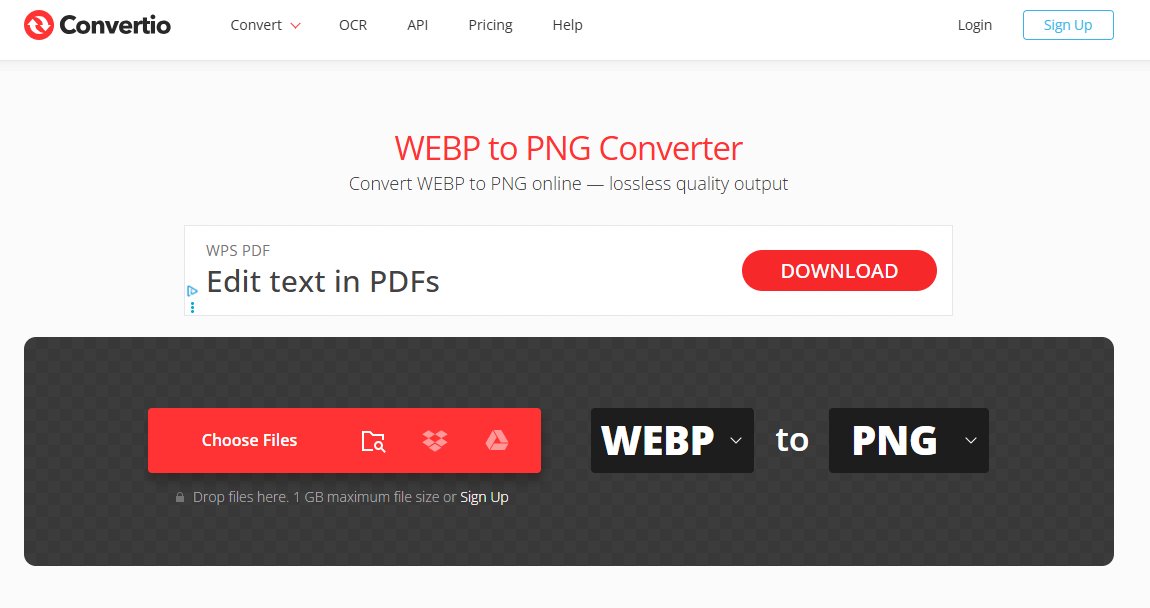
Convertio offers an online conversion process, which may be useful if you want to convert a file without downloading any software to your computer. The main steps include selecting the source picture, specifying the format of the file, and downloading the converted file.
Step-by-Step Instructions
- Select your WebP image. Open the Convertio converter and upload the image you want to process.
- Choose PNG as the output format. Check that PNG is selected before starting the conversion.
- Start the conversion. Allow the service to process the uploaded file.
- Download the result. Save the converted PNG image to your device.
- Check the output. Open the file and confirm that its dimensions, colors, transparency, and visible details are suitable for your intended use.
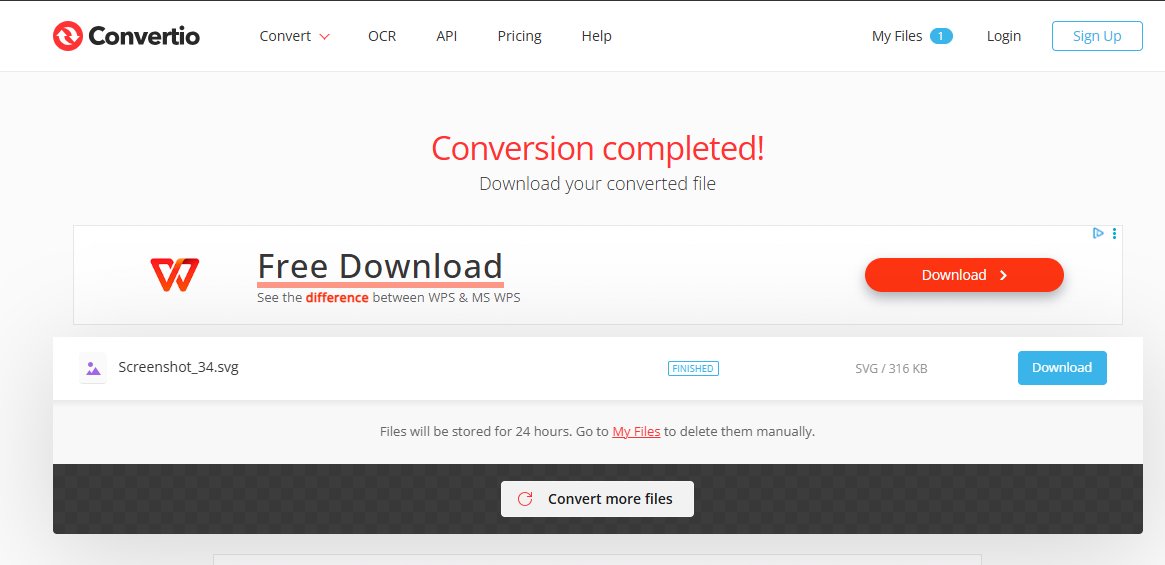
Before any sensitive photos are uploaded, it is important to check out the privacy and file retention policies that apply at the moment. In the case of confidential business data, the company may need an internal conversion procedure.
Will Conversion Affect Image Quality?
It is not always the case that when you convert an image from WebP format to PNG, you get improved quality. Everything will depend on the format of the image in the first place and how the conversion process works with the image information.
In the case that the source image is losslessly compressed in WebP format, then it might be possible to convert it into a PNG format and keep all the same information without adding any extra lossy compression. In the case of a lossy compression, then some image data was already lost, and this cannot be undone just by converting the file to PNG.
File size will also differ. PNG files can be bigger than WebP images due to the different way of compression used. If the image is going back onto a website, see how to optimize WordPress images without losing quality.
For additional technical information, consult Google's WebP documentation and the PNG specification.
Common Problems and How to Avoid Them
Conversion of images is usually very simple; however, there are certain factors that may affect the final output. Checking the output prior to its usage will help avoid unnecessary work.
These common problems include:
- Surprisingly large file size: The PNG format can create a much larger file than the original WebP. Consider if the PNG file is really needed by the destination.
- Lack of transparency: Check the background color in the converted image. If there is no transparency, check your original image and conversion process.
- Loss of details: The PNG format cannot retrieve information lost due to lossy compression in the original image.
- Incorrect dimensions: Verify that the output dimensions suit your purpose, especially if you will use the file on the Internet.
- Errors during upload or conversion: Verify if the original image file is valid.
Keep the WebP format for websites if it satisfies the needs of the website, and treat image optimization as routine maintenance. PNG may be more suitable for other purposes.
WebP vs. PNG: A Practical Comparison
| Feature | WebP | PNG |
|---|---|---|
| Compression | Lossy and lossless | Lossless |
| Transparency | Supported | Supported |
| Animation | Supported | Only as animated PNG (APNG), which the PNG Third Edition standard added in 2025; many editors still open just the first frame |
| Typical web use | Efficient web images | Graphics and images requiring lossless storage |
| File size | Often smaller for web delivery | Can be larger, depending on the image |
| Editing compatibility | Depends on the application | Widely supported |
Neither format is universally better. WebP is often a strong choice for web delivery, while PNG is useful when lossless image storage, transparency, or application compatibility is a priority.
Frequently Asked Questions
Does converting WebP to PNG reduce image quality?
There is no assurance that quality will automatically decrease during conversion. Lossless WebP images can usually be converted while maintaining their decoded pixel data. However, lossy WebP images cannot have their lost pixel data restored once they have been converted.
Can a PNG file keep a transparent background?
Yes. Transparency in PNG images is supported, and transparency may be retained in WebP images upon conversion. It would depend on the image itself and the process used for conversion. You can check your converted PNG against a contrasting background to verify the retention of transparency.
Why is my converted PNG larger than the original WebP?
The WebP format is created for effective compression, especially for web pictures. In turn, the PNG uses another way of compression, which leads to the bigger size of the file. The size of the file does not mean its better quality. Use one or another format depending on your needs.
Can I convert WebP to PNG without installing software?
Sure. Tools like Convertio permit people to load their WebP image and choose to convert it to a PNG file. You may find this useful when it is impossible to install desktop applications for some reason. Don't forget about security when uploading sensitive information.
Should I use PNG or WebP for website images?
WebP would often be a better choice in situations where the goal is to shrink image file size and enhance loading efficiency. PNG would be a suitable choice in cases where it is necessary to store the graphic losslessly or in an application that uses a specific publishing system.
Final Thoughts
The process of WebP to PNG conversion may be considered a good tool to prepare images for various editing works or presentations when specific formats are needed. The most important aspect is to realize what conversion can change and what it cannot change. PNG allows for convenient compatibility and lossless compression, but it is unable to recover the data that has been lost during compression of the source image.
Choosing the proper output format, checking the transparency and dimensions, and checking the final image file may become an integral part of your daily work.
Put this into action with eSEOspace
We help businesses grow with website design that actually performs. Explore the services behind this guide:
Get a FREE Audit
We'll perform a comprehensive SEO, AEO, GEO & CRO audit of your website — completely free — and show you exactly how to outrank your competitors.
Don't have a site yet? Get in touch →
Get a FREE GEO/AEO/SEO Audit
We'll analyze your site's SEO, GEO, AEO & CRO — completely free — and show you exactly how to get found across Google and AI answers.
Don't have a site yet? Get in touch →
Great — your audit is on the way!
We'll send your free SEO/GEO/AEO/CRO audit within the next few hours. Where should we send it?
You're all set! ✓
Your free audit is being prepared — check your inbox in the next few hours. Talk soon!








