This playbook is part of our MCP playbooks, within The MCP Guide. Want help setting it up for your team? Request a free MCP readiness review.
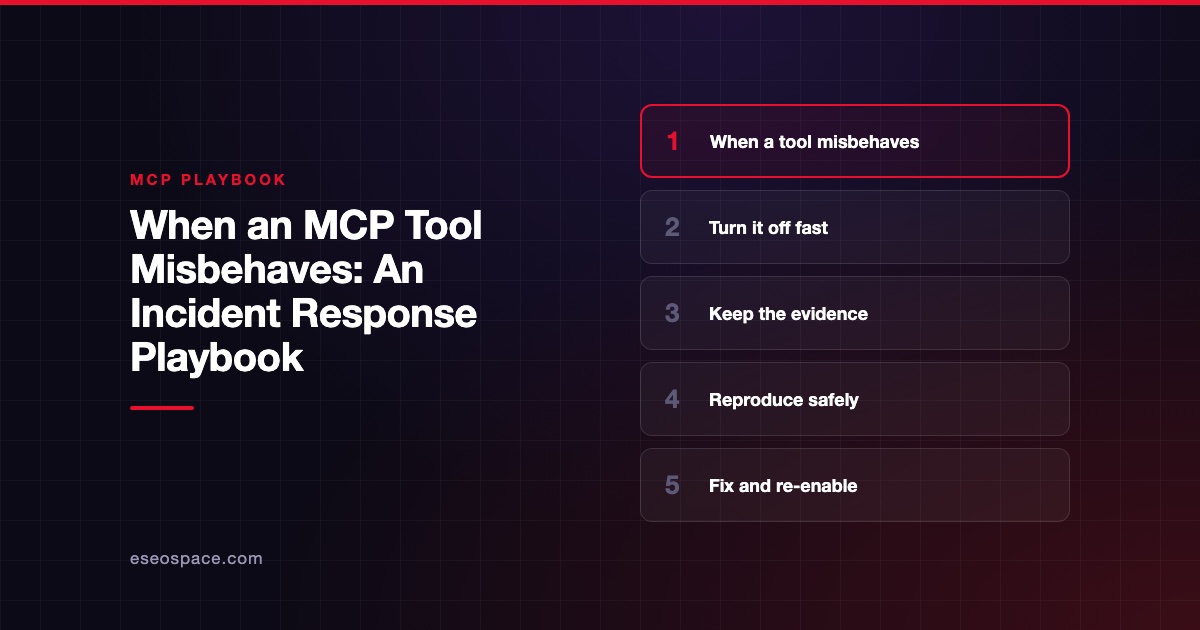
This playbook is for the moment one MCP tool does something wrong: it edits the wrong record, sends a message nobody approved, or starts failing in a strange way. The first responder is usually the person who noticed it, followed by the server's owner and IT. MCP changes incident handling because the action was chosen by an AI model, so you have to work out whether the cause was the tool, the server, the model's choice or instructions hidden in data.
If you suspect the server itself is compromised or malicious, switch to our full MCP incident response guide, which covers token revocation and damage scoping. This page is the shorter runbook for a single misbehaving tool.
Key Takeaways
- Contain first: block the one tool, or turn the connector off, before you investigate.
- Save the conversation, the tool inputs and the outputs before anything is cleaned up.
- Decide early which of four causes you are dealing with: a server bug, a changed tool, a bad model choice or injected instructions.
- Reproduce with the MCP Inspector against test data, not inside a live AI chat.
- Re-enable with tighter settings and tell users what changed.
What you need
- Admin access to your AI clients. In Claude, each connector has Tool permissions with a Blocked option, per Claude's connector docs. In Claude Code, admins can block servers with
deniedMcpServers, per Anthropic's managed MCP docs. - Logs from the client, the server or a gateway. See MCP audit logging.
- The MCP Inspector, the reference tool for testing MCP servers in a browser or from the command line.
- A test account in the connected system, so you can reproduce without touching real data.
- The server owner's contact, internal or at the vendor.
The workflow
- Contain the tool. In Claude, set the tool to Blocked on the connector's page, or turn the connector's toggle off in the conversation's + menu. If the whole server is suspect, select Disconnect. In Claude Code, add a
deniedMcpServersentry; Anthropic's docs say "Nothing overrides a denylist match." With a Cloudflare MCP server portal, Cloudflare's docs say a turned-off tool cannot be called. - Preserve evidence. Save the conversation, the approval the user saw, the tool name, inputs and outputs, and the time. Export client, gateway and server logs for the window.
- Undo the damage. Reverse the wrong edit or recall the message in the connected system. Note what could not be undone.
- Classify the cause. Work through the four checks below: an error, a changed tool, a wrong model choice or injected instructions.
- Reproduce safely. Call the tool directly with the MCP Inspector and a test account, using the same inputs (see the command below). If the tool misbehaves with fixed inputs, the bug is in the server. If it behaves, look at the model's choice or the data.
- Fix. Report server bugs to the owner or vendor with the evidence. For a changed tool, re-run your approval review. For model choice problems, narrow which tools are enabled and require approval. For injection, remove the source and keep approval on for sends.
- Re-enable with checks. Turn the tool back on with Needs approval first. In ChatGPT custom apps, OpenAI's custom MCP article says new actions found on Refresh are disabled by default and changes to existing actions show as a diff, which helps confirm a fix.
- Tell users. Anthropic notes that a server blocked by policy can disappear from
/mcpwith no signal to the user, so announce the block and the re-enable. - Write it up. One page: timeline, cause, fix, and what you changed in settings or the approved list.
Four causes to check
- Did the tool return an error? The MCP tools specification separates protocol errors from tool execution errors, which come back with
isError: trueso the model can retry. Repeated retries can look like misbehavior. See how MCP servers report tool errors. - Did the tool change? Servers can change their tool list over time and notify clients with
notifications/tools/list_changed. Compare today's tool description with the one you approved. - Did the model pick the wrong tool or inputs? Check whether the user's request was ambiguous, or whether two servers offer tools with similar names.
- Did data carry instructions? Look for text in a document, email or ticket that told the AI to act. That points to prompt injection.
Reproducing with the Inspector
The Inspector docs show this form for listing a remote server's tools from the command line:
npx @modelcontextprotocol/inspector --cli https://api.example.com/mcp --transport http --method tools/listSwap in your server's URL, then use --method tools/call with --tool-name and --tool-arg to call the tool with the inputs from the incident. Run it against a test account only.
Example prompts
Use these after containment, on saved logs and exports:
- "Here is the conversation and the tool call log. List every tool call in order with its inputs, and mark the one that changed data."
- "Compare this tool's description today with the approved version from our records. What changed?"
- "Read this document the AI processed before the bad action. Quote any sentence that gives instructions to an AI or assistant."
- "Draft a short note to users explaining that the tool is paused, why, and what to do instead."
Guardrails
- Do not debug in a live chat. Re-running the request in a connected conversation can repeat the damage.
- Keep the fix human. An AI can help read logs. A person decides when to re-enable.
- Escalate when in doubt. Signs such as calls nobody made, data sent to unknown places or many tools changing at once mean you should treat it as a compromise. Use the full incident response guide and the MCP security center.
- Check the spec's client duties. The tools specification says clients should implement timeouts for tool calls and "Log tool usage for audit purposes." Missing logs are a finding to fix.
What to measure
- Time from first report to containment.
- Time from containment to re-enable.
- The cause category for each incident: server bug, tool change, model choice or injection.
- Incidents per server over time.
- The share of incidents where logs had enough detail to find the cause.
Use these to decide where to invest: better logs, tighter approvals or a different server.
Next step
To check whether your logs and controls would let you contain a bad tool in minutes, start with our MCP readiness audit. More step-by-step guides are in the MCP playbooks hub.
Frequently asked questions
Should I block the tool or disconnect the whole server?
Block the single tool if the problem is clearly limited to it. Disconnect the whole server if several tools act oddly, if tools changed unexpectedly, or if you cannot tell the scope yet.
How do I know if it was prompt injection?
Look at the data the AI read just before the bad action. If a document, email or web page contains instructions aimed at an AI, injection is likely. Removing the source and requiring approval for sends are the first fixes.
Can the AI app undo what the tool did?
Sometimes, if the server offers an undo or reverse tool. Prefer undoing it directly in the connected system, where you can see the result, after containing the tool.
Who should own MCP tool incidents?
The owner of the connected system leads, with IT supporting. Name owners in your approved server list so no one has to guess during an incident.