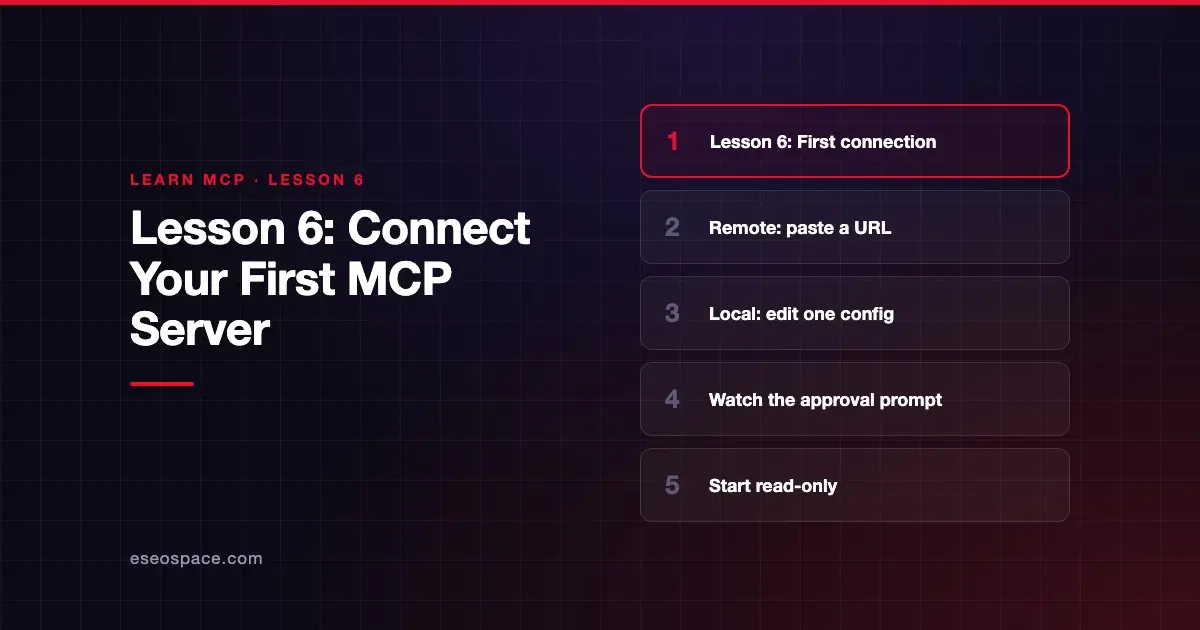
This lesson is part of Learn MCP, our free course on the Model Context Protocol, within The MCP Guide.
In this lesson you will:
- Connect a remote MCP server to Claude by URL, with nothing to install.
- Connect a local MCP server to Claude Desktop using its config file.
- Watch the approval prompt that appears before a tool runs.
The steps below follow the vendors' own docs, checked against those docs on 28 October 2026. App menus change often, so if a label looks different, trust what your app shows and the linked page.
Key Takeaways
- The quickest first connection is a remote server added to Claude as a custom connector by URL.
- The official MCP docs provide a public example server at
https://example-server.modelcontextprotocol.io/mcpfor practice. - A local server runs on your computer from a JSON config file and needs Node.js for many servers, including the filesystem server.
- Claude asks for your approval before a tool acts, and you can always deny the request.
- Only give a local server access to folders you are comfortable letting the AI read and change.
- Claude's Free plan allows one custom connector, as of October 2026.
1. Pick your path
You have two beginner-friendly options. Both use Claude because the official MCP tutorials use it as the example, but the ideas carry over to other apps. Lesson 7 helps you choose an MCP client for daily use.
| Path | What you need | What you get |
|---|---|---|
| A. Remote server | A Claude account and a browser | A server reached over the internet by URL |
| B. Local server | Claude Desktop and Node.js | A server running on your own computer |
If you are unsure which is which, review Lesson 5 on transports. Remote servers use Streamable HTTP. Local servers use stdio.
2. Path A: add a remote server as a custom connector
Anthropic's custom connectors guide says custom connectors work in Claude, Cowork and Claude Desktop on Free, Pro, Max, Team and Enterprise plans. Free users are limited to one custom connector.
For practice, use the example server from the official remote server tutorial:
https://example-server.modelcontextprotocol.io/mcpOn a Pro or Max plan, the support article lists these steps:
- Go to "Customize > Connectors."
- Click "+ Add," then "Add custom connector."
- Enter a name. This is the name you will see in your connectors list.
- Paste the server URL and click "Continue."
- Review the detected authentication settings and click "Continue."
- Under "Authentication," choose "Sign in now," "Sign in when needed," or "No sign in."
- Click "Add."
The article also covers an "OAuth client" choice and "Request headers" for API keys. You can leave those at their defaults for the example server.
To use the connector in a chat, the article says to use the "+" button, then "Connectors," and toggle it on. The modelcontextprotocol.io tutorial describes an older route through "Settings" and a "Connectors" sidebar item. If your screen matches neither exactly, follow the support article, which Anthropic keeps current.
On Team and Enterprise plans, only Owners (and, on Enterprise, certain admin roles) can add a custom connector. Members then find it under "Customize > Connectors" and click "Connect." Lesson 11 covers team rollout.
3. Path B: run a local filesystem server in Claude Desktop
The official local server tutorial connects Claude Desktop to the Filesystem Server. This server can read, create, move and search files in folders you choose.
Before you start, install Claude Desktop and check for Node.js. Open a terminal and run:
node --versionIf nothing prints, the tutorial says to install the LTS version from nodejs.org.
Step 1. Open the developer settings. Click the Claude menu in your system's menu bar (not inside the Claude window) and select "Settings..." Then open the "Developer" tab and click "Edit Config."
Step 2. Find the config file. The tutorial gives these locations:
- macOS:
~/Library/Application Support/Claude/claude_desktop_config.json - Windows:
%APPDATA%\Claude\claude_desktop_config.json
Step 3. Add the server. Replace the file's contents with the tutorial's example, swapping username for your own:
{
  "mcpServers": {
    "filesystem": {
      "command": "npx",
      "args": [
        "-y",
        "@modelcontextprotocol/server-filesystem",
        "/Users/username/Desktop",
        "/Users/username/Downloads"
      ]
    }
  }
}
The folders at the end of args are the only places the server can reach. The tutorial warns that the server "runs with your user account permissions," so it can do any file operation you could do by hand. Start with one test folder, not your whole home directory.
Step 4. Restart. Quit Claude Desktop completely and open it again. It reads the config only at startup.
Step 5. Check the connection. Click the "Add files, connectors, and more /" indicator at the bottom left of the message box. Hover over "Connectors," click "Manage connectors," and select "filesystem" to see its tools.
If it does not appear, the tutorial suggests checking the JSON syntax, using absolute folder paths and reading the logs. Logs live in ~/Library/Logs/Claude on macOS and %APPDATA%\Claude\logs on Windows. The file mcp.log covers connection failures.
4. Optional path C for developers: Claude Code
If you work in a terminal, the Claude Code MCP docs add a remote server in one line. Their own example connects Notion:
claude mcp add --transport http notion https://mcp.notion.com/mcpInside Claude Code, type /mcp to check status and sign in with OAuth. By default the server is added at "local" scope, meaning it loads only in the current project and stays private to you.
5. Watch the approval prompt
The MCP spec says hosts must get explicit user consent before invoking any tool. The specification also says "Tools represent arbitrary code execution and must be treated with appropriate caution."
In Claude Desktop, the local tutorial says Claude will request your approval before any file system operation. "You can always deny a request if you're not comfortable with the proposed action." The support article adds that "Allow always" should be used only for servers and tools you trust to run unsupervised. Lesson 10 goes deeper on approvals.
Try it
Use whichever server you connected.
- Ask a read-only question first. With the filesystem server, try the tutorial's example: "What work-related files are in my downloads folder?" Note which tool Claude asks to call.
- Read the approval prompt. Before you click anything, find the tool name and the inputs it will send.
- Request a change, then deny it. Ask Claude to create a new folder in your test folder. When the approval prompt appears, deny it. Check that nothing changed on disk.
- Approve one small change. Repeat the request and approve it. Confirm the folder now exists.
Write down one sentence about how the prompt looked. You will compare it with other apps in Lesson 7.
Recap
- A remote server needs only a URL and a sign-in choice; Claude calls it a custom connector.
- A local server is a command in a JSON config file, and Claude Desktop starts it when the app launches.
- Restart Claude Desktop after every config change, and check the logs if a server will not connect.
- Limit local servers to folders you are comfortable sharing, and read each approval prompt before you allow it.
The full course is on the Learn MCP page. For a broader view of risks, see is MCP safe?.
Course navigation
Previous lesson: Lesson 5: Local and Remote Servers (Transports).
Next lesson: Lesson 7: Choose an MCP Client.
Back to the Learn MCP course outline.
Frequently asked questions
Do I need to pay for Claude to connect an MCP server?
No. As of October 2026, Anthropic's support article says custom connectors are available on Free, Pro, Max, Team and Enterprise plans. Free users are limited to one custom connector.
Why can't I see my local server in Claude on the web?
Local servers from claude_desktop_config.json only run in Claude Desktop. Anthropic's support article says they are a separate mechanism and aren't available in Cowork or claude.ai. Use a remote server if you want it on the web.
What does the "-y" in the config do?
The tutorial says -y automatically confirms installation of the server package when npx runs it. It does not grant extra permissions. The folder paths after the package name control what the server can reach.
My server shows up but tool calls fail. What now?
The tutorial suggests checking Claude's logs, confirming the server runs on its own, and restarting Claude Desktop. You can run the same npx command in a terminal to see any error messages directly.
Is the example remote server safe to connect?
It is published in the official MCP documentation for practice. Still, treat it like any third-party connector. Anthropic says custom connectors aren't verified by Anthropic, so connect only to servers you trust.