This guide is part of our MCP connection guides, within The MCP Guide. Steps are copied from the vendor's own documentation. Need a custom connection? See MCP development.
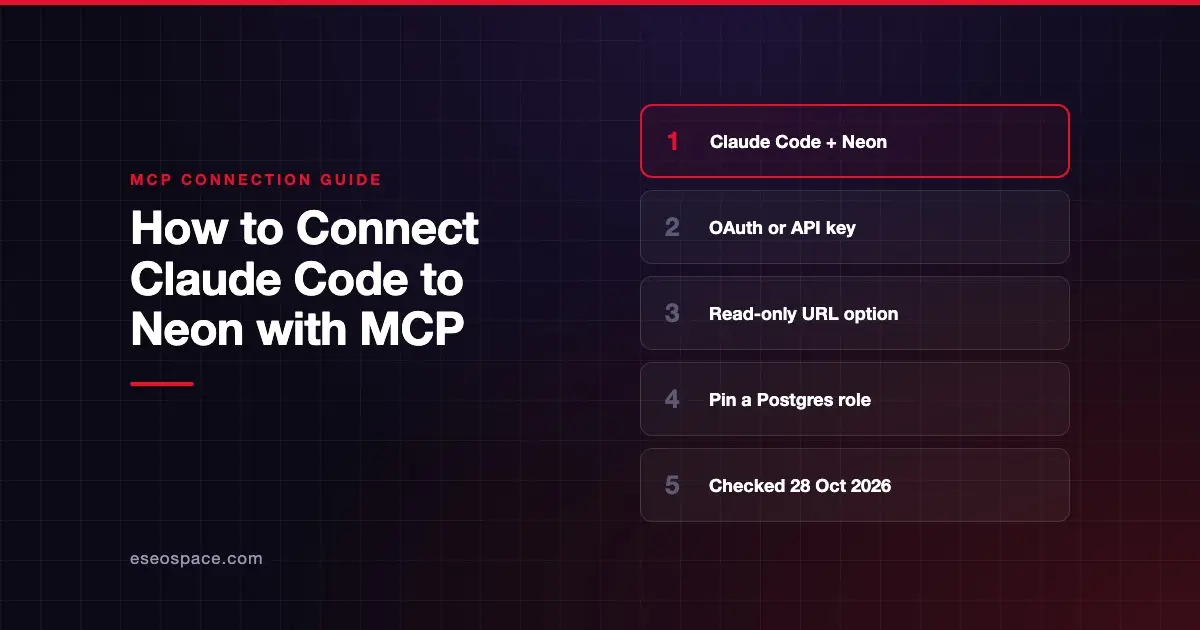
Connecting Claude Code to Neon lets Claude manage Neon projects and branches, run SQL, inspect schemas and diagnose slow databases from your terminal. Neon publishes a Claude Code guide for its hosted server, and it offers more access controls than most database servers.
Checked against: Neon's Claude Code guide, Neon's MCP server overview and Claude Code's MCP documentation on 28 October 2026. eSEOspace did not run these steps; menus can change, so follow the vendor's page if it differs.
Key Takeaways
- Neon's Claude Code command is
claude mcp add --transport http neon https://mcp.neon.tech/mcp, and sign-in uses OAuth. - Neon's
npx neon@latest initcommand sets up the MCP server for Claude Code, plus agent skills and a linked project. - URL options add read-only mode, one-project scope, tool categories and a pinned Postgres role.
- Neon recommends MCP "for development and testing only" and says "Never connect MCP agents to production databases."
- Neon's local stdio package is deprecated; use the hosted server.
Before you start
Neon's Claude Code guide lists:
- Claude Code installed.
- A Neon API key from the Neon Console, if you'll use API key sign-in.
- Node.js 20.19.0 or later for the Neon CLI, and Node.js 22.20 or later to install agent skills.
Neon's guide also notes that the remote server connects to your personal Neon account by default. It says that "to connect to an organization's account, you must authenticate with an API key."
If IP Allow is on for your project, Neon says to allow 34.192.103.46 and 23.22.233.166, the hosted server's static addresses.
Steps
Option A: Quick setup
Neon recommends its setup command, which sets up the current folder for Neon, including the MCP server for Claude Code:
npx neon@latest initRun it in a terminal. Then restart Claude Code and ask "Get started with Neon".
Option B: Add the server with OAuth
- Open your terminal.
- Run Neon's command:
claude mcp add --transport http neon https://mcp.neon.tech/mcp- Start a new session with
claudeto trigger the OAuth flow. - You can also trigger sign-in with
/mcpinside Claude Code.
Option C: Use an API key
Neon gives this variant:
claude mcp add --transport http neon https://mcp.neon.tech/mcp \
    --header "Authorization: Bearer <YOUR_NEON_API_KEY>"
Keep the key out of shared config. See Claude Code secrets management.
Add restrictions to the URL
Neon's overview lists URL parameters you can append. A combined example from Neon:
https://mcp.neon.tech/mcp?readonly=true&roleName=app_readerUse that URL in place of the plain one in the claude mcp add command. With OAuth, Neon says these options are fixed when you authorize, so changing the URL later means signing in again.
Check that it works
Neon's verification steps: start claude, type /mcp to see the servers and tools, then try a query.
Example prompts:
- "List my Neon projects." (Neon's own test prompt)
- "In project <id>, show the columns of the orders table." (uses the
schemacategory) - "Why is this branch slow? Run the database diagnostics." (Neon says the server runs
inspect_databasefor this, inside a read-only transaction)
To check which tools a URL publishes before you connect, Neon gives a public endpoint:
curl "https://mcp.neon.tech/api/list-tools?readonly=true&category=querying"Permissions and safety
Neon's warning sits at the top of its docs: "Always review and authorize actions requested by the LLM before execution."
| URL option | What Neon says it does |
|---|---|
readonly=true | Disables writes; run_sql_transaction isn't available |
projectId=<id> | Scopes all operations to one project |
category=<name> | Turns on only the named tool categories |
roleName=<role> | Runs every SQL tool as that Postgres role |
The roleName option needs care. Neon says roles created in the Console, CLI or API belong to neon_superuser, which can read all data. Create the role with SQL and grant only what's needed, for example GRANT SELECT ON public.orders TO app_reader;. The role limits SQL only, so combine it with readonly=true and category.
In Claude Code, keep run_sql and migration tools on ask. Claude Code's permission rules target this server as mcp__neon__*. Read least privilege for MCP and the MCP Security Center.
If it doesn't work
- Can't see organization projects. Neon's Claude Code guide says organization access needs API key sign-in. Neon's GitHub README adds that with OAuth you can pass an
org_idorproject_idin your prompt. - Connection refused with IP Allow on. Allow
34.192.103.46and23.22.233.166. - Pinned role fails. Neon says the role must exist on each branch and be able to log in. A role that can't log in fails the call; it doesn't fall back to the owner.
get_connection_stringmissing. It isn't available on a pinned-role connection.- Old local package.
@neondatabase/mcp-server-neonis deprecated. Neon says to usehttps://mcp.neon.tech/mcp.
Next step
Read the Neon MCP server profile for every tool category. More setups are in the connection guides hub, including Cursor with Neon. For a hosted Postgres alternative, compare Claude Code with Supabase.
Frequently asked questions
Is the Neon MCP server safe for production databases?
Neon says no. It recommends MCP for development and testing only and says never to connect MCP agents to production databases. Use anonymized data and a branch.
Do I need a Neon API key for Claude Code?
Not for personal projects; OAuth works. Neon's Claude Code guide says organization accounts need API key sign-in, so teams may need a key.
How do I make Neon MCP read-only?
Add ?readonly=true to the URL. Neon says this keeps SELECT queries and schema inspection but turns off writes. With OAuth you can also choose read-only scope during sign-in.
What does npx neon@latest init do?
Neon says it sets up the current directory for Neon, installs agent tooling (the Neon plugin, or skills and the MCP server) and links a Neon project. Restart Claude Code afterward.