This guide is part of our MCP connection guides, within The MCP Guide. Steps are copied from the vendor's own documentation. Need a custom connection? See MCP development.
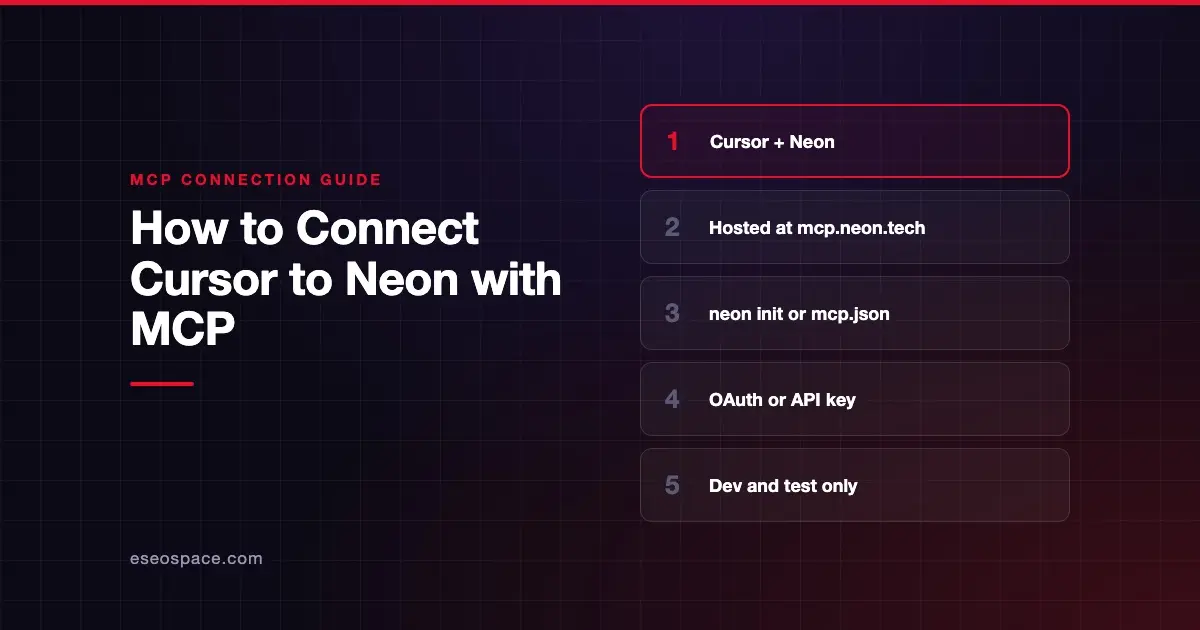
Connecting Cursor to Neon's MCP server lets Cursor's agent create branches, inspect table schemas, run SQL and test database migrations on a temporary branch. You ask in plain English, and Cursor calls Neon's tools.
Checked against: Neon's Cursor guide and Cursor's MCP docs on 28 October 2026. eSEOspace did not run these steps; menus can change, so follow the vendor's page if it differs.
Key Takeaways
- Neon's quickest route is
npx neon@latest init, which sets up the MCP server for Cursor. - You can also paste a short config into
.cursor/mcp.jsonand sign in with OAuth, or use a Neon API key. - With OAuth, the server works on your personal Neon account by default.
- URL options such as
readonly=true,projectIdandroleNamelimit what the agent can do. - Neon recommends MCP "for development and testing only" and says never to connect MCP agents to production databases.
Before you start
Neon's Cursor guide lists:
- Cursor installed.
- A Neon account and project.
- Node.js 18 or later and npm.
- A Neon API key, only if you choose the API key route. Neon says to keep it secure, since it gives access to your Neon projects.
Steps
Option 1: Quick setup (recommended by Neon)
Run this in a terminal:
npx neon@latest initNeon says it installs agent tooling and links a Neon project. Its README adds that it authenticates via OAuth, creates a Neon API key for you and configures your editor. When it finishes, restart Cursor and ask the agent "Get started with Neon".
Option 2: Remote server with OAuth
- Create a
.cursordirectory in your project's root. - Paste this into a file named
mcp.jsonin that directory, as Neon's guide gives it:
{
  "mcpServers": {
    "Neon": {
      "url": "https://mcp.neon.tech/mcp",
      "headers": {}
    }
  }
}- Save the file. Restart Cursor or run Developer: Reload Window from the Command Palette. If Cursor asks you to enable the server, click Enable.
- An OAuth window opens in your browser. Follow the prompts to authorize Cursor.
Neon also offers a one-click Cursor deep link for this OAuth setup. It notes you'll then approve each MCP action.
Option 3: API key
Use this config instead, replacing the placeholder with your key:
{
  "mcpServers": {
    "Neon": {
      "type": "http",
      "url": "https://mcp.neon.tech/mcp",
      "headers": {
        "Authorization": "Bearer <YOUR_NEON_API_KEY>"
      }
    }
  }
}
Neon's guide says the API key route is how you reach an organization's account rather than your personal one. To avoid storing the key in the file, Cursor's docs support ${env:NAME} references in headers.
For a global setup, Neon says to open Cursor's settings and click + Add Custom MCP in the Tools & MCP section. Cursor's own docs now point to Customize in the sidebar and the global file ~/.cursor/mcp.json.
Check that it works
Neon's guide suggests opening Cursor chat in Agent mode and typing "List your available MCP tools."
Example prompts:
- "Tell me about my Neon project <project_id>." Neon says Cursor uses
describe_projectfor this. - "In my neon project id: <project_id> list all the tables." This uses
get_database_tables. - "Prepare a migration that adds a created_at column to the orders table." This uses
prepare_database_migration, which Neon says tests the change on a temporary branch first.
Permissions and safety
Neon's README carries a warning: "Always review and authorize actions requested by the LLM before execution." Its MCP server docs add: "Never connect MCP agents to production databases."
Neon gives you URL options to limit access:
| URL option | What it does |
|---|---|
readonly=true | Read-only mode |
projectId= | Scopes operations to one project |
category= | Publishes only the named tool categories |
roleName= | Runs SQL as that Postgres role instead of the database owner |
A read-only, project-scoped example from Neon's README:
"url": "https://mcp.neon.tech/mcp?readonly=true&projectId=my-project-id"With OAuth, Neon says these options become a fixed grant at sign-in. Changing the URL later doesn't widen the token; you authorize again. roleName limits SQL only, so Neon suggests combining it with readonly=true and category.
Keep Cursor's default approval prompt on. See least privilege for MCP, excessive permissions and the MCP Security Center.
If it doesn't work
- Can't see organization projects. With OAuth, Neon says to include the
org_idorproject_idin your prompt, or use an API key. - Older Cursor without JSON config. Neon's troubleshooting gives an
mcp-remotefallback:
npx -y mcp-remote@latest https://mcp.neon.tech/mcp \
--header "Authorization: Bearer <YOUR_NEON_API_KEY>"- Server not showing. Reload the window, then check that the server is enabled.
- Other errors. Cursor's docs say to open the Output panel (Cmd+Shift+U) and select "MCP Logs."
Next step
Point Cursor at a development branch with readonly=true first, then add write access when you trust the workflow. The Neon MCP server profile explains every URL option. For other pairings, browse the MCP connection guides, or see how Claude Code connects to Neon.
Frequently asked questions
Can I use the Neon MCP server on a production database?
Neon says no. Its docs recommend MCP for development and testing only, and say never to connect MCP agents to production databases.
Do I need a Neon API key to use MCP in Cursor?
No. The OAuth route needs no key in Cursor. Neon's quick setup creates a key for you, and the API key route is useful for organization accounts.
How do I make the Neon MCP server read-only?
Add readonly=true to the server URL. With OAuth the setting is fixed at sign-in, so reauthorize after changing it.
What does neon init do?
Neon says npx neon@latest init installs agent tooling, including the MCP server, and links a Neon project in the current directory. Restart Cursor afterwards.