This guide is part of our MCP connection guides, within The MCP Guide. Steps are copied from the vendor's own documentation. Need a custom connection? See MCP development.
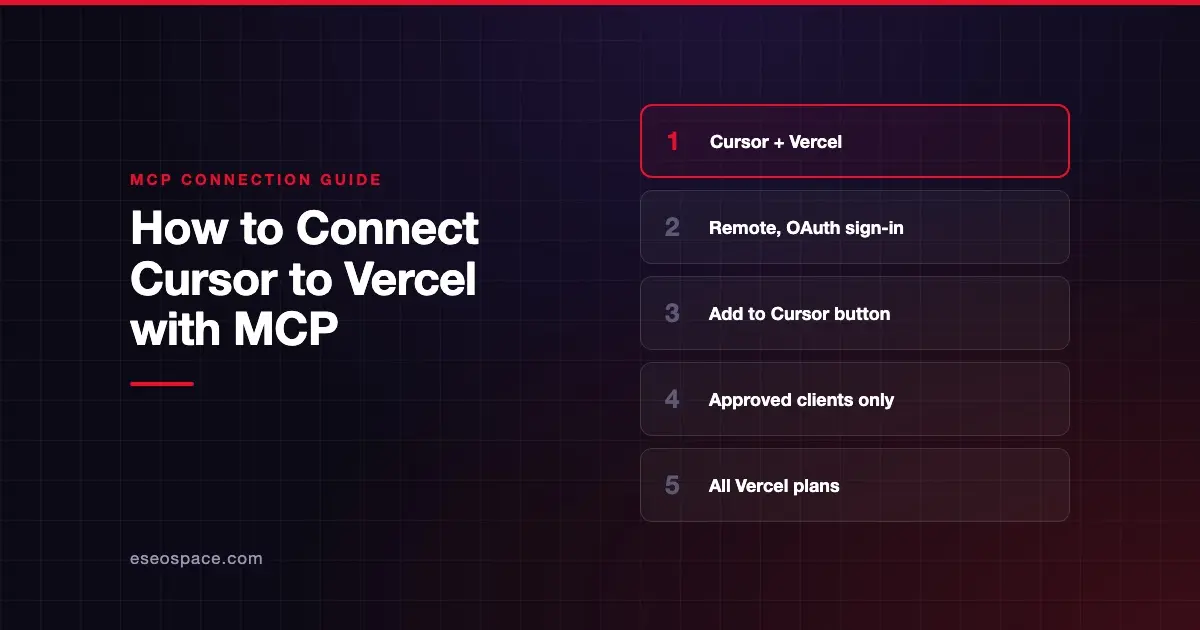
Connecting Cursor to Vercel's MCP server lets Cursor's agent search Vercel's docs, manage projects and deployments, read deployment logs and query Web Analytics. You can debug a failed deploy without leaving the editor.
Checked against: Vercel's MCP docs and Cursor's MCP docs on 28 October 2026. eSEOspace did not run these steps; menus can change, so follow the vendor's page if it differs.
Key Takeaways
- Vercel's official server runs at
https://mcp.vercel.comand uses OAuth. - Vercel only supports AI clients it has reviewed and approved, and Cursor is on that list.
- Install it with Vercel's Add to Cursor button or a short
.cursor/mcp.jsonentry. - After adding it, click Cursor's Needs login prompt to authorize Cursor.
- Vercel says connecting gives the AI "the same access as your Vercel user account," so keep human confirmation on.
Before you start
You need:
- Cursor installed.
- A Vercel account. Vercel says its MCP server "is available on all plans" and that use is subject to Vercel's AI Product Terms.
- Node.js, only if you use Vercel's
add-mcpcommand below.
Your normal Vercel team permissions still apply after you connect.
Steps
Option 1: The Add to Cursor button
- Open the Cursor section of Vercel's MCP docs.
- Click Add to Cursor. Vercel says this opens Cursor and adds Vercel MCP automatically.
Option 2: Add it to mcp.json
Add this snippet to your project's .cursor/mcp.json or your global ~/.cursor/mcp.json, as Vercel's docs give it:
{
  "mcpServers": {
    "vercel": {
      "url": "https://mcp.vercel.com"
    }
  }
}
Option 3: Vercel's quick setup command
Vercel's add-mcp tool detects your installed AI clients and configures Vercel MCP for each one:
npx -y add-mcp https://mcp.vercel.com -gThen sign in
Once the server is added, Vercel says Cursor will attempt to connect and display a Needs login prompt. Click it to authorize Cursor to access your Vercel account.
Vercel's tools reference adds one more step: "Adding the server to your client does not complete authorization." During sign-in, grant access to each team you want the AI to work with.
Cursor's docs say you can turn the server on or off from Customize in the sidebar.
Check that it works
Vercel's tools reference suggests asking the assistant to list your teams and projects to check its access. It lists frequently used tools such as list_teams, list_projects, list_deployments, get_runtime_logs and get_runtime_errors.
Example prompts:
- "List my Vercel teams and the projects in each." This uses
list_teamsandlist_projects. - "Why did the latest deployment of my-app fail?" This uses
list_deploymentsandget_deployment. - "Show runtime errors for my-app in production over the last hour." This uses
get_runtime_errors.
Cursor shows each tool call with its arguments and response, so you can check what the agent asked Vercel for.
Permissions and safety
Vercel's docs list these practices:
- Verify the endpoint. Always confirm you're connecting to
https://mcp.vercel.com. Vercel says to double-check the URL when you use "one-click" installs from a third-party marketplace. - Know the scope. Vercel says connecting "grants the AI system you're using the same access as your Vercel user account."
- Enable human confirmation. Vercel says to "always enable human confirmation in your workflows." Cursor asks for approval before running MCP tools by default.
- Watch for prompt injection. Vercel warns that untrusted tools could tell an agent to copy private deployment logs elsewhere.
- Consent per client. Vercel requires explicit consent for each client connection, which protects against confused deputy attacks.
On a Cursor team, enterprise admins can allowlist approved MCP server URLs and restrict which tools run automatically.
Read the confused deputy problem and prompt injection through tool results, and see the MCP Security Center.
If it doesn't work
- No Needs login prompt. Check the URL is exactly
https://mcp.vercel.comand that the server is enabled in Customize. - A team is missing. Vercel says to check you're signed in to the right account and have granted the connection access to that team.
- The CLI works but MCP doesn't. Vercel says MCP and the CLI use separate authentication, so a CLI success doesn't prove your MCP connection has the same access.
- Setup steps look different. Vercel says setup steps may vary by client version and to check your client's docs.
- Other errors. Cursor's docs say to open the Output panel (Cmd+Shift+U) and select "MCP Logs."
Next step
Start with read-only questions about deployments and logs before you let Cursor change settings. The Vercel MCP server profile covers the full tool catalog. For other pairings, browse the MCP connection guides, or see how Claude Code connects to Vercel.
Frequently asked questions
Is Vercel MCP free?
Vercel says its MCP server is available on all plans. Your use is subject to Vercel's AI Product Terms, and normal plan limits still apply to what you build.
Why can't my AI tool connect to Vercel MCP?
Vercel only supports clients it has reviewed and approved. Cursor is on the list. Builders of other clients can submit Vercel's client review form.
What can Cursor do in my Vercel account?
The same things your Vercel user account can do. Vercel says the connection grants that level of access, so keep Cursor's approval prompt on.
Do I need to sign in again for each team?
Vercel's docs say you grant access to each team you want the AI to work with during authorization. Teams you don't grant stay out of reach.