This guide is part of our MCP setup guides, within The MCP Guide. Paths are checked against each app's documentation on the date shown.
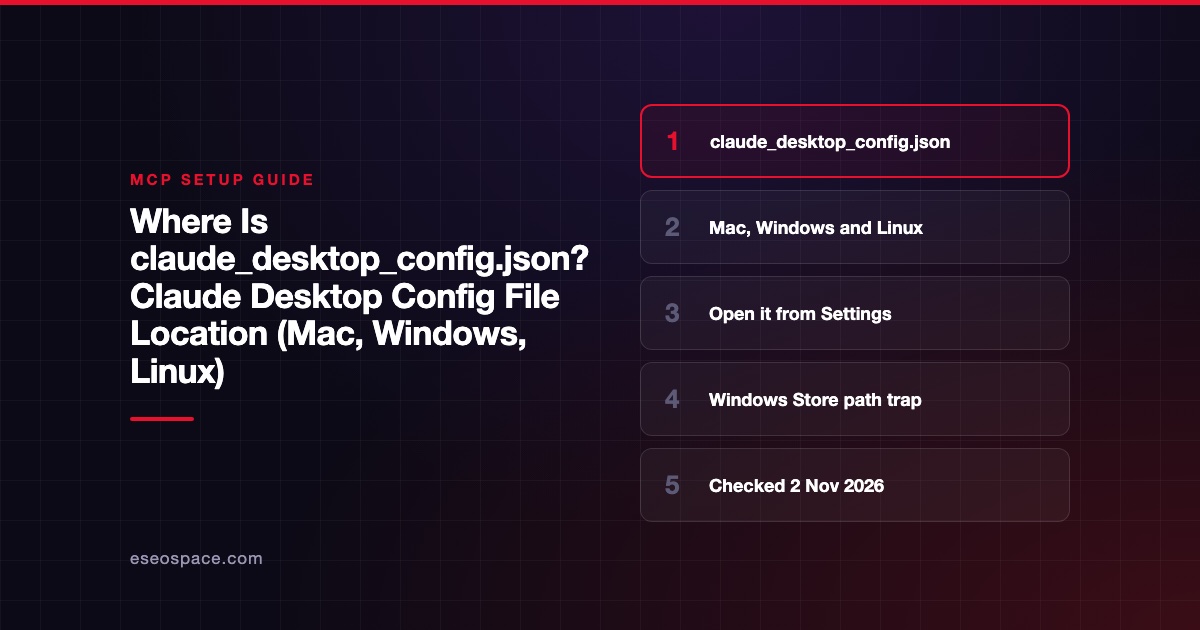
Claude Desktop keeps its local MCP server list in a file named claude_desktop_config.json. On macOS it is at ~/Library/Application Support/Claude/claude_desktop_config.json. On Windows it is at %APPDATA%\Claude\claude_desktop_config.json, and on Linux it is at ~/.config/Claude/claude_desktop_config.json.
The safest way to open it is from inside the app: open Settings, go to the Developer tab and click Edit Config. That button creates the file if it does not exist yet. One Windows install type can read a different copy of the file, which we cover below.
Checked against: the MCP project's local server guide, Anthropic's desktop extensions article and the Claude download page on 2 November 2026.
Key Takeaways
- The file lives in a different folder on each operating system, but the name is always
claude_desktop_config.json. - Open it with Settings > Developer > Edit Config rather than hunting for it in Finder or Explorer.
- Claude Desktop only reads the file at launch, so you must fully quit and reopen the app after every edit.
- Users report that some Windows Store (MSIX) installs read a second copy under
%LOCALAPPDATA%\Packages\, so edits to the normal path seem to do nothing. - Logs sit next to the config:
mcp.logfor connection errors andmcp-server-NAME.logfor each server's own output.
Config file location by operating system
| OS | Config file | MCP logs |
|---|---|---|
| macOS | ~/Library/Application Support/Claude/claude_desktop_config.json | ~/Library/Logs/Claude |
| Windows | %APPDATA%\Claude\claude_desktop_config.json | %APPDATA%\Claude\logs |
| Linux | ~/.config/Claude/claude_desktop_config.json | ~/.config/Claude/logs |
These paths come from the official MCP quickstart for local servers. On macOS, ~/Library is hidden by default. In Finder, use Go > Go to Folder and paste the path. On Windows, paste %APPDATA%\Claude into the File Explorer address bar.
Claude Desktop is available for macOS, Windows (x64 and arm64) and Linux. The download page says "Claude Desktop for Linux is in beta and supports Ubuntu and Debian (x64 and arm64)."
How to open the file from the app
- Click the Claude menu in your system menu bar, not the settings inside the chat window, and choose Settings....
- Open the Developer tab in the left sidebar.
- Click Edit Config. The MCP guide says this "creates a new configuration file if one doesn't exist, or opens your existing configuration."
- Edit and save the file in your text editor.
- Quit Claude Desktop completely and open it again.
Quitting matters. Closing the window is not enough on macOS or Windows, because the app keeps running in the menu bar or system tray.
What a minimal valid file looks like
The file is plain JSON with one top-level key, mcpServers. Each entry has a name you choose, a command and an args list. This example, taken from the MCP quickstart, runs the official Filesystem server on macOS:
{
  "mcpServers": {
    "filesystem": {
      "command": "npx",
      "args": [
        "-y",
        "@modelcontextprotocol/server-filesystem",
        "/Users/username/Desktop",
        "/Users/username/Downloads"
      ]
    }
  }
}
On Windows, the folder paths use escaped backslashes, such as "C:\\Users\\username\\Desktop". The block was checked against the MCP quickstart on 2 November 2026. You need Node.js installed for npx to work. Our Filesystem MCP server profile explains what that server can read and change.
If the file already has other keys, such as preferences, keep them. Add mcpServers alongside them instead of replacing the whole file. If you would rather not type JSON, the free MCP config generator builds the block for you.
The Windows Store (MSIX) path trap
A long-running report on Anthropic's issue tracker describes a Windows problem. In issue #26073, opened 16 February 2026 and still open when we checked, users say Edit Config opens %APPDATA%\Claude\claude_desktop_config.json. The packaged app, though, reads %LOCALAPPDATA%\Packages\Claude_<id>\LocalCache\Roaming\Claude\claude_desktop_config.json.
The reporter blames Windows package file virtualization. Other commenters say fresh installs hit it while machines with an older non-Store install do not. Anthropic has not posted a response in the thread, so treat this as a user-reported issue, not documented behavior.
If your servers never appear on Windows:
- Open
%LOCALAPPDATA%\Packages\and look for a folder whose name starts withClaude_. - Inside it, check
LocalCache\Roaming\Claude\for a secondclaude_desktop_config.json. - Back up that file, then add your
mcpServersblock to it, keeping any existing keys. - Restart Claude Desktop.
Users in the thread also report that installing the server as a desktop extension (.mcpb file) avoids the config file entirely.
How to confirm the file loaded
After a restart, click the "Add files, connectors, and more" button at the bottom left of the message box. Hover over Connectors and click Manage connectors. Your server should be listed by the name you gave it, with its tools.
If it is missing, open the log folder from the table above. The MCP quickstart says mcp.log holds "general logging about MCP connections and connection failures," and mcp-server-SERVERNAME.log files hold each server's stderr output. On macOS you can follow them live:
tail -n 20 -f ~/Library/Logs/Claude/mcp*.logCommon mistakes
- Invalid JSON. A missing comma or an extra trailing comma stops the whole file from loading. Paste it into a JSON validator first.
- Relative paths. The quickstart says paths must be "absolute and not relative."
- Editing while the app runs, then not restarting. Changes only load on launch.
- Expecting the file to feed Claude on the web. Anthropic's support article says servers in this file "aren't available in Cowork or claude.ai." Remote servers go in Customize > Connectors instead.
- Windows
${APPDATA}errors. The MCP guide suggests adding the expandedAPPDATApath to the server'senvblock if logs show${APPDATA}in a path.
For step-by-step installs, see our Claude Desktop MCP setup on Mac and Claude Desktop MCP setup on Windows guides. If the app still ignores your file, the config not loading fix walks through each cause.
Next step
Once one local server works, decide which tools your team actually needs before adding more. Our MCP Guide covers choosing servers, and the Claude Desktop vs Claude Code comparison helps if developers on your team need file-based configs they can share.
More in the MCP Guide
Free tools: MCP Config Generator · Client Support Matrix
Latest research: State of MCP: October 2026
Frequently asked questions
Where is claude_desktop_config.json on a Mac?
It is at ~/Library/Application Support/Claude/claude_desktop_config.json. The Library folder is hidden, so use Finder's Go to Folder or open it from Claude's Settings > Developer > Edit Config.
Why can't I find the file at all?
It is not created until you click Edit Config or save one yourself. Clicking the button creates an empty config in the right place for your install.
Do I need this file for remote MCP servers?
No. Remote servers are added as custom connectors in Customize > Connectors. Anthropic says those connectors connect "from Anthropic's cloud infrastructure, rather than from your local device." The JSON file is for local servers that run on your computer.
Does Claude Desktop on Linux use the same file?
Yes. The MCP quickstart lists ~/.config/Claude/claude_desktop_config.json for Linux, with logs in ~/.config/Claude/logs. The Linux app is in beta and officially supports Ubuntu and Debian.