This guide is part of our MCP connection guides, within The MCP Guide. Steps are copied from the vendor's own documentation. Need a custom connection? See MCP development.
Connecting VS Code to the Azure MCP Server lets GitHub Copilot's agent work with your Azure resources in plain English. Microsoft's examples include listing storage accounts and running KQL queries on Azure databases.
Checked against: Azure MCP Server README and VS Code's MCP server docs on 28 October 2026. eSEOspace did not run these steps; menus can change, so follow the vendor's page if it differs.
Key Takeaways
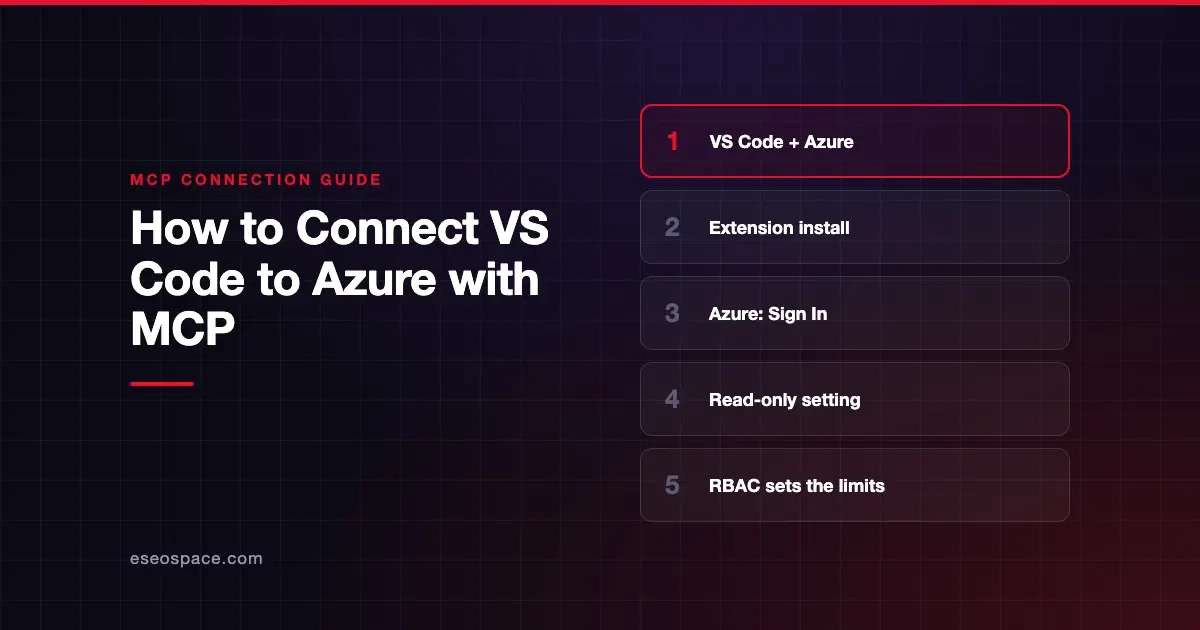
- Microsoft recommends VS Code and installs the server through the Azure MCP Server extension, alongside GitHub Copilot Chat.
- You sign in to Azure first. Microsoft says to authenticate before running the server.
- The server acts with your Azure RBAC permissions, so it can do anything your account can do.
- The
azureMcp.readOnlysetting prevents write operations, andazureMcp.enabledServiceslimits which services appear. - Microsoft says the local server "is intended strictly for developer use within your organization."
Before you start
You need:
- VS Code. The README says the extension works with both the Stable and Insiders builds.
- The GitHub Copilot Chat extension, since you use the server from Copilot's agent.
- An Azure account with the RBAC roles your tasks need, and no more.
Microsoft's overview on Microsoft Learn says the server uses your Azure user credentials or a managed identity, secured through Azure role-based access control (RBAC).
Steps
The README lists three steps for VS Code:
- Install the GitHub Copilot Chat extension.
- Install the Azure MCP Server extension (
ms-azuretools.vscode-azure-mcp-serverin the Visual Studio Marketplace). - Sign in to Azure. Open the Command Palette and run
Azure: Sign In.
Then start the server. The README describes two ways.
Autostart. On VS Code 1.103 or later, open Settings, search for chat.mcp.autostart and select newAndOutdated. VS Code's configuration reference marks this setting as experimental.
Manual start. Open the Command Palette (Ctrl+Shift+P / Cmd+Shift+P) and run MCP: List Servers. Select Azure MCP Server ext, then click Start Server. Check the Output tab for log messages that confirm the server started.
Optional: limit what the server exposes
The README lists these extension settings:
// Server Mode: collapse per service (default), single tool, or expose every tool
"azureMcp.serverMode": "namespace", // one of: "single" | "namespace" (default) | "all"

// Filter which namespaces to expose
"azureMcp.enabledServices": ["storage", "keyvault"],

// Run the server in read-only mode (prevents write operations)
"azureMcp.readOnly": false,
Set azureMcp.readOnly to true if you only want the AI to look. Microsoft says changes take effect after you restart the server from MCP: List Servers.
The extension handles the server for you. If you configure it by hand instead, the README says VS Code uses servers, not mcpServers, as the root object.
Check that it works
The README's getting-started steps: open GitHub Copilot in VS Code and switch to Agent mode. Click refresh on the tools list, and you should see the Azure MCP Server. VS Code's docs describe the tool picker as Chat: Open Customizations > Tools for Copilot sessions.
Example prompts:
- "List my Azure Storage containers." This is the README's suggested first prompt.
- "List my Advisor recommendations." This comes from the README's Advisor examples.
- "What indexes do I have in my Azure AI Search service 'mysvc'?" This is another README example; replace the service name with yours.
Expand each tool call in chat to confirm it came from the Azure server, not from a guess.
Permissions and safety
The README's warning is direct: "Autonomous or misconfigured clients may perform destructive actions." Microsoft tells you to apply least-privilege RBAC roles and safeguards before you deploy.
- Use read-only mode for exploring and reporting. Turn it off only for planned changes.
- Narrow the services.
azureMcp.enabledServiceskeeps unrelated services out of the tool list. - Leave SSRF protection on. The README labels the setting that disables it "DANGEROUS." Read SSRF in MCP before you touch it.
- Keep approvals on. VS Code asks you to approve tool calls; approve only actions you understand. See MCP permissions and approvals and least privilege for MCP.
Microsoft also notes that safeguards such as flags to prevent destructive operations are not standardized in the MCP specification. Your client may not honor them. For more, see the MCP Security Center.
If it doesn't work
- The server doesn't start. Run MCP: List Servers, select the server and choose Show Output. VS Code's manage and troubleshoot page says to check the configuration scope and runtime first.
- Sign-in errors. Microsoft says to authenticate to Azure before running the server. Run
Azure: Sign Inagain and see Microsoft's authentication guide. - Settings changes don't apply. Restart the server from MCP: List Servers.
- Tools changed but VS Code shows old ones. Run MCP: Reset Cached Tools.
- Blocked by your company. VS Code says local configuration can't override an enterprise MCP allowlist. Ask your administrator.
Microsoft also links a troubleshooting guide for common questions.
Next step
Begin in read-only mode with one or two services, then widen access as needed. For the full list of supported services and install options, read the Azure MCP server profile. For other editors and apps, browse the MCP connection guides.
Frequently asked questions
Do I need to sign in to Azure before using the Azure MCP Server?
Yes. Microsoft says to authenticate to Azure before running the server. In VS Code, run Azure: Sign In from the Command Palette.
Can I stop the Azure MCP Server from making changes?
Yes. Set azureMcp.readOnly to true, which the README says prevents write operations. Your Azure RBAC roles still set the outer limit.
Does the Azure MCP Server run in the cloud?
The VS Code extension runs it locally. Microsoft also provides templates to self-host it on Azure Container Apps for clients that need a remote HTTP server.
Can I use the Azure MCP Server in Visual Studio instead?
Yes. Microsoft Learn says Visual Studio 2022 version 17.14.30 or later includes the Azure MCP tools with the Azure development workload.