This guide is part of our MCP connection guides, within The MCP Guide. Steps are copied from the vendor's own documentation. Need a custom connection? See MCP development.
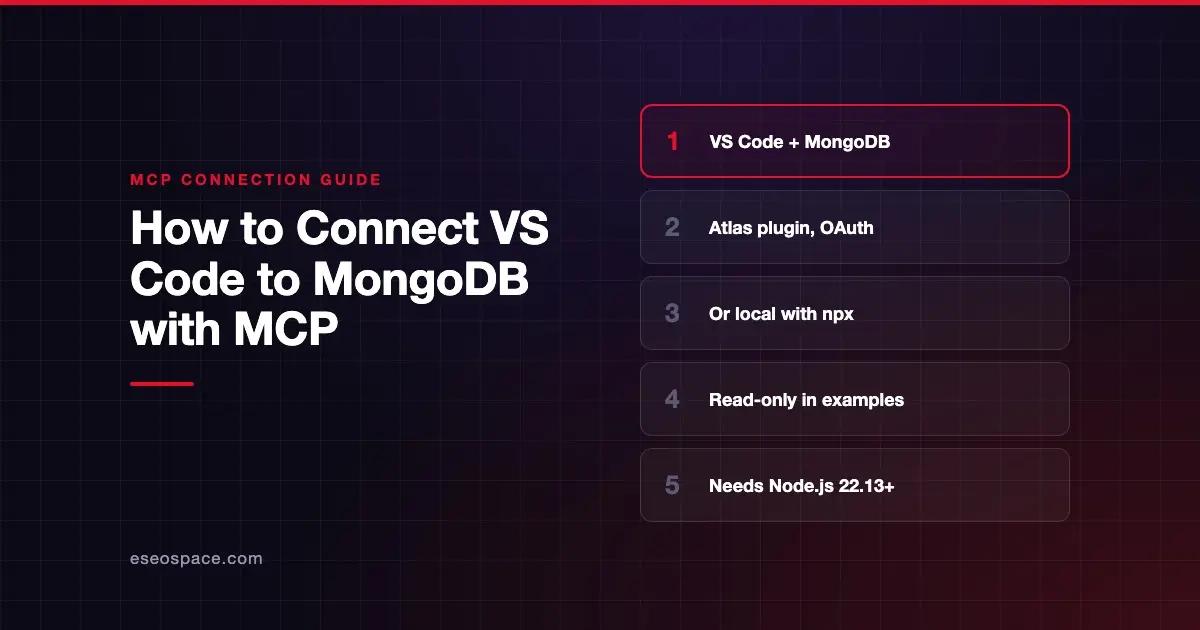
Connecting VS Code to MongoDB's MCP server lets Copilot's agent list your databases, describe collections and run queries in plain English. MongoDB offers a hosted Atlas server and a local server you run yourself.
Checked against: MongoDB MCP Server README and VS Code's MCP server docs on 28 October 2026. eSEOspace did not run these steps; menus can change, so follow the vendor's page if it differs.
Key Takeaways
- For Atlas, MongoDB recommends its
mongodb-atlasplugin, which connects to the hosted Atlas server over OAuth. - For any MongoDB deployment, you can run the local server with
npxand a connection string. - All of MongoDB's README examples include
--readOnly, which disables create, update and delete operations. - The local server needs Node.js 22.13 or later. MongoDB says Node 20 support is deprecated.
- Dangerous tools such as
drop-databaseask for confirmation by default, if your client supports elicitation.
Before you start
You need:
- VS Code with GitHub Copilot.
- For Atlas: a MongoDB Atlas account you can sign in to.
- For the local server: Node.js 22.13 or later (check with
node -v) and a MongoDB connection string. Atlas tools on the local server need service account credentials instead.
Decide early whether the agent should be able to write. MongoDB's getting started guide says: "For security, always enable read-only mode unless you must perform write operations."
Steps
Option 1: Atlas, with the agent plugin (recommended for Atlas)
The README says the mongodb-atlas plugin connects to the Atlas-hosted server over OAuth, with nothing to run locally. For VS Code:
- Open the Extensions view (
⇧⌘X/Ctrl+Shift+X). - Search for
@agentPlugins. - Install
mongodb-atlas.
Then sign in to Atlas when prompted. The README notes you can't sign in to the remote Atlas server with a static API key over HTTP; you need a client that supports OAuth.
Option 2: Local server, with the README's install button
The README has an Install in VS Code button. Decoded, its link adds a server named mongodb with this input:
[{"id":"connection_string","type":"promptString","description":"MongoDB connection string"}]and this server configuration:
{"command":"npx","args":["-y","mongodb-mcp-server","--readOnly"],"env":{"MDB_MCP_CONNECTION_STRING":"${input:connection_string}"}}VS Code prompts you for the connection string the first time the server starts, then stores it.
Option 3: Local server, by hand
MongoDB's README gives this connection-string config:
{
  "mcpServers": {
    "MongoDB": {
      "command": "npx",
      "args": ["-y", "mongodb-mcp-server@latest", "--readOnly"],
      "env": {
        "MDB_MCP_CONNECTION_STRING": "mongodb://localhost:27017/myDatabase"
      }
    }
  }
}
It uses mcpServers, which matches VS Code's portable format in a workspace-root .mcp.json or ~/.copilot/mcp-config.json. The VS Code format uses servers instead, in .vscode/mcp.json or your user-profile mcp.json. VS Code still supports that older format for compatibility but labels it deprecated in its guided flow.
One catch: VS Code's configuration reference says servers that use ${input:...} variables, like the install button's, are not forwarded to Copilot harness sessions. If the server doesn't appear there, put the connection string in an environment variable instead. MongoDB also recommends environment variables over command-line arguments, which "can be visible in process lists."
MongoDB also offers a guided setup with npx -y mongodb-mcp-server@latest setup.
Check that it works
Start with read-only questions. The README lists tools such as list-databases, list-collections, collection-schema, find, count and aggregate.
Example prompts:
- "Use the MongoDB MCP server to list my databases."
- "Describe the schema of the orders collection."
- "Count the documents in the orders collection where status is 'pending'."
Expand each tool call in chat to confirm it came from the MongoDB server. VS Code says a plausible answer alone isn't proof; the tool output must back it up.
Permissions and safety
MongoDB builds in more guardrails than many database servers:
- Read-only mode.
--readOnlyorMDB_MCP_READ_ONLY=trueallows only read, connect and metadata operations. Remove it only when you need writes. - Confirmation for risky tools. By default,
drop-database,drop-collection,delete-many,drop-index,atlas-create-db-userandatlas-create-access-listneed confirmation. The README says this requires a client that supports elicitation. - Least privilege. MongoDB's first security recommendation is to give Atlas service accounts only the permissions they need. See least privilege for MCP.
- Approvals in VS Code. Keep tool approvals on and approve only actions you understand. See MCP permissions and approvals.
Data in your collections can contain instructions an agent might follow. MongoDB wraps results with a prompt-injection warning by default; leave it on. Read secrets and credential leakage and see the MCP Security Center.
If it doesn't work
- The local server won't start. Check your Node.js version. MongoDB requires 22.13 or later. Then run MCP: List Servers, select the server and choose Show Output.
- Atlas sign-in fails with an API key. The README says the remote Atlas server needs OAuth. Use the plugin, or the
mongodb-atlas-mcp-remotestdio package with service account credentials. - No confirmation prompt for a destructive tool. That feature depends on elicitation support in your client.
- The server is missing from a Copilot session. Check whether your config uses
${input:...}variables, which VS Code doesn't forward to Copilot harness sessions. - Blocked by your company. VS Code's manage and troubleshoot page says local settings can't override an enterprise MCP allowlist.
Next step
Connect with read-only mode first, and test on a development database. For every tool and option, read the MongoDB MCP server profile. For other editors and apps, browse the MCP connection guides.
Frequently asked questions
Which MongoDB MCP option should I use in VS Code?
If your data is in Atlas, MongoDB recommends the mongodb-atlas plugin, which signs in with OAuth. For self-managed databases, run the local server with a connection string.
Is the MongoDB MCP server read-only by default?
No. The --readOnly setting defaults to false, but every example in MongoDB's README includes --readOnly. Keep it unless you need writes.
What Node.js version does the local server need?
Node.js 22.13 or later. MongoDB says Node 20 support is deprecated and will be removed in a future release.
Can the AI delete my data?
Only if you turn off read-only mode. Even then, tools such as drop-database and delete-many ask for confirmation by default, as long as your client supports elicitation.