This guide is part of our MCP connection guides, within The MCP Guide. Steps are copied from the vendor's own documentation. Need a custom connection? See MCP development.
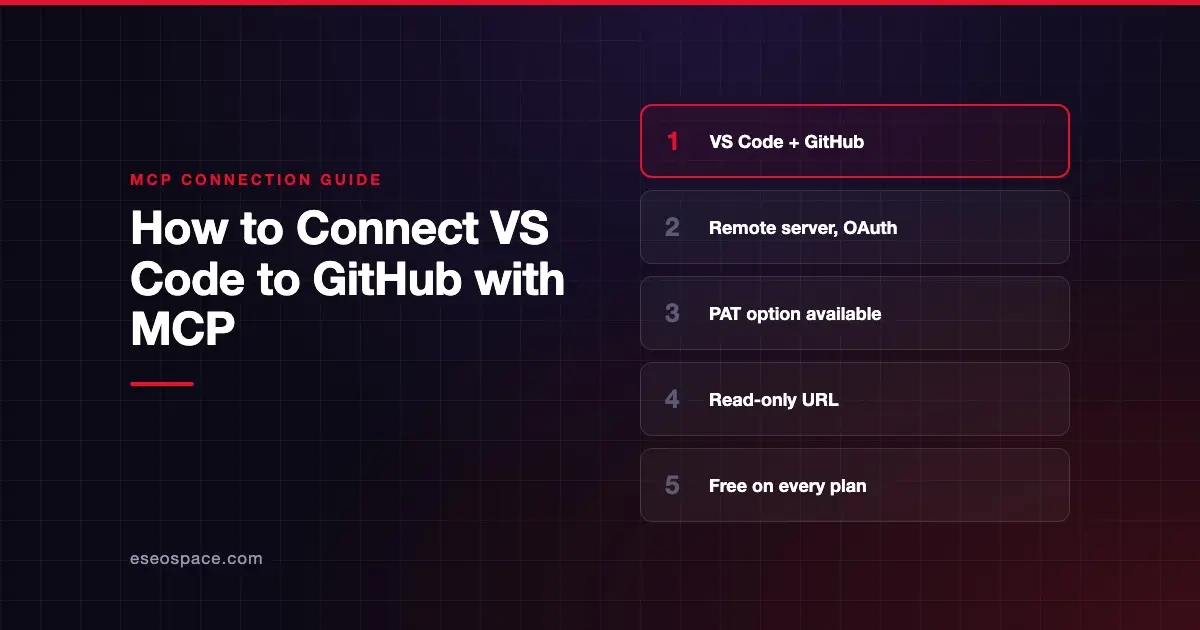
Connecting VS Code to GitHub's MCP server lets Copilot's agent read repositories, manage issues and pull requests, and check Actions runs from the chat. GitHub hosts the server, so there is nothing to install on your machine.
Checked against: GitHub MCP Server README and VS Code's MCP server docs on 28 October 2026. eSEOspace did not run these steps; menus can change, so follow the vendor's page if it differs.
Key Takeaways
- GitHub's remote server runs at
https://api.githubcopilot.com/mcp/and needs VS Code 1.101 or later for remote MCP and OAuth. - You can sign in with OAuth, or send a personal access token (PAT) in an
Authorizationheader. - Adding
/readonlyto the server URL limits the AI to read tools. - In Copilot Business or Enterprise organizations, the "MCP servers in Copilot" policy must be on.
- GitHub says the server is available to all GitHub users regardless of plan type.
Before you start
You need:
- VS Code 1.101 or later. The README says that version added remote MCP and OAuth support.
- A GitHub account, and GitHub Copilot in VS Code to use the server from chat.
- Policy access. GitHub's docs say members of an organization or enterprise on Copilot Business or Copilot Enterprise need the "MCP servers in Copilot" policy enabled.
- A PAT, only if you skip OAuth. Give it the minimum scopes you need.
The server itself is free. GitHub notes that some tools inherit paid requirements, such as tools that use Copilot cloud agent.
Steps
Option 1: One-click install
The README has an Install in VS Code button. GitHub says that once you complete that flow, toggle Agent mode (next to the Copilot Chat input) and the server will start.
Option 2: Add the configuration yourself
The README gives two JSON blocks for VS Code. With OAuth:
{
  "servers": {
    "github": {
      "type": "http",
      "url": "https://api.githubcopilot.com/mcp/"
    }
  }
}
With a GitHub PAT:
{
  "servers": {
    "github": {
      "type": "http",
      "url": "https://api.githubcopilot.com/mcp/",
      "headers": {
        "Authorization": "Bearer ${input:github_mcp_pat}"
      }
    }
  },
  "inputs": [
    {
      "type": "promptString",
      "id": "github_mcp_pat",
      "description": "GitHub Personal Access Token",
      "password": true
    }
  ]
}
Both use the VS Code format, with a top-level servers object. It goes in .vscode/mcp.json in your workspace or in your user-profile mcp.json. The ${input:...} line makes VS Code prompt for the token and store it.
A note on file locations: VS Code's current docs still support these files "for compatibility," but its guided flow labels them deprecated. The newer portable Copilot format uses mcpServers in a workspace-root .mcp.json or ~/.copilot/mcp-config.json. VS Code's configuration reference also says servers that need ${input:...} variables are not forwarded to Copilot harness sessions. If the PAT version doesn't show up there, use OAuth.
You can also run MCP: Add Server from the Command Palette, choose HTTP and paste the URL.
Check that it works
GitHub's docs give these steps: open Copilot Chat from the chat icon in the title bar, select Agent from the agent dropdown, then click the Configure tools icon. Expand the GitHub MCP server entry to see its tools. VS Code's docs describe the same picker as Chat: Open Customizations > Tools for Copilot sessions.
Example prompts:
- "List the open pull requests in this repository."
- "Create an issue titled 'Fix broken footer link' with a short description."
- "Show me the latest GitHub Actions run for main and why it failed." This needs the
actionstoolset, which is not in the default set.
GitHub's docs give creating an issue, listing pull requests and getting repository information as examples. Expand each tool call in chat to confirm it came from the GitHub server.
Permissions and safety
The AI can do whatever your sign-in or token allows. The GitHub MCP server profile notes that the full tool list includes destructive tools such as delete_file.
- Use the read-only URL. GitHub's remote server docs say adding
/readonlyto any URL restricts tools to read access. The default read-only URL ishttps://api.githubcopilot.com/mcp/readonly. - Load only the toolsets you need. Each toolset has its own URL, such as
https://api.githubcopilot.com/mcp/x/issuesorhttps://api.githubcopilot.com/mcp/x/actions. - Keep approvals on. VS Code asks you to review tool approval requests. Approve only actions you understand. See MCP permissions and approvals.
- Protect tokens. VS Code's docs say not to commit tokens or populated authentication headers.
Public issues and pull requests are untrusted text. Read prompt injection through tool results and see the MCP Security Center.
If it doesn't work
GitHub's docs list these checks:
- Authorization issues. Make sure you are signed in to GitHub in VS Code. With a PAT, check that it is valid, has the scopes you need and was entered correctly.
- Agent mode problems. Check that you selected the right agent, configured the server correctly and have permission for the action.
- Push protection blocks a secret. GitHub says you may be able to bypass the block by giving a reason, if you believe the secret is safe to expose.
- Other errors. Check the server's output logs and try restarting the server or VS Code.
In VS Code, run MCP: List Servers, select the server and choose Show Output to see its log. If your company restricts MCP, VS Code's manage and troubleshoot page says local settings can't override the enterprise allowlist.
Next step
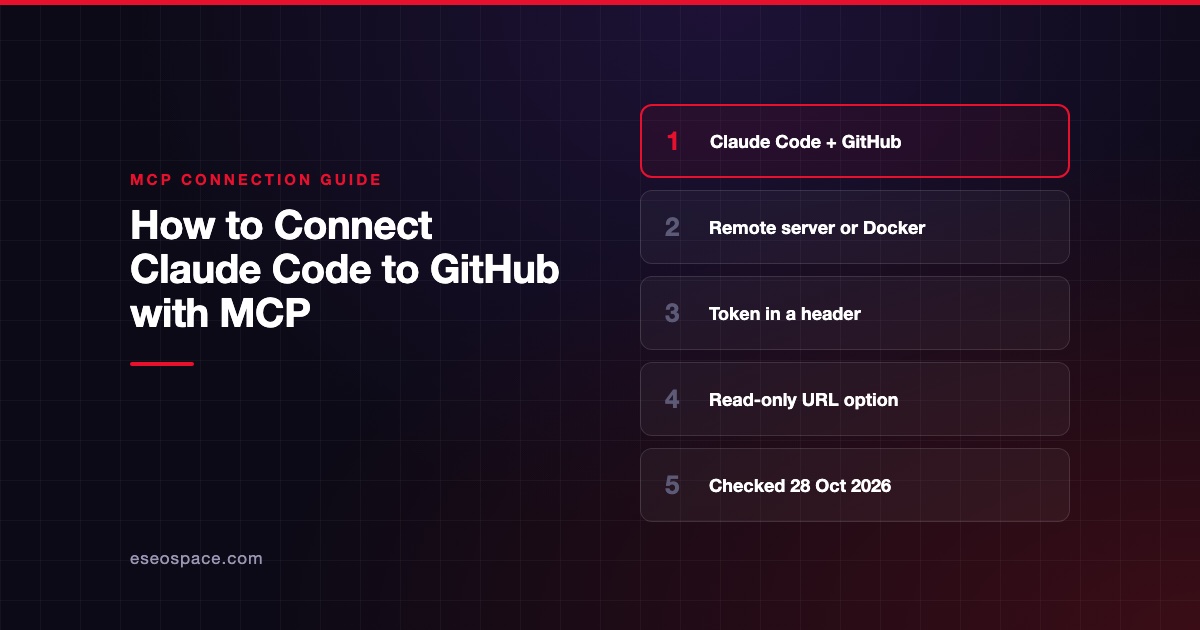
Start with the read-only URL, then add write toolsets once you trust the setup. For the full list of toolsets and lockdown mode, read the GitHub MCP server profile. To use the same server from the terminal, see how to connect Claude Code to GitHub, or browse all MCP connection guides.
Frequently asked questions
Is the GitHub MCP server free to use in VS Code?
Yes. GitHub says it is available to all GitHub users regardless of plan type. Tools tied to paid features, such as Copilot cloud agent, need the matching paid license.
Should I use OAuth or a personal access token?
OAuth is simpler, since there is no token to store. A PAT lets you set exact scopes, but VS Code does not forward servers that need ${input:...} variables to Copilot harness sessions.
How do I make GitHub's MCP server read-only in VS Code?
Change the URL in your config to https://api.githubcopilot.com/mcp/readonly. GitHub says the /readonly suffix works on any toolset URL.
Why does my organization block the GitHub MCP server?
In Copilot Business or Enterprise organizations, an admin must enable the "MCP servers in Copilot" policy. Ask your GitHub admin to check it.