This tutorial is part of Build an MCP Server, within The MCP Guide. Want it built for you? See MCP development.
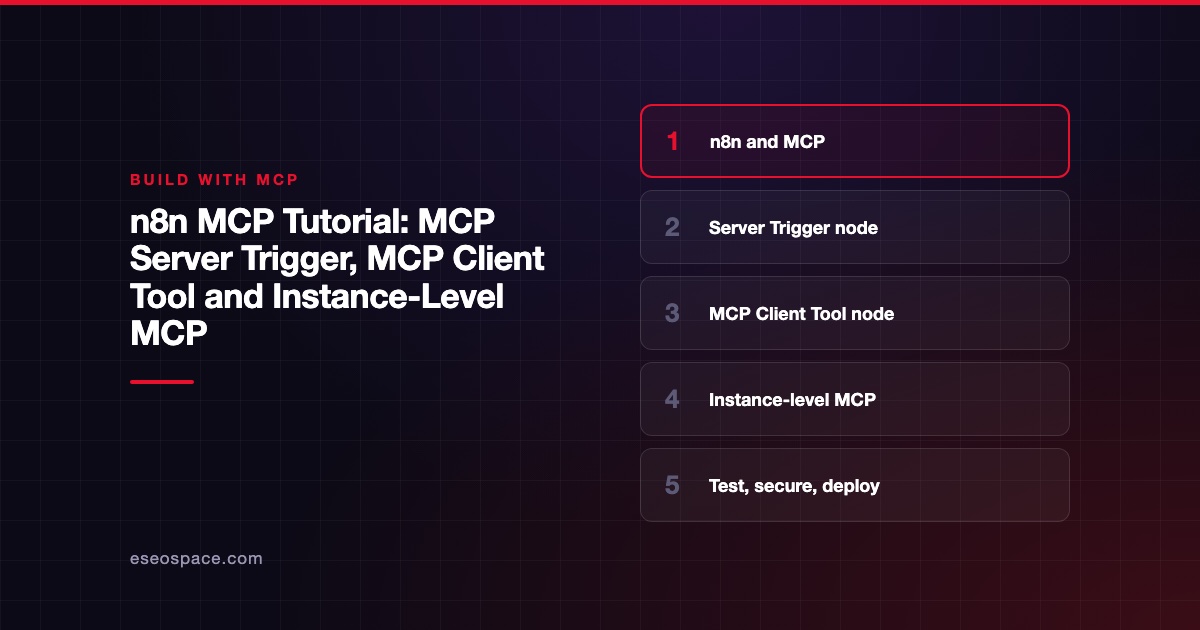
n8n works with MCP in both directions. The MCP Server Trigger node turns one workflow into an MCP server that Claude, Cursor or your own agent can call. The MCP Client Tool node lets an n8n AI Agent call tools on someone else's MCP server. A third option, instance-level MCP, exposes many workflows through one connection.
This tutorial walks through all three, shows how to test each with the MCP Inspector, and lists the deployment traps n8n's own docs warn about. Steps were checked against the n8n docs on 2 November 2026. The latest n8n release on npm that day was 2.45.7.
Key Takeaways
- Use the MCP Server Trigger to expose tools from a single workflow; use instance-level MCP to expose many workflows behind one URL with central sign-in.
- The MCP Server Trigger supports Streamable HTTP and SSE but not stdio, so desktop apps that only speak stdio need a bridge such as
mcp-remote. - The MCP Client Tool node lets you pick All, Selected or All Except tools, which is your first line of least privilege.
- In queue mode with several webhook replicas, route every
/mcp*request to one dedicated replica or connections will break. - Instance-level MCP is not scoped per client: every connected client sees every workflow you enabled.
Prerequisites
You need a running n8n instance (n8n Cloud or self-hosted), an AI model credential if you plan to use the AI Agent node, and Node.js if you want to test with the MCP Inspector. If MCP itself is new to you, start with the free MCP course and come back.
Option 1: Expose a workflow with the MCP Server Trigger
The MCP Server Trigger docs describe it as an entry point "into n8n for MCP clients." Unlike a normal trigger, it does not pass data to the next node. It "only connects to and executes tool nodes." Clients list those tools and call them one at a time.
Build it
- Create a new workflow and add the MCP Server Trigger node.
- Attach one or more tool nodes to it. To expose a whole existing workflow as one tool, attach a Custom n8n Workflow Tool node and point it at that workflow.
- Give each tool a clear name and description. The calling model reads these to decide when to use the tool.
- Set Authentication to Bearer auth or Header auth. The docs list None, Bearer auth and Header auth as the choices.
- Leave the Path as the random value n8n generates, or set your own if you need stable URLs.
Test URL vs production URL
The node shows two MCP URLs. The test URL is registered when you select Listen for Test Event or Execute workflow on an inactive workflow, and calls show up live in the editor. The production URL is registered when you publish the workflow. Production calls do not appear on the canvas; you find them under the Executions tab.
Use the test URL while you build, then switch clients to the production URL once you publish.
Transport
The docs say the node supports Streamable HTTP and SSE, and "currently doesn't support" stdio. SSE is the older transport that the MCP project has deprecated, so pick Streamable HTTP when a client offers the choice. Our SSE vs Streamable HTTP page explains the difference.
Connect Claude Desktop
Because the trigger has no stdio mode, n8n's docs show Claude Desktop connecting through the mcp-remote package, which bridges a remote URL to stdio:
{
  "mcpServers": {
    "n8n": {
      "command": "npx",
      "args": [
        "mcp-remote",
        "<MCP_URL>",
        "--header",
        "Authorization: Bearer ${AUTH_TOKEN}"
      ],
      "env": {
        "AUTH_TOKEN": "<MCP_BEARER_TOKEN>"
      }
    }
  }
}
Replace <MCP_URL> with the production URL and <MCP_BEARER_TOKEN> with the token from your Bearer credential. Our MCP config generator can build this block for other clients.
One quirk is documented: claude.ai custom connectors ask you to sign in to n8n even when Authentication is set to None. n8n says claude.ai is the only client known to do this, because it assumes every MCP endpoint on your domain uses n8n's user sign-in.
Option 2: Call outside servers with the MCP Client Tool
The MCP Client Tool docs describe a node that is an MCP client "allowing you to use the tools exposed by an external MCP server." You attach it to an AI Agent node as a tool, the same way you would attach any other tool sub-node.
Configure it
- Add an AI Agent node and connect a chat model.
- Under the agent's tools, add MCP Client Tool.
- Enter the server URL. The docs still label this field SSE Endpoint, so check what your n8n version shows and use the URL the server's vendor documents.
- Pick an authentication method. The node supports Bearer, generic header, multiple headers and OAuth2. Use Multiple Headers Auth when a server needs, for example, both an API key and a username.
- Set Tools to Include: All, Selected, or All Except.
The docs also note that if a service is already in n8n's MCP servers registry, you can connect it "straight from the node panel without adding a credential." Use the manual node setup only for servers that are not in the registry.
Pick tools on purpose
Do not default to All. A server with 40 tools adds 40 descriptions to every model call, and some of those tools may write or delete data. Choose Selected and start with read-only tools. Our tool permission planner helps you sort tools into read, write and destructive groups before you switch anything on.
Option 3: Instance-level MCP
The newer route is n8n's built-in MCP server. Once enabled, clients such as Claude Desktop can search your workflows, run the ones marked available, and create or edit workflows and data tables.
Turn it on
- Go to Settings > Instance-level MCP.
- Select Enable MCP access. This needs instance owner or admin permissions.
- In Connection details, select Connect and choose OAuth (recommended) or API key.
- Copy the Server URL. It ends in
/mcp-server/http. - Enable each workflow you want clients to see. Nothing is exposed by default except
search_workflows, which returns previews of any workflow the user can view.
n8n says the newer settings layout, the Connect a client dialog and Allowed callback URLs arrived in n8n 2.33.0. Building and editing workflows over MCP has been available since 2.13.0.
Trigger node or instance-level?
| Need | Use |
|---|---|
| One tightly defined server built inside a single workflow | MCP Server Trigger |
| One connection for many workflows, central sign-in | Instance-level MCP |
| Different tool sets for different clients | MCP Server Trigger (one workflow per audience) |
| Let an AI build or edit n8n workflows | Instance-level MCP |
| Your n8n agent calls someone else's server | MCP Client Tool |
The docs are clear about one limit: instance-level access is "not scoped to each MCP client." If you connect Claude Desktop and ChatGPT, both see every workflow you enabled. Visibility stays user-scoped, so users only see enabled workflows they already have access to.
Also note that execute_workflow runs the published version by default. It supports a manual mode that runs the current unpublished version, so check which one your client is calling.
Self-hosted admins who want the feature gone can set N8N_DISABLED_MODULES=mcp, which removes the MCP endpoints and hides the related UI.
Test with the MCP Inspector
Before you hand a URL to a chat app, check it with the official MCP Inspector. Its CLI mode lists tools without any AI model in the loop:
npx @modelcontextprotocol/inspector --cli "<MCP_URL>" \
  --transport http \
  --header "Authorization: Bearer $N8N_MCP_TOKEN" \
  --method tools/list
If the list is empty, check that the workflow is active (for the production URL) or listening (for the test URL), and that tool nodes are attached to the trigger. Our MCP Inspector lesson covers tool calls, exit codes and CI checks.
Deploy notes from n8n's docs
Queue mode and webhook replicas
The trigger relies on SSE or Streamable HTTP connections that "require the same server instance to handle persistent connections." With a single webhook replica, it works. With several, n8n says to create a separate replica set with one webhook container for MCP and route all /mcp* traffic to it. Otherwise "your SSE and streamable HTTP connections will frequently break."
Reverse proxies
Behind nginx, turn off buffering for the MCP path. n8n's example location block:
location /mcp/ {
    proxy_http_version          1.1;
    proxy_buffering             off;
    gzip                        off;
    chunked_transfer_encoding   off;
    proxy_set_header            Connection '';
    # The rest of your proxy headers and settings
}
Pitfalls
- Old tutorials that say "SSE only." The trigger now supports Streamable HTTP as well. Use it.
- Testing against the test URL in production. The test URL only works while the editor is listening.
- Authentication set to None on a public instance. Anyone who finds the path can call your tools. Use Bearer or Header auth at minimum.
- Exposing write tools without approval. n8n will run whatever the model asks. Keep destructive steps behind a human check inside the workflow, or leave them out of MCP entirely. See permissions and approvals.
Next step
If you want n8n workflows exposed as well-described, safe MCP tools for your team or customers, our MCP development service can design the tool set, auth and review steps with you.
More in the MCP Guide
Free tools: server.json Validator · MCP Error Code Lookup
Latest research: State of MCP: October 2026
Frequently asked questions
Can n8n be an MCP server and an MCP client at the same time?
Yes. The MCP Server Trigger and instance-level MCP make n8n a server. The MCP Client Tool node makes an n8n AI Agent a client of other servers. You can use all three in the same instance.
Does the MCP Server Trigger work with stdio-only clients?
Not directly. n8n's docs say the node does not support stdio. They show Claude Desktop connecting through mcp-remote, which runs locally over stdio and forwards to the remote URL.
Why does claude.ai ask me to sign in when authentication is None?
n8n documents this as a claude.ai-specific behavior. claude.ai assumes every MCP endpoint on your domain uses n8n's own user sign-in, so it prompts even when the trigger itself has no auth.
Can I give different clients different workflows with instance-level MCP?
No. n8n says instance-level access is not scoped per client, so every connected client sees every enabled workflow. Use separate MCP Server Trigger workflows if different audiences need different tools.