This guide is part of our MCP connection guides, within The MCP Guide. Steps are copied from the vendor's own documentation. Need a custom connection? See MCP development.
Connecting ChatGPT to Airtable lets you search bases, analyze records, add or update rows and even create new bases from a chat. Airtable hosts the MCP server, and it follows the permissions you already have in each base.
Checked against: Airtable's ChatGPT quickstart and OpenAI's connected apps article on 28 October 2026. eSEOspace did not run these steps; menus can change, so follow the vendor's page if it differs.
Key Takeaways
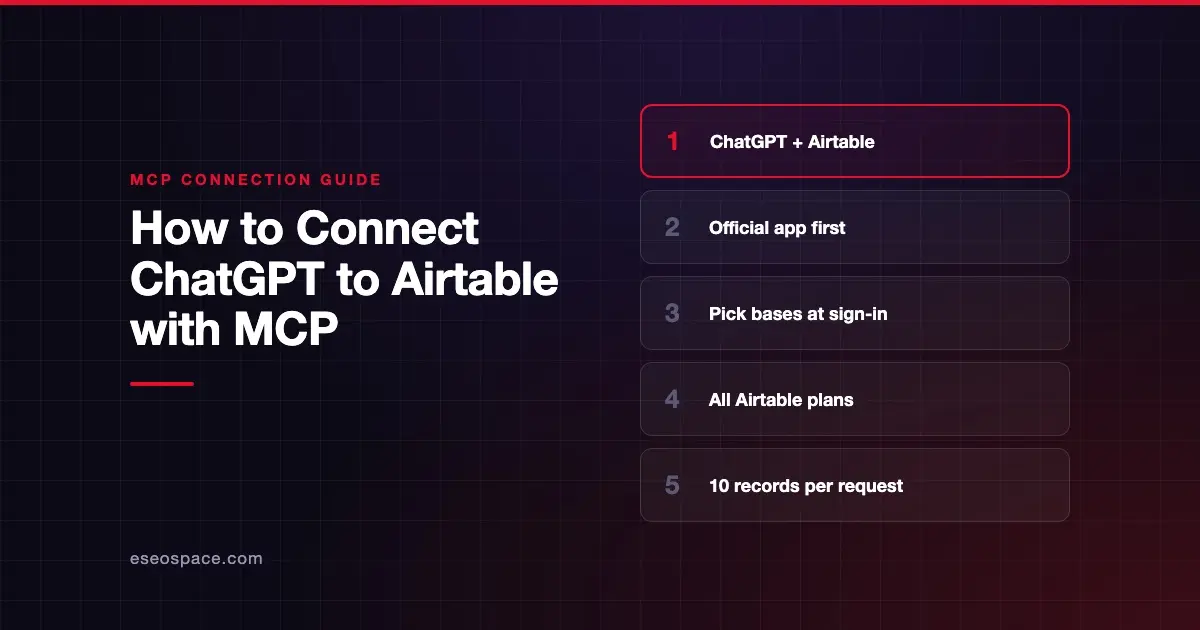
- Airtable recommends its official app for ChatGPT: open it, choose Connect → Sign in with Airtable, and authorize with OAuth.
- A custom connector to
https://mcp.airtable.com/mcplets you connect more than one Airtable account. OpenAI limits custom MCP servers to Business and Enterprise/Edu, with read and fetch only on Pro. - Airtable says the MCP server is available on all Airtable plans with no extra Airtable charge, but API rate limits apply.
- Your Airtable role decides what ChatGPT can do: read-only users can only read, editors can change records, and owners and creators can change schema.
- Enterprise admins who restrict third-party integrations must allowlist the integration first.
Before you start
Airtable's support article on the MCP server lists three prerequisites: an MCP-enabled host such as ChatGPT, data stored in Airtable bases, and permission to use third-party integrations in your Airtable organization.
On the ChatGPT side, OpenAI says app availability depends on the app, your plan, region, workspace, role, model and interface. In a managed workspace, an admin may need to enable the app. Ask first if you see Disabled by admin.
Roles matter too. Airtable's MCP overview says base owners and creators can change schema and records, editors can only change records, and commenter or read-only users can only read.
Steps
Option 1: Use the official Airtable app (recommended)
Airtable's quickstart has two steps:
- Open the Airtable App for ChatGPT. Airtable links it from its quickstart, and in ChatGPT you can also find it under Settings > Plugins, which OpenAI's article describes.
- Select Connect → Sign in with Airtable and authorize via OAuth.
During sign-in you choose which bases, apps and workspaces ChatGPT can reach, according to Airtable's overview. OpenAI's flow may first show Install plugin, then Connect, before the Airtable sign-in.
Option 2: Add a custom connector
Airtable says custom connectors let you connect multiple Airtable accounts to one ChatGPT account. The server URL is:
https://mcp.airtable.com/mcpAirtable's quickstart still describes ChatGPT's older Developer mode path (Settings → Apps → Advanced Settings, then Create app). OpenAI's current custom MCP server article says you no longer need Developer Mode and lists these steps:
- Go to Plugins.
- Select the plus button, then select Add custom MCP server.
- Enter a name and, optionally, a description.
- Under Connection, enter the Airtable URL above.
- Configure authentication. Airtable's quickstart says to choose OAuth, then pick a client registration method. Choose Dynamic Client Registration for automatic setup, or User-Defined OAuth Client if you register your own OAuth integration.
- Review the risk warning and select the I understand and want to continue checkbox.
- Select Create as a plugin, then authorize with Airtable and review the discovered tools.
For a user-defined client, Airtable says to register an OAuth integration with the callback URL ChatGPT supplies, use token endpoint auth method client_secret_basic, and grant these scopes:
data.records:read
data.records:write
schema.bases:read
schema.bases:write
data.recordComments:read
data.recordComments:write
workspacesAndBases:read
With dynamic registration, Airtable says you will find the OAuth client in your Airtable Builder Hub after the OAuth flow.
Check that it works
Start a new chat, type @ or select +, and choose Airtable. Airtable's support article gives these kinds of requests as examples.
Example prompts
- "Show me all customers from our CRM base who haven't been contacted in the last 30 days."
- "Add these 5 new project tasks to my 'Project Tracker' base."
- "List my workspaces, then create a new base called Event Planning in the Marketing workspace." (uses
list_workspacesandcreate_base, which need Creator-level permission.)
Airtable says it is normal for the AI to run discovery tools first, such as listing bases and exploring the schema.
Permissions and safety
- Base-level access. Airtable says you can add or remove bases later from your profile, under Integrations and Third-party integrations. Select the MCP integration and change its bases.
- Revoke completely. Airtable says to delete the integration from the same page.
- Enterprise allowlist. Admins allow a blocked integration under Admin Panel > Settings > Integrations & development > Third party integration allowlist, using the client ID the user provides.
- ChatGPT approvals. OpenAI's app permissions article offers Always ask, Allow read actions, Allow low-risk actions and Allow all actions. Allow read actions fits most reporting work.
Schema scopes let ChatGPT change tables and fields, not just rows. Grant schema.bases:write only if you need it, and read our guide to excessive permissions. Records can also contain text from forms or outside sources, so see MCP prompt injection and the MCP Security Center.
If it doesn't work
Airtable documents these limits and errors:
- Blocked by your organization. If your admin restricts third-party integrations, they must allowlist the MCP integration. Airtable's quickstart shows the client ID needed for that.
- Permission errors. If you try to change a field you can't edit, Airtable says the server returns an error, as the API would.
- Development bases. Calls to a development base return a 403 error.
- Bulk inserts. Record creation is limited to 10 records per request.
- Automations and interfaces. ChatGPT can draft automations, but you turn them on in the Airtable UI. MCP can't edit existing interfaces or add interface filters.
On the ChatGPT side, OpenAI's troubleshooting article says to check that you selected the right Airtable account and granted all requested permissions.
Next step
Connect one or two bases first, ask read-only questions, and widen access once answers look right. Read the Airtable MCP server profile for scopes and limits, browse more connection guides, or talk to us about MCP development for Airtable-backed workflows.
Frequently asked questions
Does Airtable charge extra for MCP?
No. Airtable's support article says MCP is included with your current Airtable plan, with no additional Airtable charges. Existing API rate limits still apply, and records created through MCP count against base limits.
Which ChatGPT plans can use Airtable?
OpenAI says app availability depends on your plan, workspace and other factors, and does not list plans for the Airtable app. Custom MCP servers are limited to Business and Enterprise/Edu, with read and fetch only on Pro.
Can I connect two Airtable accounts?
Yes, through a custom connector. Airtable's quickstart says custom connectors let you connect multiple Airtable accounts to your ChatGPT account.
Can ChatGPT see bases I didn't select?
Airtable says you choose bases, apps and workspaces during OAuth and can change them later. The server also respects your existing Airtable permissions, so it can't reach data you can't open yourself.