This guide is part of our MCP connection guides, within The MCP Guide. Steps are copied from the vendor's own documentation. Need a custom connection? See MCP development.
Connecting ChatGPT to Expensify lets you ask questions about expenses, reports, receipts, approvals and spending trends in plain English. Expensify's MCP server is read-only, so ChatGPT can search and summarize but cannot change anything in Expensify.
Checked against: Expensify's guide to connecting ChatGPT using MCP and OpenAI's connected apps article on 28 October 2026. eSEOspace did not run these steps; menus can change, so follow the vendor's page if it differs.
Key Takeaways
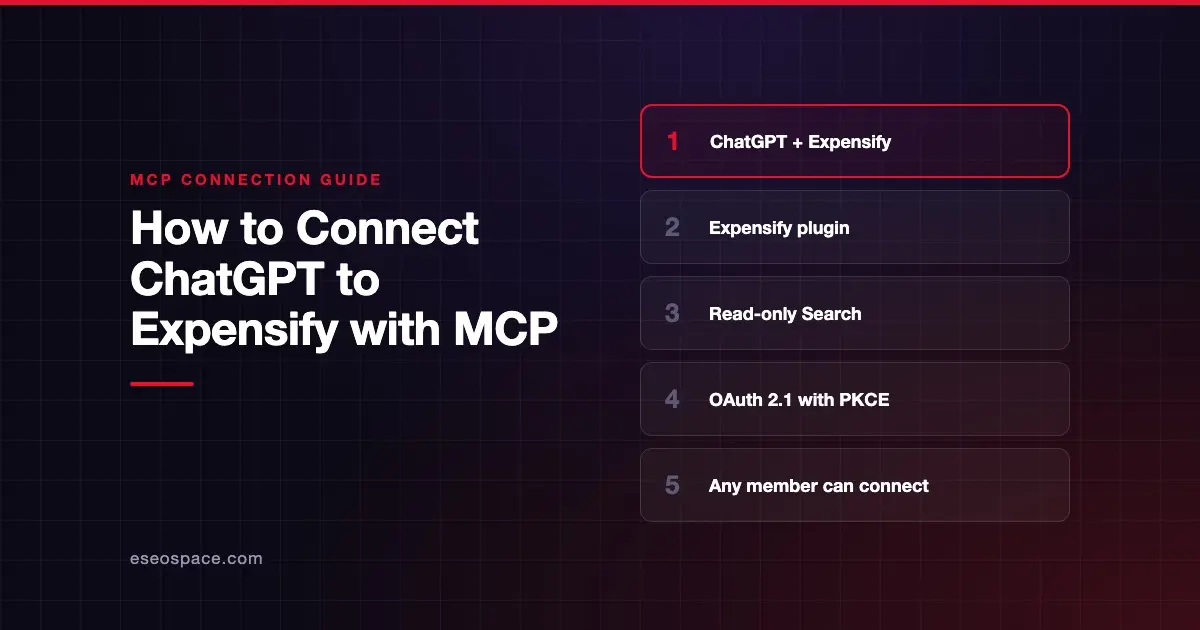
- Expensify publishes an Expensify plugin in ChatGPT's plugin directory and a five-step setup guide for it.
- Expensify says any member with an Expensify account and access to ChatGPT can connect.
- The server exposes Expensify's Search tool only. Expensify says it "cannot create, edit, or delete anything."
- Sign-in uses OAuth 2.1 with PKCE, and you grant one scope,
mcp:tools, which covers data you can already see. - If ChatGPT can't see your data, Expensify's fixes are to check the plugin is installed, reconnect it, or remove and re-add it.
Before you start
Expensify's ChatGPT guide lists three requirements:
- A ChatGPT account
- An active Expensify account
- Internet access for OAuth authentication
On the ChatGPT side, OpenAI's plugins article says the plugin directory is available across ChatGPT plans. Installing or using an individual plugin still depends on your plan, workspace, role, region and the plugin's capabilities. If you use a Business, Enterprise or Edu workspace, an admin may control which plugins and apps are available.
What ChatGPT can see depends on your Expensify role. Expensify's MCP overview says the mcp:tools scope gives read access to data you can already access through your account and Workspace permissions. An admin's connection will see more than an employee's.
Steps
Expensify's guide gives these steps:
- Open ChatGPT.
- Click Plugins.
- Search Expensify.
- Click the + to connect.
- Click Allow.
During the OAuth flow, Expensify says your AI assistant redirects you to Expensify. You sign in with your existing Expensify methods, see a consent screen that explains the requested access, and approve or deny it.
OpenAI's connected apps article describes the same flow from Settings > Plugins. It notes that ChatGPT may first show Install plugin, then Connect, before the provider sign-in.
Other ways to connect
Expensify's server lives at:
https://www.expensify.com/mcpExpensify's general steps for other clients are to add a new MCP server connection with that URL, sign in, review permissions and approve. In ChatGPT, adding a URL by hand is the custom MCP server route. OpenAI's custom MCP server article limits that to Business and Enterprise/Edu, with read and fetch only on Pro. Because Expensify publishes a plugin, most people should use the plugin.
Check that it works
Expensify's guide says to open a new chat, click the + button near the message composer, select the Expensify plugin, and ask a question about your data. These prompts come from Expensify's overview.
Example prompts
- "Show me all expenses over $100 missing receipts."
- "Which reports are waiting for my approval?"
- "Summarize team spending by category for Q1."
Expensify says ChatGPT can search expenses and reports, summarize spending, identify missing receipts and analyze spending trends.
Permissions and safety
Expensify's design keeps the risk low for a finance connection:
- Read-only. Expensify says ChatGPT cannot approve reports, edit expenses, reimburse payments or manage Workspace settings.
- Your permissions only. The single
mcp:toolsscope reads only what your account and Workspace permissions already allow. - Consent screen. You approve or deny the connection on Expensify's own page.
- Revoke any time. Expensify says to remove or disconnect the server in your AI client. It also mentions an OAuth revocation flow if your client supports it.
Read-only still means data leaves Expensify. Receipts, merchant names and amounts land in your ChatGPT conversation. OpenAI's connected apps article says Business, Enterprise and Edu data from apps is not used for training by default. On Free, Plus, Go and Pro, OpenAI may use it if "Improve the model for everyone" is on.
Before you connect, read our guides to MCP data exfiltration and cross-server data leakage, and the MCP Security Center.
If you want an AI to keep books rather than just read expense data, LedgerMCP (built by eSEOspace) is a separate MCP server for double-entry bookkeeping. See the LedgerMCP spotlight.
If it doesn't work
Expensify's FAQ covers the main failure, ChatGPT not seeing your data:
- Make sure you completed the OAuth approval flow in your browser.
- Go to Plugins in ChatGPT and confirm that Expensify appears under Installed.
- Open the Expensify plugin, select the three dots, and click Reconnect.
- Remove the Expensify plugin and add it again.
If ChatGPT shows Not available on your plan, Admin approval required or Disabled by admin, OpenAI's troubleshooting article says to check the plugin's plan requirements or ask your workspace administrator.
Next step
Start with questions you already answer by hand, such as missing receipts or reports waiting for approval. Read the Expensify MCP server profile for scope and security details, or browse more connection guides for your other finance tools.
Frequently asked questions
Can ChatGPT approve or edit Expensify reports?
No. Expensify says its MCP server is read-only. ChatGPT can search, filter, summarize and analyze, but it cannot approve reports, edit expenses, reimburse payments or manage Workspace settings.
Do I need an Expensify admin to connect?
Expensify says any member with an Expensify account and access to ChatGPT can connect. The connection then sees only what your own account and Workspace permissions allow.
How do I disconnect ChatGPT from Expensify?
Remove or disconnect the Expensify plugin in ChatGPT. Expensify says you can revoke access at any time, and after that the assistant can no longer reach your data through MCP.
What can ChatGPT see in Expensify?
Expensify lists expenses, reports, reimbursements, invoices, merchants, categories, receipts and approvals. Its overview also mentions workspace data, trips, chats and tasks.