This guide is part of our MCP connection guides, within The MCP Guide. Steps are copied from the vendor's own documentation. Need a custom connection? See MCP development.
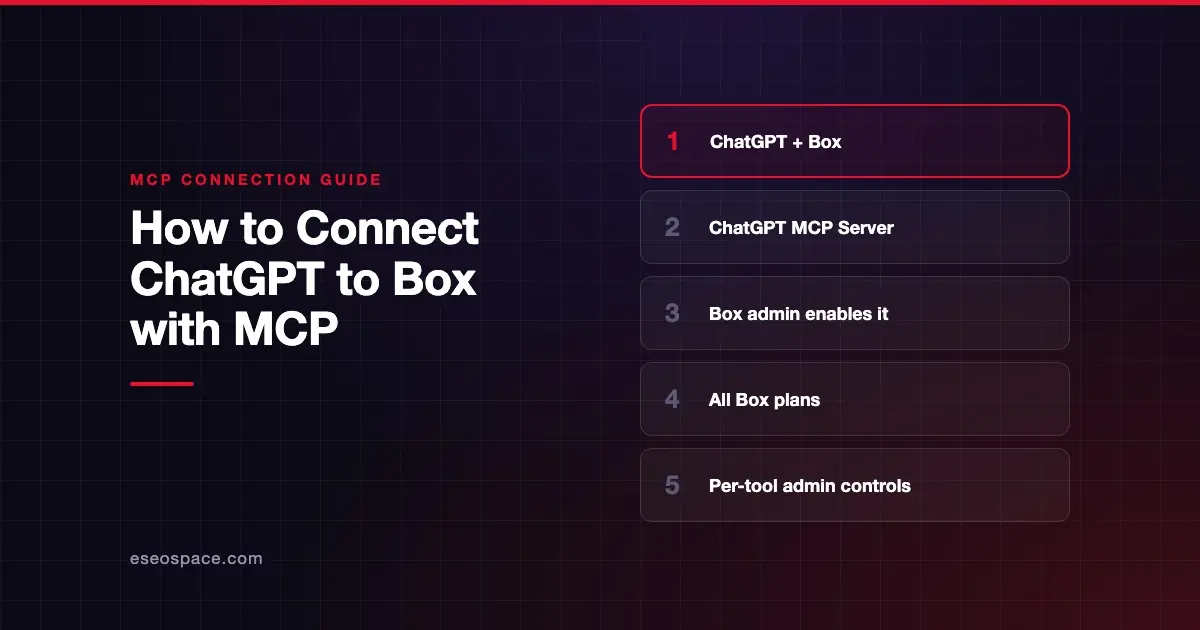
Connecting ChatGPT to Box lets you search, summarize and compare the files your Box account can open, without syncing them anywhere. Box runs this through its hosted MCP server and a listed integration called ChatGPT MCP Server. A Box admin turns it on, then each user signs in.
Checked against: Box's ChatGPT setup page and OpenAI's Box app guide on 28 October 2026. eSEOspace did not run these steps; menus can change, so follow the vendor's page if it differs.
Key Takeaways
- Box documents three steps: a Box admin enables ChatGPT MCP Server, a ChatGPT admin configures the app, and each user connects.
- Box says its MCP server is available on all Box plans.
- API calls are free when you use a published integration such as ChatGPT and sign in with your own Box account, per Box. Box AI, Doc Gen and Sign use plan allowances.
- Box admins can limit tools for the ChatGPT integration alone, separate from other AI platforms.
- OpenAI says ChatGPT can only use content your connected Box account can already access.
Before you start
- A Box admin. Box's ChatGPT setup page starts in the Box Admin Console, so an admin must act first.
- Any Box plan. Box's pricing page for MCP says the server "is available on all Box plans." You can only use tools included in your plan. AI tools need a Box AI-enabled plan.
- A ChatGPT account that can use Box. OpenAI's Box guide says availability "depends on your ChatGPT plan, workspace configuration, and Box account permissions." In a managed workspace, an administrator may need to make Box available first.
Steps
Step 1: Enable the integration in Box (Box admin)
From Box's ChatGPT page:
- Sign in to the Box Admin Console.
- Go to Integrations and find ChatGPT MCP Server, using the MCP Category filter or the search bar.
- Set its availability to Available to all users.
Step 2: Configure Box in ChatGPT (ChatGPT admin)
Box points ChatGPT admins to OpenAI's connected apps article. OpenAI's admin controls page says admins go to the Admin Console, select the workspace and open Plugins. In Business, apps are enabled by default. In Enterprise and Edu, new apps are generally disabled until an admin enables them.
Step 3: Connect your Box account (each user)
OpenAI's Box guide gives these steps:
- Open Settings > Plugins.
- Find and select Box.
- Select Connect. If Box is listed as a plugin instead, select Install plugin and complete the connection prompt.
- Sign in to the Box account that has access to the files and folders you need.
- Review the permissions shown by Box, approve the connection and return to ChatGPT.
Box's page still uses ChatGPT's older Apps label and tells you to enable Box in a chat from +, then ... More. OpenAI's current pages say you can mention an app with @ or pick it from +.
Check that it works
Start a chat, select Box with @ or from +, and ask about a file you know you can open. These prompts come from OpenAI's Box guide.
Example prompts:
- "Find our quarterly planning documents in Box and summarize the major priorities."
- "Compare the two onboarding documents in my Box folder and list the differences."
- "Find the latest project brief in Box and identify the open questions."
OpenAI says to include a project name, document title or folder when you can.
Permissions and safety
- Box permissions still rule. OpenAI says connecting Box "does not give ChatGPT additional access." Box's developer docs say MCP does not bypass Box permissions.
- Per-integration tool access. Box's admin controls page lets admins set each tool category to Disable all tools, Enable read only tools, Enable read & write tools or Custom configuration. A custom configuration on one integration applies only to that AI platform, so you can keep ChatGPT read-only.
- Risky tools start off. Box's tool list marks tools such as moving files and creating shared links as off by default.
- ChatGPT approvals. OpenAI's app permissions page offers Always ask, Allow read actions, Allow low-risk actions and Allow all actions. OpenAI says the last "carries elevated risk."
- Block personal accounts. Box notes that ChatGPT Enterprise admins can ask OpenAI Support to restrict Box connections to their verified email domain, so personal ChatGPT accounts can't reach company files.
Shared links and outside documents are the main risks with file tools. Read about MCP data exfiltration and prompt injection, and see the MCP Security Center.
If it doesn't work
- Box isn't listed. OpenAI says to confirm Box is available for your account and, in a managed workspace, that an admin enabled it for your role.
- A file is missing. OpenAI says to confirm the connected Box account can open the file directly in Box, then try a more specific prompt.
- AI or Doc Gen tools are missing. Box's MCP FAQ says admins must enable them: Admin Console → Box AI → Settings → Enable AI API and Enterprise Settings → Content and Sharing → Doc Gen → Enable Doc Gen.
- A tool change didn't show up. Box says some clients cache the tool list. Refresh it, start a new chat, or disconnect and reconnect.
- The preview tool shows nothing. Box says file preview only works in clients that support MCP Apps.
- Box asks you to reconnect. OpenAI says to review the authorization request and reconnect.
Next step
Read the Box MCP server profile for the full tool list and default states. Compare other setups in the connect guides, or see how file access fits a wider rollout in MCP for small business.
Frequently asked questions
Does it cost extra to connect Box to ChatGPT?
Box says API calls are free when you use a published integration and sign in with your own Box account, and it names ChatGPT as that case. Box AI, Doc Gen and Sign use your plan's allowances.
Does ChatGPT sync my Box files?
No. OpenAI says to use the Box app instead of older instructions about individual sync. ChatGPT reads content through your authorized Box connection.
Can ChatGPT change files in Box?
Only if the app offers the action, your permissions allow it, and any required approval is granted, according to OpenAI. Box admins can also turn off write tools for the ChatGPT integration.
Can I connect more than one Box account?
Yes. OpenAI's Box guide says to open Settings > Plugins, select Box, then choose Connect another account.