This guide is part of our MCP connection guides, within The MCP Guide. Steps are copied from the vendor's own documentation. Need a custom connection? See MCP development.
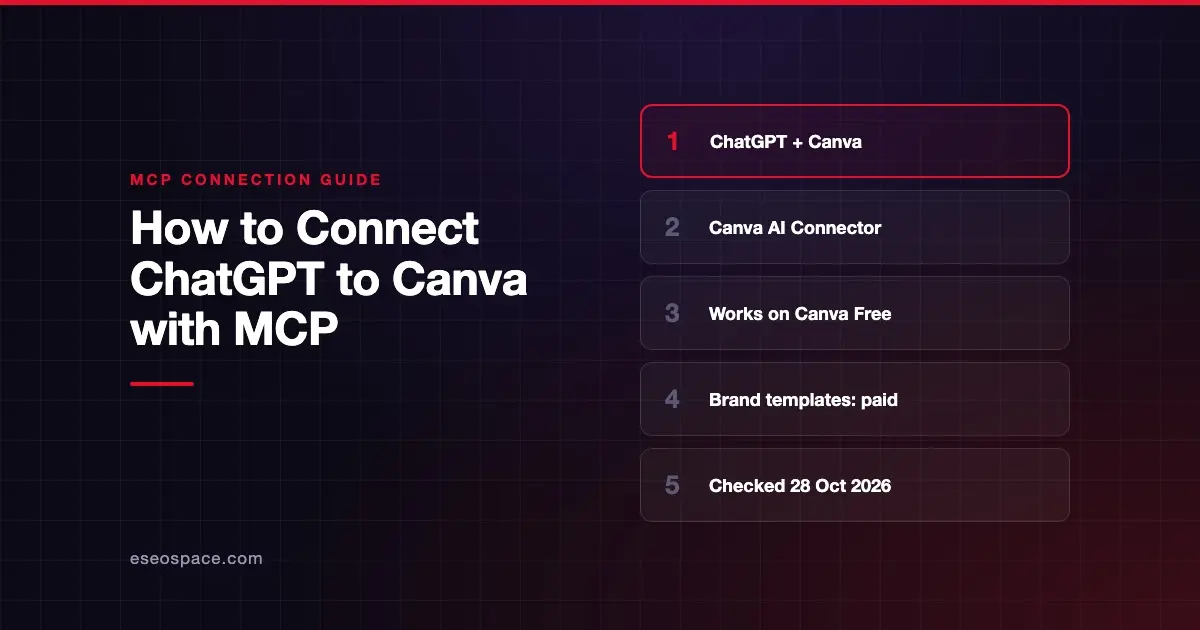
Connecting ChatGPT to Canva lets you describe a design in a chat, preview the options, and open the one you like in Canva to keep editing. You can also ask ChatGPT to find your existing designs, copy or resize them, and import a design from a URL. The connection runs through Canva's AI Connector. Canva's help center describes assistants linked this way as "connected to Canva MCP."
Checked against: Canva's guide to connecting ChatGPT and OpenAI's guide to connected apps in ChatGPT on 28 October 2026. eSEOspace did not run these steps; menus can change, so follow the vendor's page if it differs.
Key Takeaways
- Canva's documented route is the Canva plugin in ChatGPT, which you turn on from ChatGPT's settings and connect with your Canva sign-in.
- Canva says the plugin works with every Canva account, including Canva Free and Canva Education.
- Searching Brand Templates needs a paid Canva plan, and some brand features depend on your tier.
- In ChatGPT Business or Enterprise, a workspace admin must allow the app before you can connect.
- On a Canva team, an admin can switch the AI Connector off for everyone, which stops existing connections.
Before you start
You need a ChatGPT account and a Canva account. Canva says the plugin is "available for all Canva accounts, including Canva Free and Canva Education." Sign in to the Canva account you want to use before you start.
Some actions need a paid Canva plan. Canva lists Pro, Teams, Business, Nonprofit, Enterprise and Education as eligible for Brand Templates. Canva's pages differ on which plans include autofill, so check your plan in Canva if you need it. Canva also says some AI-powered actions may use your monthly Canva AI allowance.
On the ChatGPT side, OpenAI's plugins article says installing a plugin depends on your plan, workspace, role and region. Canva says that in ChatGPT Business or Enterprise, your workspace admin must enable Apps & Connectors first.
On a Canva team, the admin decides. Canva's AI Connector page says admins go to Admin Dashboard, then Controls and Permissions and Third-party integrations, and turn Canva's AI Connector on or off.
Steps
Canva's ChatGPT steps are:
- Open ChatGPT and select Settings.
- Select Plugins.
- Select Canva and follow the prompts to connect your Canva account.
- Sign in and authorize Canva if asked.
OpenAI's connected apps article fills in the ChatGPT labels you may see along the way: Install plugin if shown, then Connect, then a review of the requested permissions.
To confirm the connection, open Plugins in ChatGPT and check that Canva shows as connected or enabled.
To use it, say in your chat that you want the result in Canva. You can also type @ and pick Canva, or select + and choose it.
What about Canva's developer MCP server?
Canva also runs a developer MCP server at https://api.canva.com/connect/v1/mcp for teams building their own AI assistant. It needs an app in Canva's Developer Portal. Canva says the AI Connector is not the same as that developer server. For everyday use in ChatGPT, follow the steps above.
Check that it works
Canva suggests naming the design type, the style and any text in your prompt.
Example prompts:
- "Make an Instagram post in Canva announcing our fall sale, bold and minimal, with the text 'Fall Sale: 20% off'."
- "Find my existing Canva designs with 'pitch deck' in the title."
- "Copy my newsletter header design in Canva so I can make a new version."
Pick an option in the chat preview, then open it in Canva to keep editing.
Permissions and safety
Canva says that when the connector is on, a connected assistant can read design details and folders and create and edit designs. It uses the same permissions as the Canva Connect API.
- Team-wide switch. Canva admins can only turn the AI Connector on or off for the whole team. Canva says to leave it off if your organization isn't comfortable granting these permissions.
- What gets saved. Only designs you select in ChatGPT are saved to your Canva account.
- ChatGPT approvals. OpenAI's app permissions article lists Always ask, Allow read actions, Allow low-risk actions and Allow all actions. Always ask shows you each action first.
- Shared context. OpenAI notes that an enabled app such as Canva may use relevant context from your chat, and from memories if Memory is on, to build a design.
For wider risks, read the MCP Security Center and MCP security for small business.
If it doesn't work
These are the issues Canva's guide lists:
- "Access Restricted by Team Admin." Ask your admin to allow the Canva AI Connector under Controls and Permissions.
- Canva is missing or not working. In a managed ChatGPT workspace, ask the admin to enable it. Close and reopen ChatGPT, or disconnect Canva and reconnect it.
- Upgrade message on Brand Templates. You may be on Canva Free. You also only see templates that are shared with you.
- A Canva link won't open. ChatGPT sometimes makes links that look like Canva links but don't point to a real design. Open the design from the chat preview or your Canva projects.
Next step
Read the Canva MCP server profile for the full tool list and plan limits. If Canva is part of your marketing workflow, see MCP for marketing teams. Browse more setup guides in the connection guides hub, including Claude with Canva.
Frequently asked questions
Is the Canva plugin in ChatGPT free?
Canva says the plugin works on all Canva accounts, including Canva Free. Brand Templates need a paid Canva plan, and some AI actions may count toward your Canva AI allowance.
How do I disconnect Canva from ChatGPT?
Canva says to open Plugins in ChatGPT, find Canva, select the more menu, choose Manage, open the more menu again and select Disconnect. To remove it completely, select Uninstall instead.
Why aren't my ChatGPT designs in my Canva account?
Only designs you select in ChatGPT are saved. Choose Save or Open in Canva from the chat result.
Can I connect Canva to more than one AI assistant?
Yes. Canva says you can connect the same Canva account to multiple supported assistants, including ChatGPT, Claude, Gemini and Microsoft Copilot.