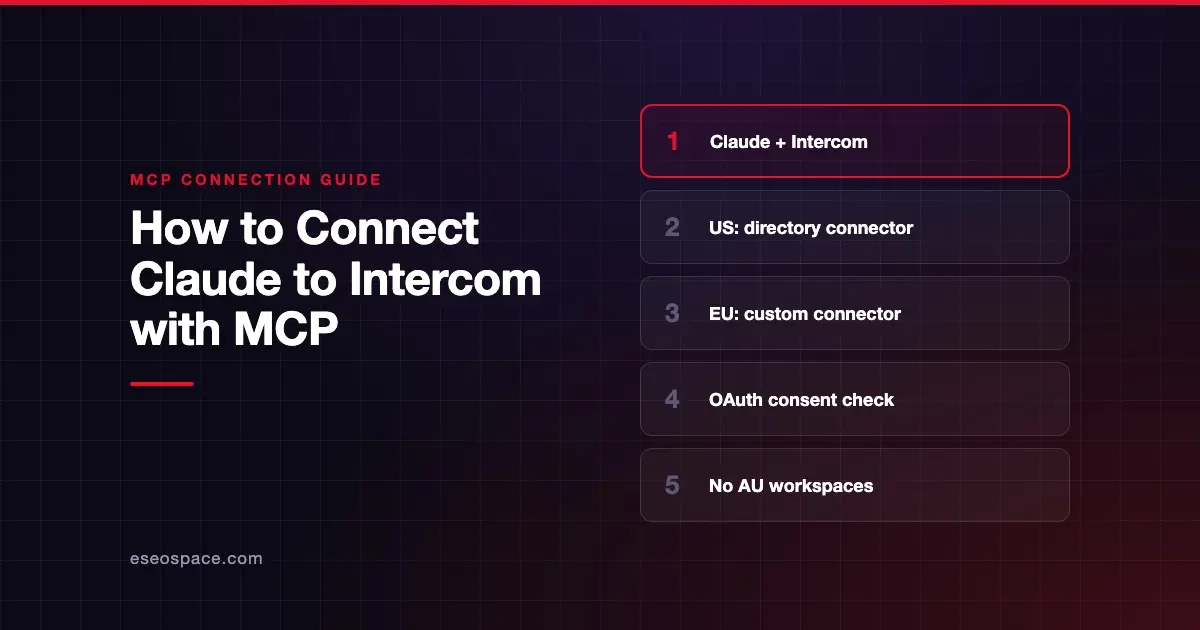
This guide is part of our MCP connection guides, within The MCP Guide. Steps are copied from the vendor's own documentation. Need a custom connection? See MCP development.
Connecting Claude to Intercom lets you search and read customer conversations, contacts, companies and Help Center articles from a chat. It can also add internal notes and create or update articles. Intercom hosts the MCP server and documents the Claude setup on its developer site.
Checked against: Intercom's MCP guide and Claude's guide to adding unlisted connectors on 28 October 2026. eSEOspace did not run these steps; menus can change, so follow the vendor's page if it differs.
Key Takeaways
- Intercom's connector in Claude's directory connects to US-hosted workspaces only.
- EU-hosted workspaces add Intercom as a custom connector with the EU server URL.
- AU-hosted workspaces are not supported yet, according to Intercom.
- Sign-in uses OAuth with two screens: Intercom's consent page, then its authorization screen. Check the redirect address before you click Allow.
- Most tools read data. The write tools add internal notes and create or update Help Center articles.
Before you start
- Know your region. Intercom says
app.intercom.comis a US-hosted workspace andapp.eu.intercom.comis EU-hosted. AU-hosted workspaces cannot use the MCP server yet. - A Claude plan that allows connectors. Claude's custom connector docs say custom connectors by URL work on Free, Pro, Max, Team and Enterprise plans. The Free plan allows one custom connector.
- On Team or Enterprise, an Owner adds it. Intercom says an org Owner adds the EU connector under Organization settings > Connectors. Directory connectors also need an Owner to add them for the organization first.
- Intercom permissions. The connection needs read access to users, companies and conversations, write access to conversations (for notes) and read and write access to articles. Intercom lists these as the required scopes.
Steps
US-hosted workspaces: use the directory connector
- In Claude, go to Customize > Connectors. In the desktop app, select Customize in the sidebar, then Connectors.
- Select Discover, search for Intercom in Search connectors, and open the listing. Claude's directory listing shows it as made by Intercom with this URL:
https://mcp.intercom.com/mcp- Select Connect to Claude. On Team or Enterprise, an Owner sees Connect for your team instead.
- Complete the two Intercom sign-in screens described below.
EU-hosted workspaces: add a custom connector
Intercom's guide gives this path for Claude.ai: Customize > Connectors > + Add > Add custom connector, using this URL:
https://mcp.eu.intercom.com/mcpOn Team or Enterprise, an Owner adds it under Organization settings > Connectors, and members then find it with a Custom label and click Connect. Claude's docs note that the layout of the Add custom connector dialog varies by organization. If yours asks about Authentication, Intercom uses OAuth, so choose a sign-in option rather than No sign-in.
Approve the connection in Intercom
Intercom says your browser shows two screens in order:
- The Intercom MCP consent page. It names the application asking to connect, lists what it can do, and shows its Client ID and the address it redirects to. Choose Allow to continue or Cancel to stop.
- Intercom's authorization screen. This authorizes the Intercom MCP server. Afterward you return to Claude.
Finally, turn the connector on in a chat: select + in the message box, choose Connectors, and switch Intercom on.
Check that it works
Intercom's server includes a search tool, fetch, and direct tools such as search_conversations, get_contact, list_companies and search_articles.
Example prompts
- "Find open email conversations that mention a refund and summarize the common issues."
- "Look up contacts from example.com and show their custom attributes."
- "Search our Help Center for articles about billing and list any still in draft."
If Claude returns results with links back into Intercom, the connection works.
Permissions and safety
- Check the redirect address. Intercom says the application name on the consent page is supplied by the app and not verified. Confirm the Redirects to address belongs to Claude before you choose Allow. If you did not start the connection, choose Cancel.
- Know the write tools.
add_internal_noteadds a note that only teammates see; it cannot send customer replies. A note on a snoozed conversation assigned to someone else reopens it.create_articleandupdate_articlechange Help Center content; new articles default to draft. - Notes carry your name. Intercom says notes are attributed to the admin who authorized the connection.
- Fin Operator tools. Workspaces with Fin Operator also get five Operator tools over OAuth. Intercom says
apply_proposalsapplies changes to your live workspace configuration, andsend_operator_messageuses Operator credits. - Limit tools in Claude. Claude's connector page has Tool permissions where you can set tools to Always allow, Needs approval or Blocked.
Conversation text comes from customers, so it can contain hidden instructions. Read MCP prompt injection and the MCP Security Center before you allow writes without approval.
If it doesn't work
Intercom's guide lists these problems:
- "We're having technical difficulties" after Allow. You probably used the wrong region's endpoint, such as the US URL for an EU workspace. Remove the connection and add it again with your region's URL.
- "Authorization could not be completed." The consent page expires after 15 minutes, and only one connection can be pending per browser. Start the connection again.
- 401 on
add_internal_note. The connection likely predates the Write conversations permission. Disconnect and reconnect. - Fin Operator tools listed but failing. A connection made before the Use Fin Operator permission existed must be reconnected.
- AU workspace. The MCP server isn't available for AU-hosted workspaces.
Next step
For the full tool list and scopes, read the Intercom MCP server profile. To connect other apps, see the MCP connection guides. If your support team wants a plan for which AI actions to allow, our MCP readiness audit is a good starting point.
Frequently asked questions
Why doesn't the Intercom directory connector work for my EU workspace?
Intercom says the directory connector in Claude connects to US-hosted workspaces. EU workspaces add a custom connector with https://mcp.eu.intercom.com/mcp. Intercom says EU requests are processed within the EU.
Can Claude reply to customers in Intercom?
No. Intercom says add_internal_note adds notes visible to teammates only and cannot send customer-visible replies. None of the documented tools send replies.
Can I connect with an API token instead of OAuth?
Intercom supports bearer tokens for clients that run mcp-remote, but OAuth is its recommended method. Bearer token connections do not get the Fin Operator tools. For Claude.ai, Intercom documents the OAuth connector routes above.
Does the connection see every conversation in the workspace?
Intercom says authentication checks the user's permissions before data is returned. Access follows the admin who authorized the connection and the scopes granted.