This guide is part of our MCP connection guides, within The MCP Guide. Steps are copied from the vendor's own documentation. Need a custom connection? See MCP development.
Connecting Claude to HubSpot lets you ask questions about your contacts, deals, tickets and campaigns, then create or update records from the chat. HubSpot builds the connector, and it reaches HubSpot through the HubSpot MCP server.
Checked against: HubSpot's connector article and Claude's guide to connectors on 28 October 2026. eSEOspace did not run these steps; menus can change, so follow the vendor's page if it differs.
Key Takeaways
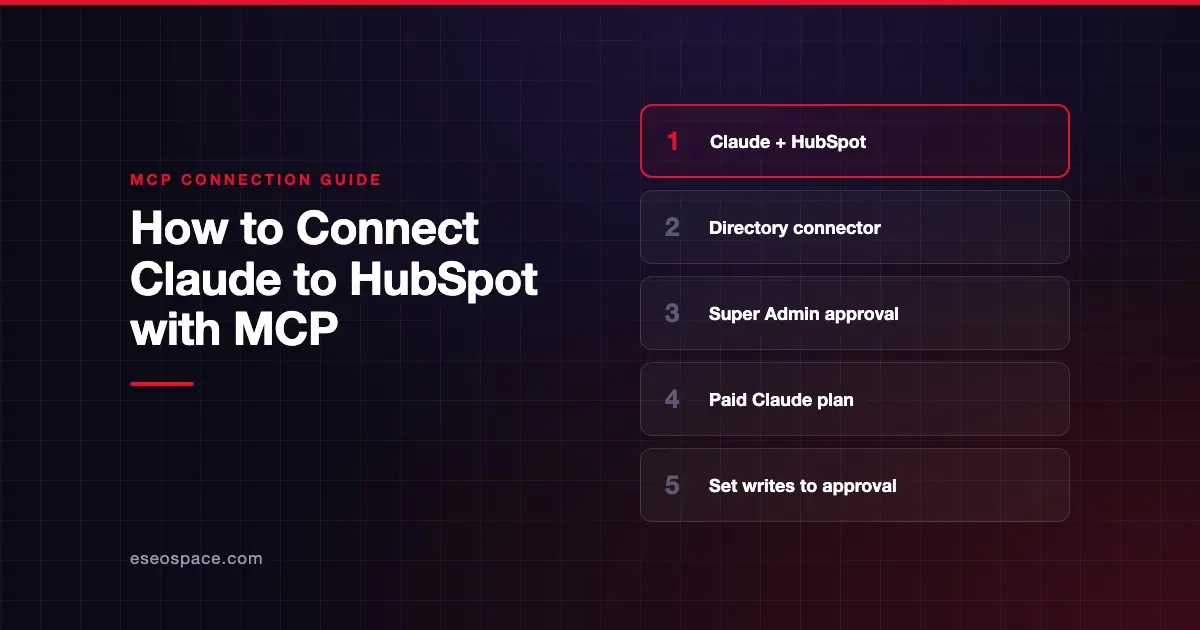
- HubSpot's connector is listed in Claude's Connectors Directory, so you add it from the directory rather than pasting a server URL.
- HubSpot says you need a paid Claude plan (Pro, Max, Team or Enterprise) and an active HubSpot user account.
- Super Admins and users with App Marketplace Access can connect right away. Everyone else needs a Super Admin to approve the connector first.
- The connector can read, create and update records, but HubSpot says it does not delete anything.
- HubSpot recommends setting the connector's write tools to "Needs Approval" in Claude.
Before you start
HubSpot's connector article lists these requirements:
- A paid Claude plan. Pro, Max, Team or Enterprise. The Free plan is not listed.
- An active HubSpot user account. The connector works with any HubSpot product and plan, though some objects depend on your subscription.
- Approval, if you are not an admin. Super Admins and users with App Marketplace Access permissions can connect without prior approval. For everyone else, a Super Admin approves the connector and chooses which data permissions it gets and who can install it.
- One HubSpot account at a time. HubSpot says you can only connect one HubSpot account to a Claude account. Partners switch accounts by disconnecting and reconnecting.
On Claude Team and Enterprise plans, an Owner adds a directory connector for the organization before members can connect, per Claude's connector docs.
Steps
- HubSpot Super Admin (if needed): approve the connector by following HubSpot's steps to review and approve apps. During approval, select the optional data permissions and who in the account may install it.
- In Claude, open the Connectors page. Go to Customize > Connectors. In the desktop app, select Customize in the sidebar, then Connectors.
- Find HubSpot. Select Discover, type HubSpot in Search connectors, and open its listing. Claude's directory listing shows it as made by HubSpot, with this connector URL:
https://mcp.hubspot.com/anthropic- Start the connection. Select Connect to Claude. On Team or Enterprise, an Owner sees Connect for your team, which adds it for everyone.
- Sign in to HubSpot. Choose the HubSpot account you want to use and log in.
- Grant permissions. On the Connecting HubSpot Connector for Claude to HubSpot page, select the permissions to allow, then click Connect app.
- Turn it on in a chat. Select + in the message box, choose Connectors, and switch HubSpot on.
HubSpot's own article still describes the older Claude path (profile icon, Settings, Connectors, Browse). Claude's current docs use Customize > Connectors. The HubSpot steps after sign-in are the same either way. HubSpot says the connector works on Claude's web, desktop and mobile apps with the same steps.
Check that it works
Start with a read-only question, then try one small write. HubSpot suggests prompts like these in its article.
Example prompts
- "Summarize my active deals by name, amount and stage, sorted by closing date."
- "Which marketing email subject lines got the most clicks last month?"
- "Log a note on ticket [ticket name] summarizing the resolution approach."
For a write, Claude may show the proposed change and ask you to confirm. HubSpot says to type Yes to confirm, and then a View [record type] in HubSpot link opens the record.
Permissions and safety
- Your HubSpot permissions still apply. HubSpot says users only reach data their existing HubSpot permissions allow.
- Writes are logged. Creates and updates are recorded in HubSpot's Audit Log under both the user and the Claude connector.
- No deletes. HubSpot says the connector supports view, create and update, not delete.
- Bulk limit. You can create or update only 10 records at a time.
- Set write tools to approval. HubSpot recommends setting Write tools to Needs Approval in the connector's tool settings. With Always allow, edits may happen without asking. Claude's docs place these options under Tool permissions on the connector's page.
- Sensitive Data. If your account has Sensitive Data turned on, Claude cannot read any engagement data.
Emails and chat messages pulled into Claude can carry hidden instructions. Read MCP prompt injection and the MCP Security Center before you let Claude write at scale. Our lesson on permissions and approvals explains how approval prompts work.
If it doesn't work
HubSpot's article names these cases:
- No write access or engagement data. Disconnect and reconnect your HubSpot account to pick up write and engagement permissions.
- New objects missing after an admin change. When a Super Admin updates the connector's data permissions, each user must reconnect to gain the new access.
- Wrong HubSpot account. Disconnect, then reconnect and pick the other account. To disconnect, open the HubSpot connector in Claude's connector settings and click Disconnect.
- Partner client data missing. If you have a Partner Seat, mention the Partner Client Object in your prompt.
- Page or blog numbers missing. Only published pages and posts return data, and per-page performance needs a campaign name and date range in the prompt.
If you can't find the connector at all, check that you are on a paid Claude plan and, on Team or Enterprise, that an Owner has added it.
Next step
Once the connection works, read the HubSpot MCP server profile for the full tool list and limits. For other apps and clients, browse the MCP connection guides. If you want help deciding which HubSpot actions Claude should take on its own, book an MCP readiness audit.
Frequently asked questions
Can I use the HubSpot connector on Claude's free plan?
HubSpot says you need a paid Anthropic subscription: Pro, Max, Team or Enterprise. The Free plan is not on that list.
Can Claude delete HubSpot records?
No. HubSpot says the connector supports view, create and update actions only. You can still delete any data, including data added through Claude, directly in HubSpot.
Is my HubSpot data used to train Claude?
HubSpot's article says Anthropic does not use data shared through HubSpot to train its models, except in cases such as when a customer gives feedback or opts in to training. Your Anthropic plan's terms apply.
Does the connector respect EU data hosting?
HubSpot says requests are routed through your HubSpot data center, so EU-hosted accounts go through HubSpot's EU data center. Once data is in Claude, your Anthropic terms govern where it is processed.