



WooCommerce shipping and tax setup: zones, classes, labels and automated tax
WooCommerce shipping and tax setup: zones, classes, labels and automated tax
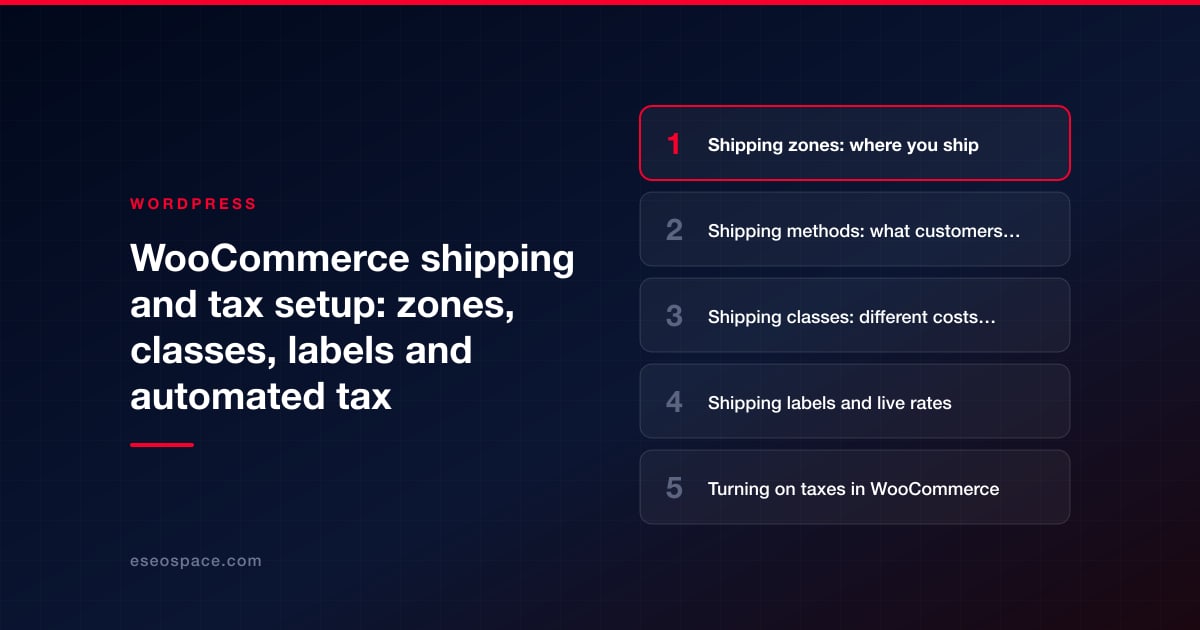
Shipping and tax are the two WooCommerce settings most likely to cost you money if they are wrong: undercharge for shipping and you pay the difference, collect the wrong sales tax and you may owe it later. Both are built into core WooCommerce, and both can be extended with plugins when the built-in tools are not enough.
For shipping, WooCommerce uses shipping zones (where you ship), shipping methods (flat rate, free shipping, local pickup) and shipping classes (groups of products that cost different amounts to ship). For tax, you either enter tax rates yourself or turn on an automated tax service that calculates rates at checkout.
This guide walks through each setting as of October 2026, explains what the free WooCommerce Shipping and WooCommerce Tax plugins do (and do not do), and lists third-party options. It explains software settings only; it is not tax advice. Ask a qualified tax professional where and how much you need to collect.
Key Takeaways
- Shipping zones are matched from top to bottom, and each customer matches only the first zone that fits their address.
- Core WooCommerce includes Flat Rate, Free Shipping and Local Pickup; shipping classes let you charge more for bulky or heavy items.
- WooCommerce Shipping is a free plugin for US-based stores to buy and print discounted labels, but it does not show live carrier rates at checkout.
- Taxes are off until you enable them; you can enter rates manually, import a CSV, or use an automated tax plugin.
- Automated tax tools calculate tax at checkout but, in WooCommerce Tax's case, do not file returns, remit tax or decide where you owe it.
Shipping zones: where you ship
A shipping zone is "a geographical area to which you ship items", according to WooCommerce's shipping zones documentation. A zone can be a country, a group of countries, a state, a continent or a list of postcodes. You set them up under WooCommerce > Settings > Shipping > Shipping zones.
Three rules matter most:
- Order matters. Zones are matched from the top of the list to the bottom, and a customer gets the first zone they match. Put specific zones (a postcode range) above broad ones (the whole country).
- Postcodes can use ranges and wildcards. For example, 902* matches 90210 and 90288-1234.
- "Rest of the world" applies to any address that matches none of your zones. Leave it without methods if you do not ship there.
A typical US store might have zones for local delivery (a postcode list), the contiguous US, Alaska and Hawaii, Canada, and everywhere else.
Shipping methods: what customers pay
Each zone gets one or more shipping methods. Core WooCommerce includes three:
| Method | What it does | Useful settings |
|---|---|---|
| Flat Rate | Charges a fixed or formula-based cost per order, item or shipping class | Cost formulas such as "10 + ( 2 * [qty] )", per-class costs, tax status |
| Free Shipping | Shows a free option when conditions are met | No requirement, a free shipping coupon, a minimum order amount, either, or both |
| Local Pickup | Lets customers collect orders | In the block checkout, multiple pickup locations with addresses and details |
For Free Shipping with a minimum order amount, WooCommerce adds a checkbox, "Apply minimum order rule before coupon discount", which decides whether the minimum is checked before or after coupons. Decide this deliberately; otherwise a large coupon can push an order below your threshold.
The block checkout's local pickup uses pickup locations, and WooCommerce uses the pickup address to calculate tax when a customer chooses it. Our guide to checkout blocks covers this.
Shipping classes: different costs for different products
Shipping classes group products that cost different amounts to ship, such as "bulky" or "small items". Create them under WooCommerce > Settings > Shipping > Classes, then assign one in each product's Shipping tab (variations can each have their own). Each product can have only one shipping class.
Classes do nothing on their own. You give each class a cost inside a Flat Rate method, then choose a calculation type:
- Per class: charges each class in the cart separately. A cart with a Heavy item ($10) and a Small item ($1) pays $11.
- Per order: charges only the most expensive class. The same cart pays $10.
See WooCommerce's flat rate documentation for the full formula syntax, including percentage fees with minimums and maximums.
Shipping labels and live rates
Core WooCommerce calculates what the customer pays; it does not buy postage. For labels, WooCommerce offers the free WooCommerce Shipping plugin (70,000+ active installs on WordPress.org as of October 2026). According to its listing and documentation:
- It lets you buy and print discounted labels from your WooCommerce dashboard without separate carrier accounts. The plugin listing names USPS, UPS and DHL; WooCommerce's documentation also lists FedEx.
- Labels are charged to the payment method saved on the WordPress.com account that connected your site.
- It includes split shipments, tracking numbers added to order emails, and optional address verification at checkout.
- It is available to stores based in the United States (including US territories) that use US dollars. You can still ship internationally.
- It does not provide live shipping rates at checkout. WooCommerce suggests its UPS, USPS or FedEx shipping method extensions for that.
WooCommerce Shipping replaced the label features of the older "WooCommerce Shipping & Tax" plugin, which is now called WooCommerce Tax. Other options include carrier-specific extensions, table-rate plugins such as Flexible Shipping (100,000+ installs, free with a PRO upgrade), and third-party shipping platforms that connect to WooCommerce.
Turning on taxes in WooCommerce
Taxes are off by default. To enable them, go to WooCommerce > Settings > General and tick "Enable tax rates and calculations". A Tax tab then appears. The main options, described in WooCommerce's tax setup guide:
- Prices entered with tax: whether your product prices include tax or exclude it. When you turn on WooCommerce Tax's automated taxes, it sets prices to exclude tax.
- Calculate tax based on: customer shipping address (default), customer billing address, or shop base address.
- Shipping tax class: by default inherits from cart items, or set a specific class.
- Rounding: round tax at subtotal level instead of per line.
- Additional tax classes: "Standard" plus classes you create, such as "Reduced rate" or "Zero rate", for products taxed differently.
- Display settings: show prices including or excluding tax in the shop and at checkout.
Manual tax rates
With manual rates, you add rows to a tax rate table for each class. Each row can include country code, state, postcode or ZIP, city, rate %, tax name, priority, whether the rate is compound, and whether it applies to shipping. You can import and export rates as CSV; WooCommerce provides a sample US state-level file.
Manual rates work well when you collect tax in only a few places with simple rules. They become hard to maintain when you collect in many US states with local rates, or when product taxability varies, because you must keep every rate current yourself.
Automated tax options
Automated tax plugins look up rates at checkout. When automated taxes are on, WooCommerce's manual settings are grayed out. Options as of October 2026:
| Plugin | Active installs (WordPress.org) | Pricing model | What its own pages say |
|---|---|---|---|
| WooCommerce Tax | 500,000+ | Free plugin | Automated tax for the US, Canada, Australia, the UK and EU countries; requires a WordPress.com connection; does not file or remit |
| Stripe Tax for WooCommerce | 30,000+ | Usage-based Stripe Tax pricing | Tax calculation for all US states and 50+ countries, with reports to help you file |
| TaxJar for WooCommerce | 5,000+ | Order-based TaxJar pricing (quote from TaxJar) | Sales tax automation; no setup, connector or filing fees per its listing |
According to WooCommerce's WooCommerce Tax documentation, the plugin "does not file returns, remit tax, or determine where your business has a tax obligation," and for US stores it handles only your primary store location; other states where you collect need manual rates. Read those limits before relying on it as a multi-state solution.
A practical setup order
- Set your store address and currency in WooCommerce > Settings > General.
- Create shipping zones from most specific to broadest.
- Add methods to each zone, and leave "Rest of the world" empty if you do not ship there.
- Create shipping classes for products that cost more to ship, and assign them.
- Ask your accountant where you must collect tax, then enable taxes and choose manual or automated rates.
- Test checkout with addresses in each zone and each tax location, including a coupon and local pickup.
- Review shipping costs against real label costs after the first month.
Shipping costs are a common reason shoppers abandon carts, so show them early. Our posts on improving WooCommerce checkout and managing WooCommerce inventory cover related setup.
Conclusion
WooCommerce's core tools cover most stores' shipping and tax needs: zones decide where you ship, methods and classes decide what customers pay, and tax settings decide what you collect. Add WooCommerce Shipping for discounted US labels, a carrier extension for live rates, and an automated tax plugin when manual rates become hard to maintain, keeping in mind that none of them replaces advice on your tax obligations. More guides are in our WordPress hub, including what WooCommerce costs. eSEOspace can configure and test shipping and tax as part of our WordPress development projects.
Frequently asked questions
Why is a shipping method not showing at checkout?
Usually the address matched a different zone higher in the list, or matched "Rest of the world" with no methods. Check zone order and postcodes, and for free shipping, check its minimum and coupon rules.
Does WooCommerce Shipping show live rates to customers?
No. It is for buying and printing labels. For live carrier rates at checkout, WooCommerce points to its UPS, USPS and FedEx shipping method extensions.
Is WooCommerce Tax free?
The WooCommerce Tax plugin is free on WordPress.org and needs a WordPress.com connection. It calculates tax at checkout but does not file returns or remit tax.
Can WooCommerce file my sales tax returns?
Core WooCommerce cannot, and WooCommerce Tax does not. Some third-party services offer filing or filing-ready reports; check each provider's own terms.
Should prices include or exclude tax?
WooCommerce supports both. Which one fits depends on your market's rules and customer expectations, so confirm with your accountant. If you use WooCommerce Tax's automated taxes, it switches prices to exclude tax.
Put this into action with eSEOspace
We help businesses grow with website design that actually performs. Explore the services behind this guide:
Get a FREE Audit
We'll perform a comprehensive SEO, AEO, GEO & CRO audit of your website — completely free — and show you exactly how to outrank your competitors.
Don't have a site yet? Get in touch →
Get a FREE GEO/AEO/SEO Audit
We'll analyze your site's SEO, GEO, AEO & CRO — completely free — and show you exactly how to get found across Google and AI answers.
Don't have a site yet? Get in touch →
Great — your audit is on the way!
We'll send your free SEO/GEO/AEO/CRO audit within the next few hours. Where should we send it?
You're all set! ✓
Your free audit is being prepared — check your inbox in the next few hours. Talk soon!


On this page






