
This article is part of The MCP Guide, our plain-English reference on the Model Context Protocol.
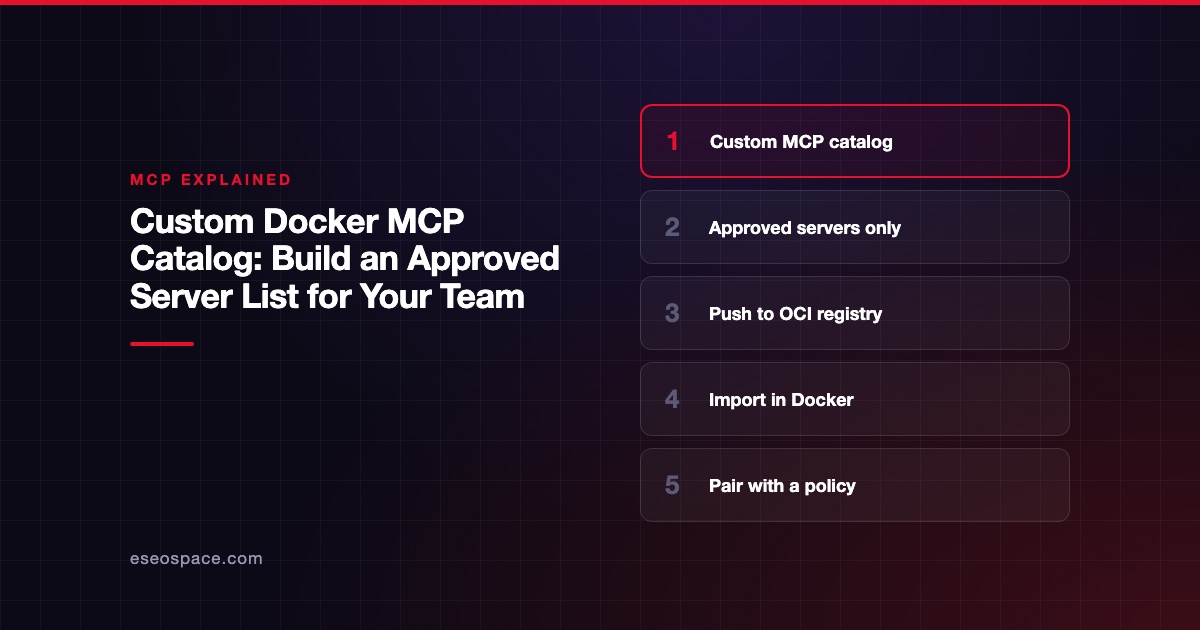
A custom Docker MCP catalog is your own list of approved MCP servers, stored as an image in a container registry, that your team imports into Docker Desktop instead of browsing Docker's full catalog. You build it with docker mcp catalog create, add servers, push it with docker mcp catalog push, and teammates pull it with docker mcp catalog pull or the Import catalog button.
It is the Docker way to answer a common IT question: "Which MCP servers are people allowed to use?" This guide explains how custom catalogs work, the commands Docker documents, and how to fit them into an approval process. It was checked against Docker's docs on 2 November 2026; eSEOspace did not run these commands for this article.
Key Takeaways
- Docker's public catalog lists 300+ servers; a custom catalog shows only the ones you choose.
- Catalogs are referenced by OCI reference, for example
registry.example.com/mcp/my-catalog:latest. - You can start from a copy of Docker's catalog or build from scratch with
catalog://anddocker://server references. - Creating and managing custom catalogs needs the
docker mcpCLI in Docker Desktop 4.62 or later. - Teammates import a catalog in Docker Desktop under MCP Toolkit > Catalog > Import catalog.
- A catalog limits what people see, but you still need a review process and narrow credentials.
Why build a custom catalog
Docker's catalog docs say you can define which servers are available "Instead of exposing all 300+ servers in the Docker catalog." Among the use cases Docker lists: "Restrict which servers your organization approves for use."
Good reasons to build one:
- Fewer risky choices. Staff pick from servers someone already reviewed.
- Internal servers. Your own MCP servers, packaged as images, sit next to approved public ones.
- Consistency. Everyone gets the same versions and settings.
- Smaller tool lists. Fewer servers means fewer tool definitions in each AI session.
If you have not set up the Toolkit yet, start with our Docker MCP Toolkit setup guide.
How catalogs are stored
Docker's CLI how-to says catalogs are "referenced by OCI reference, for example registry.example.com/mcp/my-catalog:latest." OCI is the open standard behind container images, so any registry that holds images, such as Docker Hub or a private company registry, can hold your catalog.
Servers inside a catalog are referenced in two ways:
catalog://points to a server in another catalog, such as Docker's.docker://points to a container image, such as your own internal server.
Build a catalog step by step
The commands below come from Docker's CLI docs. Replace registry.example.com/mcp/... with your registry path.
Option A: Start from Docker's catalog
Copy Docker's catalog under your own reference, then trim or add:
docker mcp catalog tag mcp/docker-mcp-catalog registry.example.com/mcp/team-catalog:latestOption B: Create a new catalog
docker mcp catalog create registry.example.com/mcp/data-tools:latest \
  --title "Data Analysis Tools" \
  --server catalog://<catalog-ref>/<server-id>
Repeat --server to include several servers.
Add, list and remove servers
# Add your own server image
docker mcp catalog server add registry.example.com/mcp/data-tools:latest --server docker://<image>:<tag>

# See what is in the catalog
docker mcp catalog server ls registry.example.com/mcp/data-tools:latest
docker mcp catalog show registry.example.com/mcp/data-tools:latest

# Remove a server
docker mcp catalog server remove registry.example.com/mcp/data-tools:latest --name <server-name>
Docker's docs also show a simple server definition file you can reference with file://:
name: my-server
title: My Server
type: server
image: myimage:latest
description: Description of the server
Publish it
docker mcp catalog push registry.example.com/mcp/data-tools:latestMake sure your team has pull access to that registry path, and that only the catalog owners can push to it.
Use the catalog on each machine
Teammates import it one of two ways, per Docker's catalog docs:
- In Docker Desktop: MCP Toolkit > Catalog > Import catalog, enter the OCI reference, then select Import.
- On the command line:
docker mcp catalog pull registry.example.com/mcp/data-tools:latestFrom there, they add servers to a profile and connect their client as usual. The CLI docs also show running the gateway straight from a catalog with docker mcp gateway run --catalog <oci-reference>.
Fit it into an approval process
A catalog is a delivery tool, not a review process. Pair it with a short policy:
- Request. Someone asks for a server and explains the job it does.
- Review. Check the publisher, license, tools, required scopes and data it touches. Our MCP server risk checklist gives a quick list.
- Decide scopes. Note which tools are allowed and which credentials to issue. The tool permission planner helps.
- Add and push. Add the server to the catalog with a pinned image tag, then push.
- Re-review. Recheck on version updates. Servers can change behavior after approval, as our guide to rug pull attacks explains.
Our playbook on building an approved MCP server list covers the full process.
Naming and versioning tips
Small habits keep a catalog manageable as it grows:
- One catalog per audience. A "data-tools" catalog for analysts and a "dev-tools" catalog for engineers keep each list short and relevant.
- Pin image tags. Reference a specific version of each server image rather than
latest, so an upstream change cannot reach staff before you review it. - Tag catalog releases. Push a new catalog tag when you add or remove servers, and keep a short changelog in the repository that builds it.
- Write a description per server. Say what it is approved for and which credentials to use. People read this when they choose a server.
- Name an owner. Every catalog needs one person who approves changes and answers questions.
What a catalog does not do
Be clear with your team about the limits.
- It does not enforce itself on every device. Docker's catalog and Toolkit pages describe importing and choosing servers, but not a setting that stops someone from using other catalogs. Docker's MCP Gateway docs say its MCP Gateway "as part of Docker AI Governance is an invite-only feature," and Docker sells a separate MCP Enterprise Gateway through sales. For enforced policy, talk to Docker or compare other MCP gateways.
- It does not cover non-Docker clients. Remote connectors added directly in Claude or ChatGPT bypass Docker entirely.
- It does not vet code. Docker signs its own catalog images, but your internal images are only as safe as your build process. See MCP supply chain risks.
Next step
Start with five to ten servers your teams already use, pin their versions, and publish the catalog. Then add a request form. If you need internal MCP servers packaged as images for the catalog, our MCP development team can help, and IT leads may want our guide to MCP governance.
More in the MCP Guide
Latest research: State of MCP: October 2026
Frequently asked questions
Do I need Docker Desktop to create a custom catalog?
Docker's docs say creating and managing custom catalogs requires the CLI, and that the docker mcp commands are available in Docker Desktop 4.62 and later. On Linux with Docker Engine only, the gateway docs describe installing the CLI plugin from GitHub releases.
Can I include servers that are not in Docker's catalog?
Yes. Use a docker:// reference to any container image, including your own internal servers.
Where should I host the catalog?
Any OCI-compatible registry you control, such as a private registry your company already uses for container images. Limit push access to the catalog owners.
How is this different from the public MCP Registry?
The MCP Registry is a public metadata list that does not support private servers. A custom Docker catalog is your own private list of approved, containerized servers.