This guide is part of our MCP setup guides, within The MCP Guide. Paths are checked against each app's documentation on the date shown.
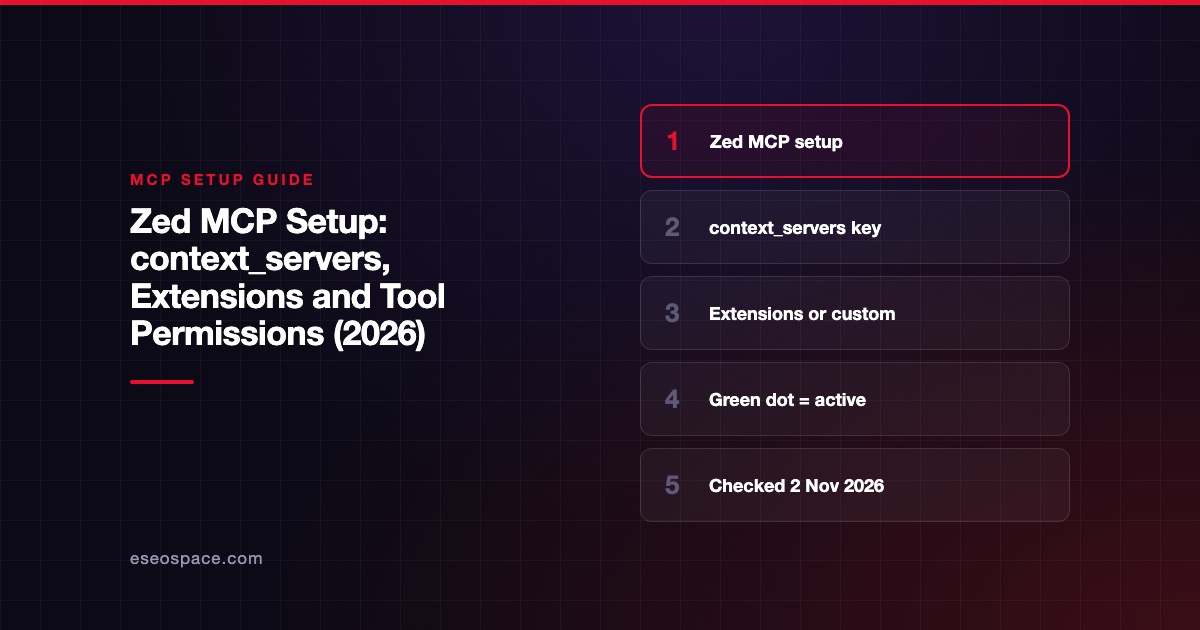
Zed calls MCP servers "context servers." You can add one in two ways: install it as a Zed extension, or add it yourself from Settings > AI > MCP Servers with Add Server. Either way, custom servers end up under the context_servers key in Zed's settings.json, not under mcpServers like most other apps.
Once a server is added, a green dot next to its name in the MCP Servers settings means it is running. This guide covers both install routes, local and remote examples, OAuth and the permission settings that decide when Zed asks before using a tool.
Checked against: Zed's MCP documentation and Zed's settings reference on 2 November 2026. eSEOspace did not test Zed for this guide.
Key Takeaways
- Zed stores custom MCP servers under
context_serversinsettings.json; copying anmcpServersblock from Claude Desktop will not work unchanged. - Many popular servers, such as Context7 and GitHub, install as Zed extensions with a setup prompt.
- Remote servers with no
Authorizationheader trigger Zed's standard MCP OAuth sign-in. - Zed supports MCP tools and prompts, and reloads tools when a server sends
notifications/tools/list_changed. agent.tool_permissions.defaultsets whether tools ask, run or are blocked; per-tool rules usemcp:<server>:<tool>.
Option 1: Install an MCP extension
Zed's docs list three ways to find MCP extensions:
- The Zed extensions site, filtered to context servers.
- The zed: extensions action in the Command Palette.
- Settings > AI > MCP Servers, then Add Server > Install from Extensions.
Popular extensions named in the docs include Context7, GitHub, Puppeteer, Brave Search, Framelink Figma and Resend. After you install one, Zed shows a modal listing what it needs. The docs give the GitHub extension's Personal Access Token as an example.
Option 2: Add a custom server
- Open Settings > AI > MCP Servers (or run agent: open settings and select MCP Servers).
- Click Add Server, then Add Local Server or Add Remote Server.
- Fill in the form. Zed writes the entry to your settings file.
You can also edit the file directly with zed: open settings file. Zed's docs show this shape:
{
  "context_servers": {
    "local-mcp-server": {
      "command": "some-command",
      "args": ["arg-1", "arg-2"],
      "env": {}
    },
    "remote-mcp-server": {
      "url": "https://example.com/mcp",
      "headers": { "Authorization": "Bearer <token>" }
    },
    "remote-mcp-server-with-oauth": {
      "url": "https://mcp.example.com/mcp"
    }
  }
}
Checked against Zed's docs on 2 November 2026. To convert a Claude Desktop entry, copy what is inside mcpServers and paste it inside context_servers instead. The free MCP config generator produces the inner server block.
Where the settings file lives
Zed's MCP page only says to open the file with zed: open settings file. Its settings reference refers to user settings and project settings in .zed/settings.json, with project settings "merged on top of user settings." Devin's import docs, which read Zed config, list the global file as ~/.config/zed/settings.json. Using the command avoids guessing on your OS.
Zed's settings reference also says that once a project is trusted, "language and MCP servers are downloaded and started automatically." Review a project's .zed/settings.json before trusting a repository you did not write.
Remote servers and OAuth
Zed's docs say: "When a remote MCP server has no configured Authorization header, Zed will prompt you to authenticate yourself against the MCP server using the standard MCP OAuth flow." So for a hosted server that supports OAuth, just add the URL and sign in when asked. For servers that use API keys, add the key as a header instead.
Check the server is running
Open Settings > AI > MCP Servers and look at the dot next to the server's name. The docs say "if it's running correctly, the indicator will be green and its tooltip will say 'Server is active'." Other colors and tooltips explain what is wrong, such as a missing command or a failed sign-in.
Then open the Agent Panel and ask for something the server can do. The docs note that how reliably tools get called "can vary from model to model," and that naming the server in your prompt helps.
Make Zed use the server's tools
If the agent keeps choosing its built-in tools, create a custom profile. Zed's docs suggest one where built-in tools that overlap are turned off and only the MCP server's tools are on. Their example is the Dagger team's Container Use profile.
Tool permissions
Since Zed v0.224.0, tool approval is set by agent.tool_permissions.default. It accepts "confirm" (the default), "allow" or "deny". You can override single MCP tools with keys in the form mcp:<server>:<tool_name>, such as mcp:github:create_issue.
A sensible start is to keep the default at "confirm" and only allow read-only tools you trust. Our tool permission planner helps sort tools into read and write.
What Zed supports
The docs say Zed "currently supports MCP's Tools and Prompts features." Resources, sampling and elicitation are not listed as supported. Zed can also forward its configured servers to external agents over ACP (Agent Client Protocol), while terminal-based agents read their own MCP configs.
Common mistakes
- Using
mcpServersin Zed's settings. The key iscontext_servers. - Adding a header and expecting OAuth. Zed only starts OAuth when no
Authorizationheader is set. - Trusting a project without reading its settings. Trusted projects can start MCP servers automatically.
- Expecting resources to work. Zed's docs list tools and prompts only.
Next step
See how Zed compares in Zed vs Cursor for MCP, or pick servers from best MCP servers for developers. The Context7 MCP server profile covers one of the most common first installs.
More in the MCP Guide
Free tools: MCP Config Generator · Client Support Matrix
Latest research: State of MCP: October 2026
Frequently asked questions
What is a context server in Zed?
It is Zed's name for an MCP server. Custom ones are configured under context_servers in settings.json.
How do I know my Zed MCP server is working?
Open Settings > AI > MCP Servers. A green dot with the tooltip "Server is active" means it is running.
Does Zed support remote MCP servers?
Yes. Add a server with a url. If you leave out an Authorization header, Zed starts the standard MCP OAuth sign-in.
Can I stop Zed from running MCP tools without asking?
Yes. Keep agent.tool_permissions.default at "confirm", or set specific tools to "deny" using the mcp:<server>:<tool_name> format.